
Medulla writes your note from what was said in the visit. When you examine a patient quietly, or settle on a plan without saying it aloud, your findings, assessment or plan can come back empty or with only a line or two. With AI fills in the gaps turned on, Medulla completes those sections from the visit before you copy the note, the way you would have written them yourself.
The note is still a draft. You read it, keep what is right, and edit or remove anything else before it goes into the chart.
Turning it on
The setting is off until you turn it on, and it applies only to you.
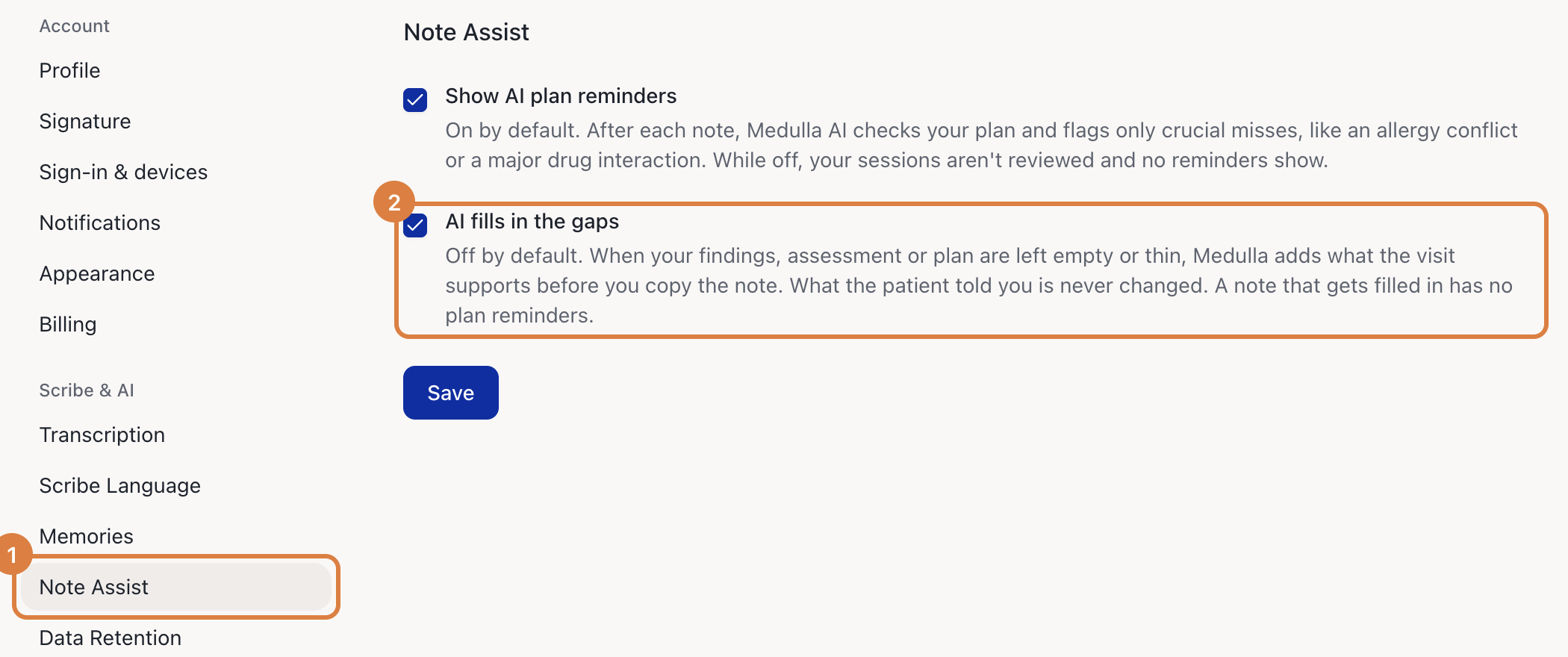
In the Medulla web app, open Settings and click Note Assist under Scribe & AI.
Tick AI fills in the gaps and click Save.
From your next note on, it works in the web app and in the EMR drawer alike.
Which notes get filled in
Medulla steps in only when one of your own sections is missing something:
Findings (such as Objective or Examination) or Assessment came back empty.
Plan came back empty, or with two items or fewer.
A note that is already complete is left exactly as it was. It works with the ready-made note templates, dental ones included. Notes written with your own custom templates are not filled in. On a phone visit, no examination findings are added.
What gets added, and what never changes
Medulla writes as the clinician who just saw the patient, from the transcript, the note so far and your clinical notes. It follows the note's style and adds a few concise lines to each thin section: findings in examination notation, a working diagnosis, and the plan that follows from it.
What the patient told you, such as the history, symptoms, medications and allergies, is never changed.
Anything you declined, ruled out or decided to wait on in the visit is left out.
Lines already in your note stay as they are. New lines are added after them.
While the gaps are being filled in
Your note appears as soon as it is written. If it needs filling in, it shows Filling in the gaps for a few seconds, and copy, edit and regenerate wait until it is done. Billing suggestions, tasks and any letters you asked for are prepared from the finished note, so they reflect what was added.
Reviewing what was added
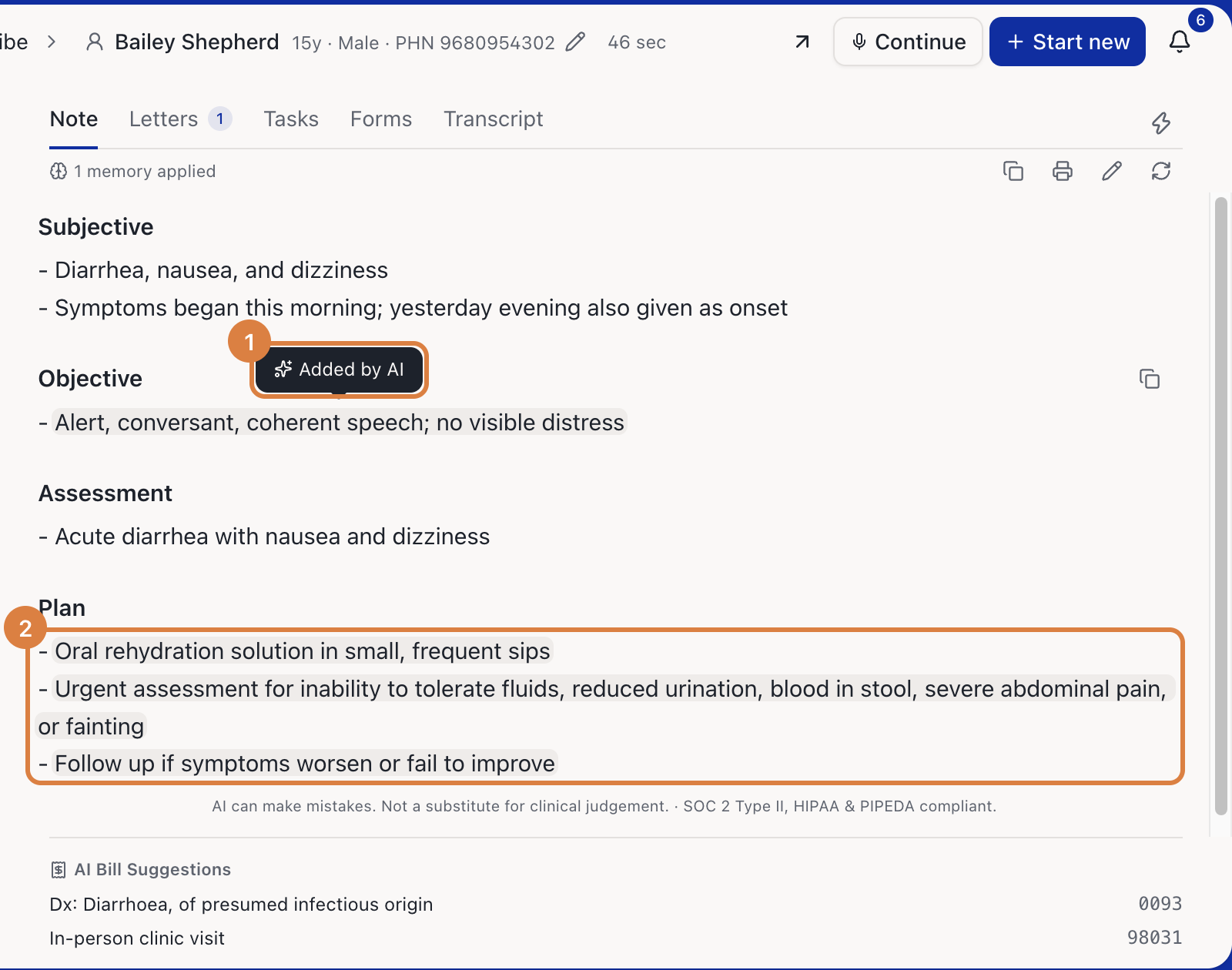
Hover over a shaded line to see Added by AI.
Every line Medulla added is shaded in light grey, so you can tell it apart from what was written from the visit.
Edit a shaded line and the shading goes, since the line is now yours. The shading is only on screen: when you copy the note or send it to the chart, it goes in as plain text.
Read the shaded lines before you copy the note. They are mere suggestions and starting points by Medulla, which can make mistakes.
Plan reminders
A note that gets filled in does not show plan reminders. Notes that don't need filling in still get plan reminders as usual, as long as Show AI plan reminders is on.
Regenerating or continuing a session
When you regenerate the note or continue the session, the new note is checked again and filled in if it needs it. The shading then marks what was added to the new note.