If you work across multiple clinics or practices, you do not need to create a separate Medulla account for each location. You can sign in to Medulla using the same account across all of your practices.
Depending on the EMR used at each location:
If the practice uses a supported EMR, use the Medulla browser extension.
If the practice uses an unsupported EMR, sign in to the Medulla web app to conduct your encounters.
Supported EMRs
Medulla currently support the following EMRs:
Med Access
Oscar 19
Oscar Pro
Juno
Open OSP
Avee Health
Avaros
How to Add a New Practice
Follow the steps below to add a new practice to your Medulla account:
Sign in to the Medulla web app. For detailed instructions, see How to Sign In to the Medulla Web App.
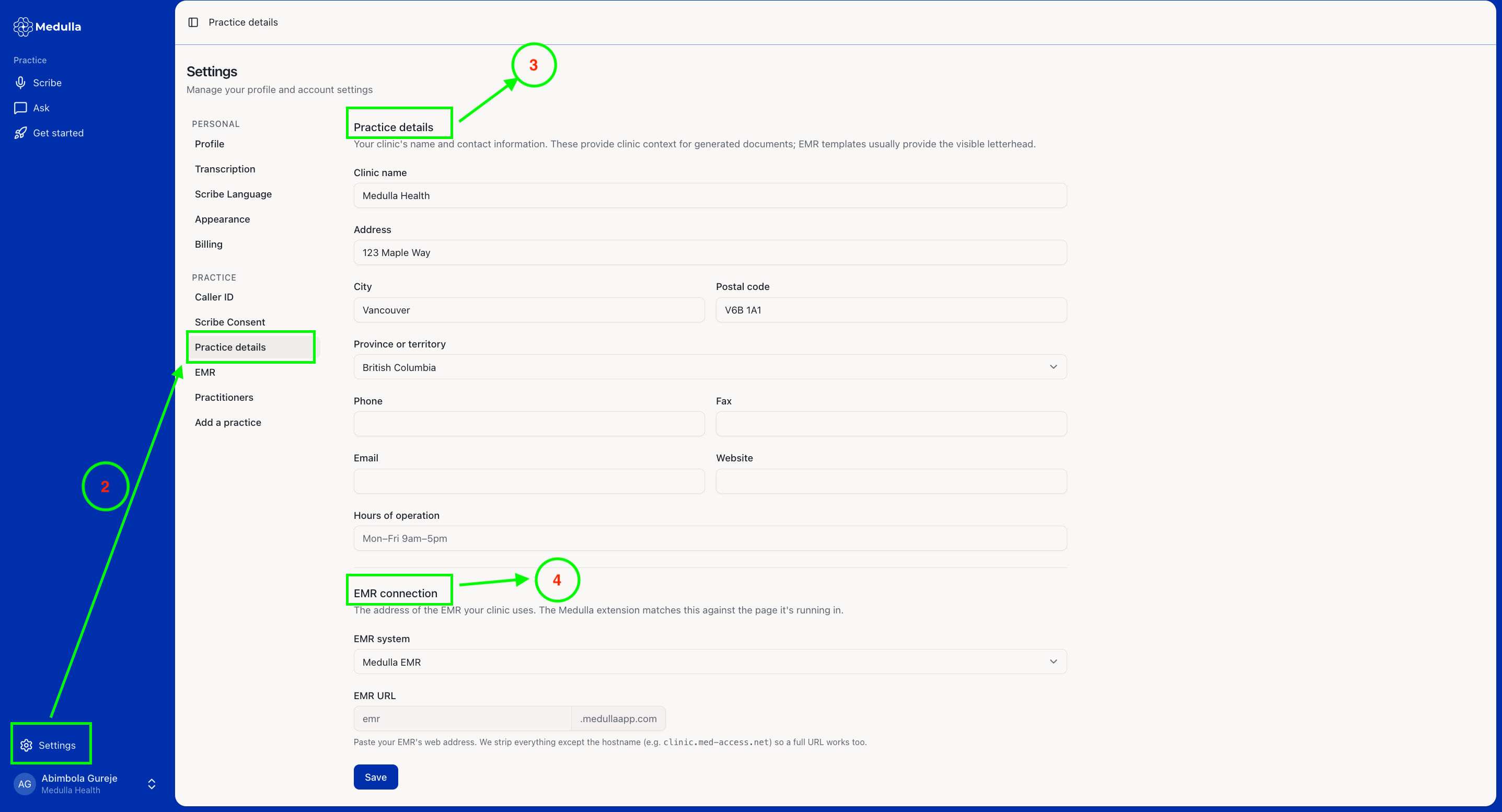
Navigate to Settings and select Practice details.
Enter your new practice details.
If the practice uses a supported EMR, connect Medulla to the EMR by following the setup instructions.
Click Save.
Note: If the practice uses an unsupported EMR, you can still use Medulla through the Medulla web app. See How to Use Medulla Without an EMR for more information.
View and Switch Between Practices
Once you've added multiple practices to your account, you can easily switch between them. To do this:
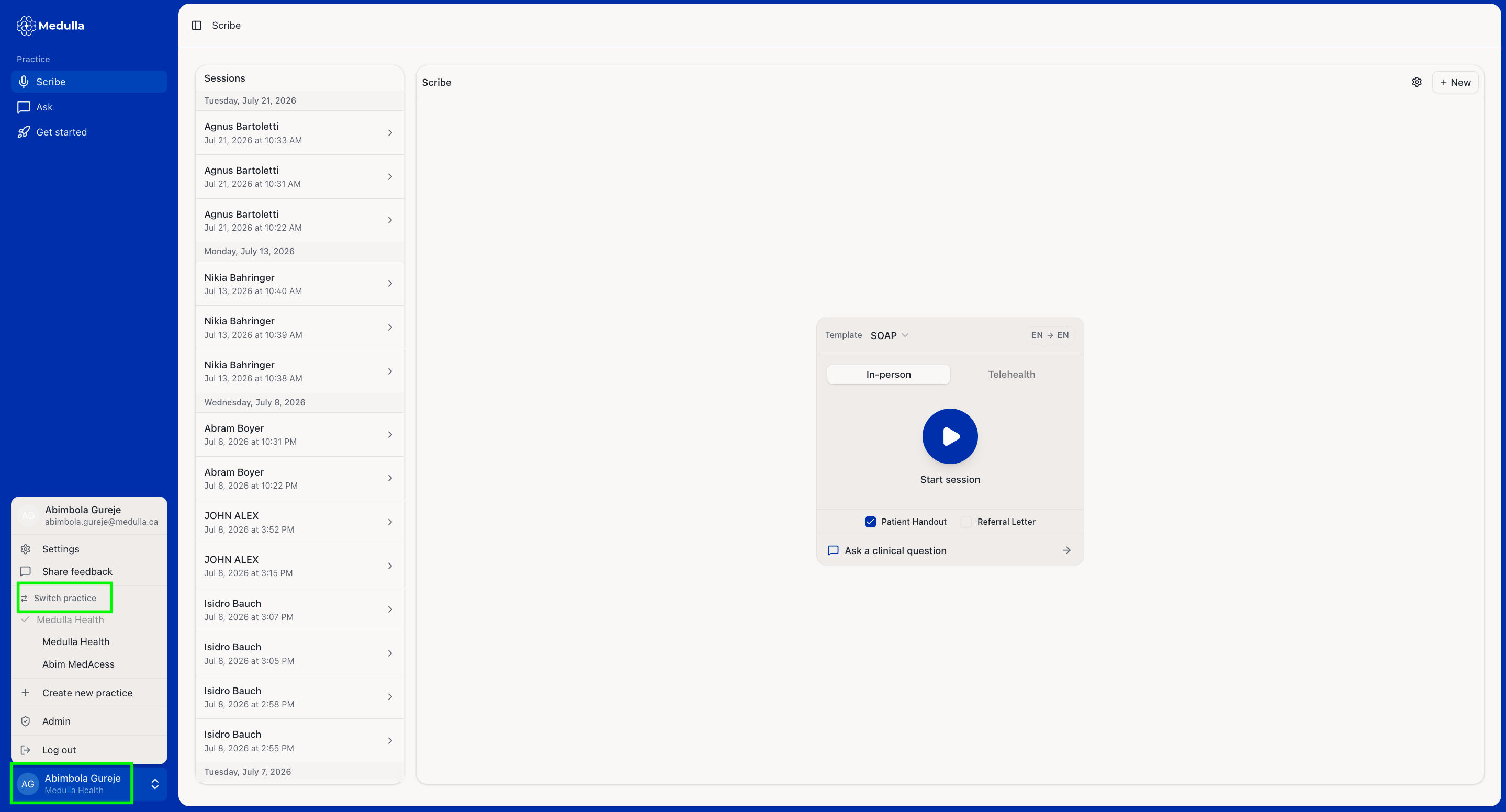
Click your profile in the bottom-left corner of the Medulla web app.
Under Switch practice, you will see a list of all the practices you have added to your Medulla account.
Select the practice you want to work in. The selected practice will be marked with a checkmark, indicating that it is now your current practice.