
Medulla connects to your Oscar through its own user, the same way a new staff member would sign in. You create that user once in Oscar, then give Medulla its sign-in. It takes about five minutes, and you need to be able to open Oscar's Administration page.
Create a new user for Medulla. Don't give Medulla your own Oscar sign-in: Medulla changes the password of the user it signs in with, so your own sign-in would stop working.
Step 1: Add Medulla as a provider
In Oscar, open Administration, then User Management › Add a Provider Record. Fill in the four fields marked below and leave everything else empty.
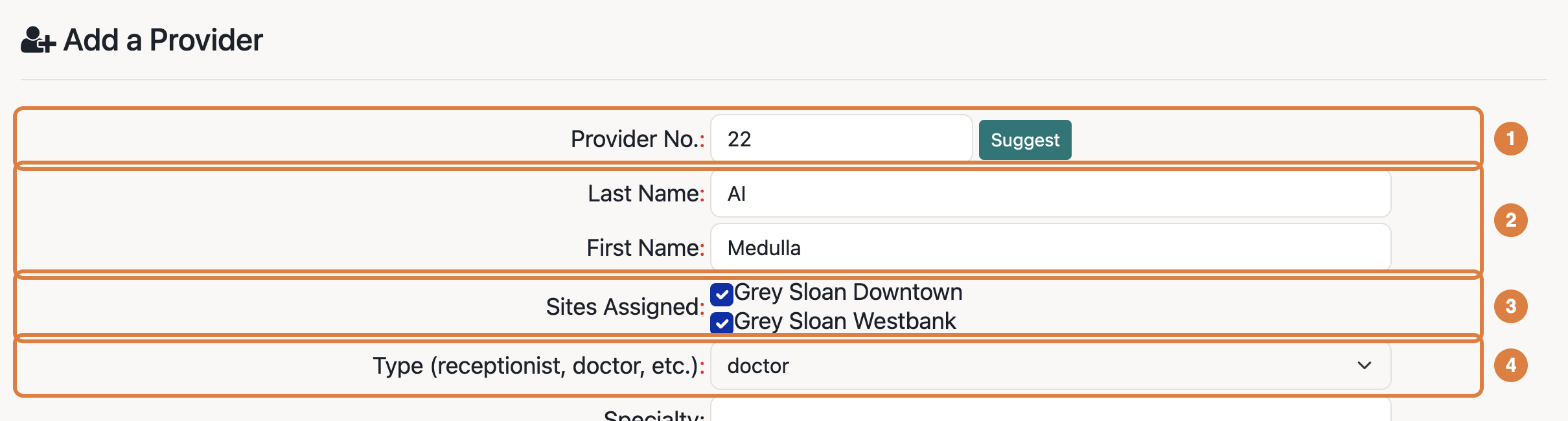
Provider No.: click Suggest to get a number nobody uses.
Last Name:
AI. First Name:Medulla. Medulla looks for this exact name.Sites Assigned: tick every site, if your Oscar has more than one.
Type:
doctor.
Then scroll to the bottom and click Add Provider Record. Oscar shows "Successful Addition of a Provider Record."
Step 2: Give it a sign-in
Go back to Administration › User Management › Add a Login Record and fill in the six fields marked below.
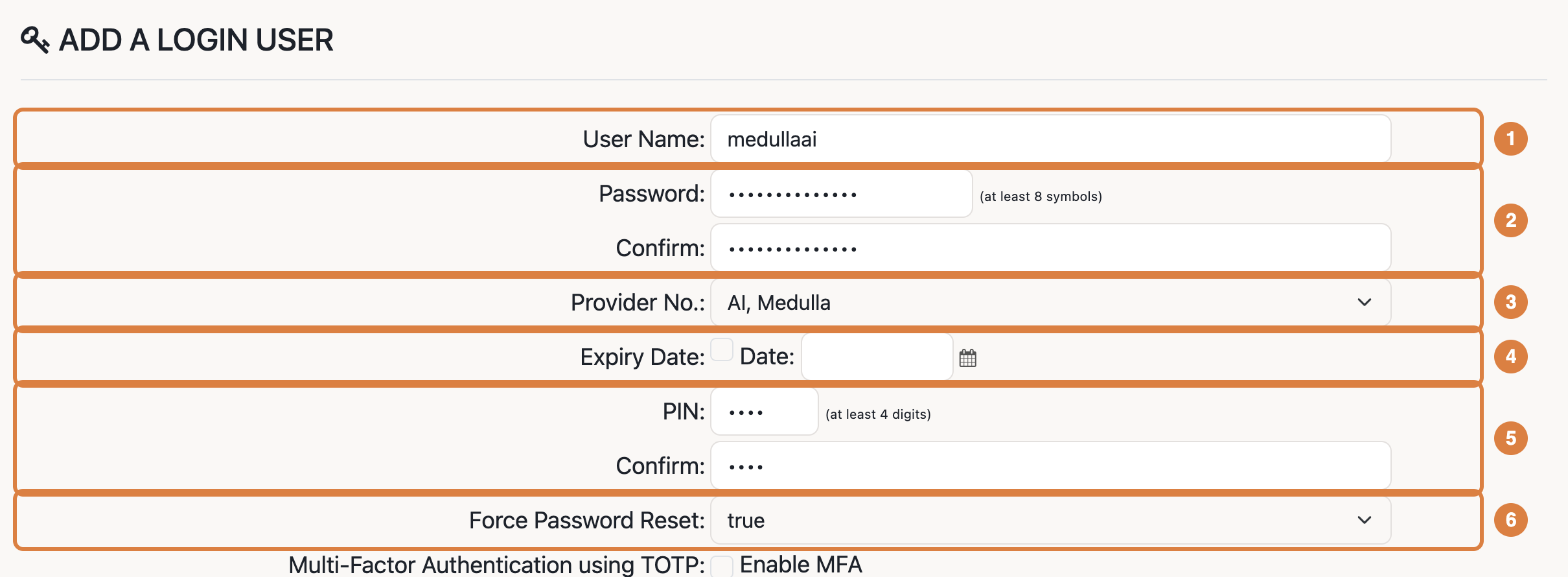
User Name:
medullaai.Password: any temporary password of at least 8 characters, typed twice.
Provider No.: choose AI, Medulla, the provider you added in step 1.
Expiry Date: leave unticked and empty, so the sign-in never expires.
PIN: any 4 digits, typed twice.
Force Password Reset:
true.
Write down the user name, password and PIN, then click Add Record. Oscar shows "Successful Addition of a Login User Record."
Medulla replaces the temporary password and PIN with new ones the first time it signs in, so nobody else knows them. Don't sign in to Oscar with this user yourself: Oscar would ask you to change the password, and Medulla's copy would stop working.
Step 3: Give it the doctor and admin roles
Go to Administration › User Management › Assign Role to Provider.
Type
AIin the search box and click Filter.On the Medulla AI row, choose doctor in the role list and click Add.
On the same row, choose admin and click Add again.
At the bottom of the page, under Update Primary EMR Role, choose AI, Medulla as the provider and doctor as the role, then click Update Primary EMR Role. The doctor row now shows Yes under Primary EMR Role.
The primary role matters: Oscar hides notes from users whose primary role isn't doctor, so Medulla couldn't save notes to the chart without it.
Step 4: Connect Medulla
In the Medulla web app, go to Settings › Team. Under EMR connection, click Connect.
On Your EMR, check that EMR shows your Oscar and EMR URL shows your Oscar's address, then click Next.
On Sign in, enter the user name, password and PIN from step 2, and click Sign in.
Medulla signs in as Medulla AI. If Oscar refuses the sign-in, the form says why so you can fix the details and try again; the most common causes are a typo in the password or PIN, or a missing role from step 3.
Once signed in, Medulla lists what its connection check will do in Oscar, such as setting up a test patient called Test Medulla. Click Run the check. It takes about a minute, and each item turns green as it passes.
When every item passes, your Oscar is connected, and you can add your team on the same page. See How to invite staff and assign roles in Medulla.