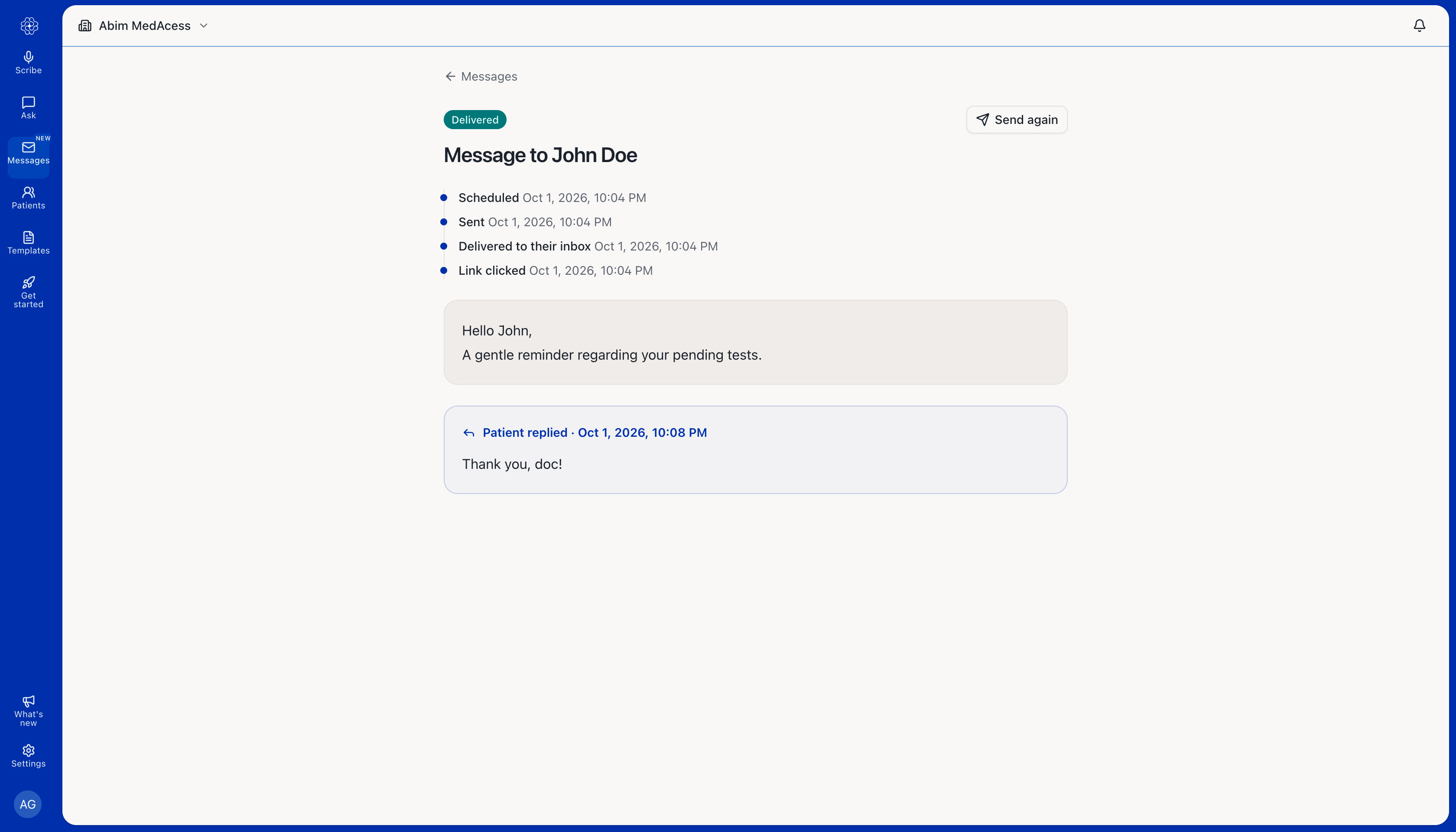
You can send secure messages to patients from the Medulla web app or directly from the Medulla side drawer within your EMR. This article walks you through how to send a message, schedule it for later, allow a patient to reply, and view their response.
Send a secure message
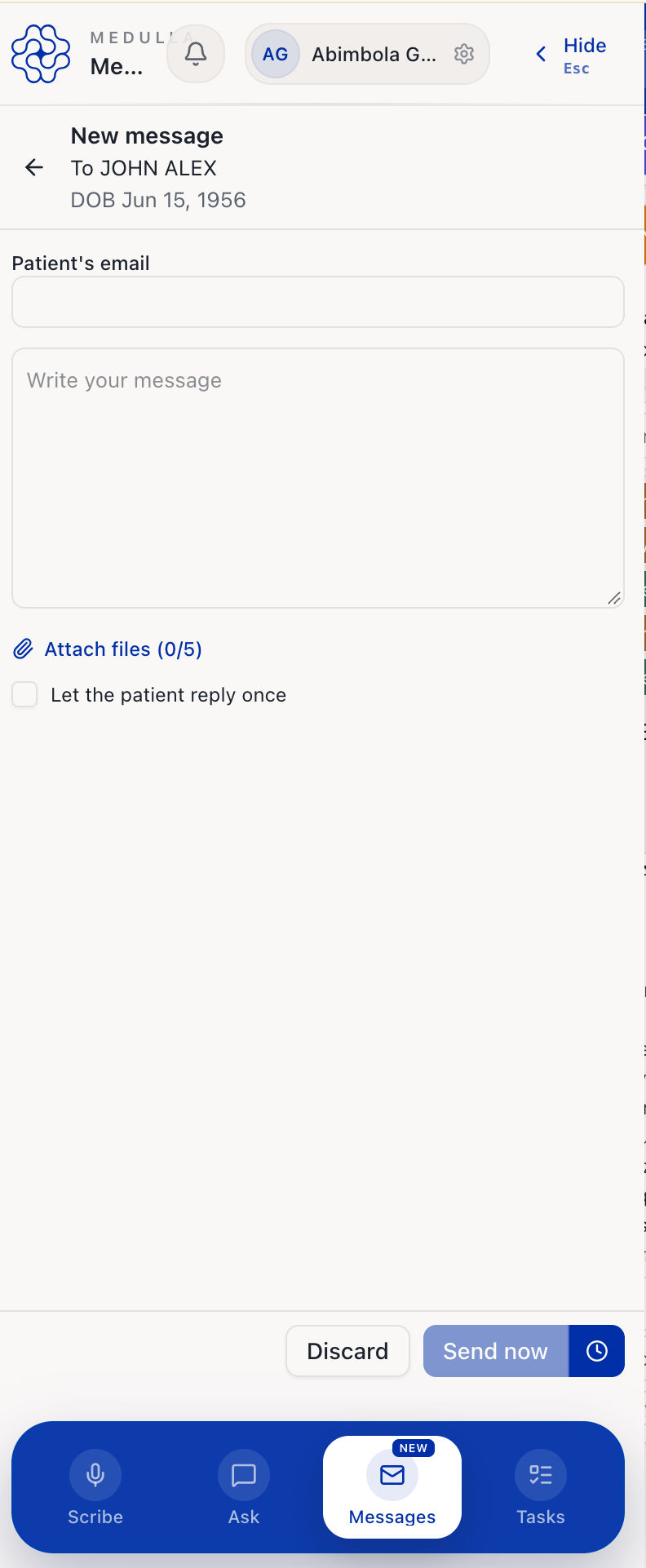
Open Messages from the Medulla web app or the Medulla side drawer within your EMR.
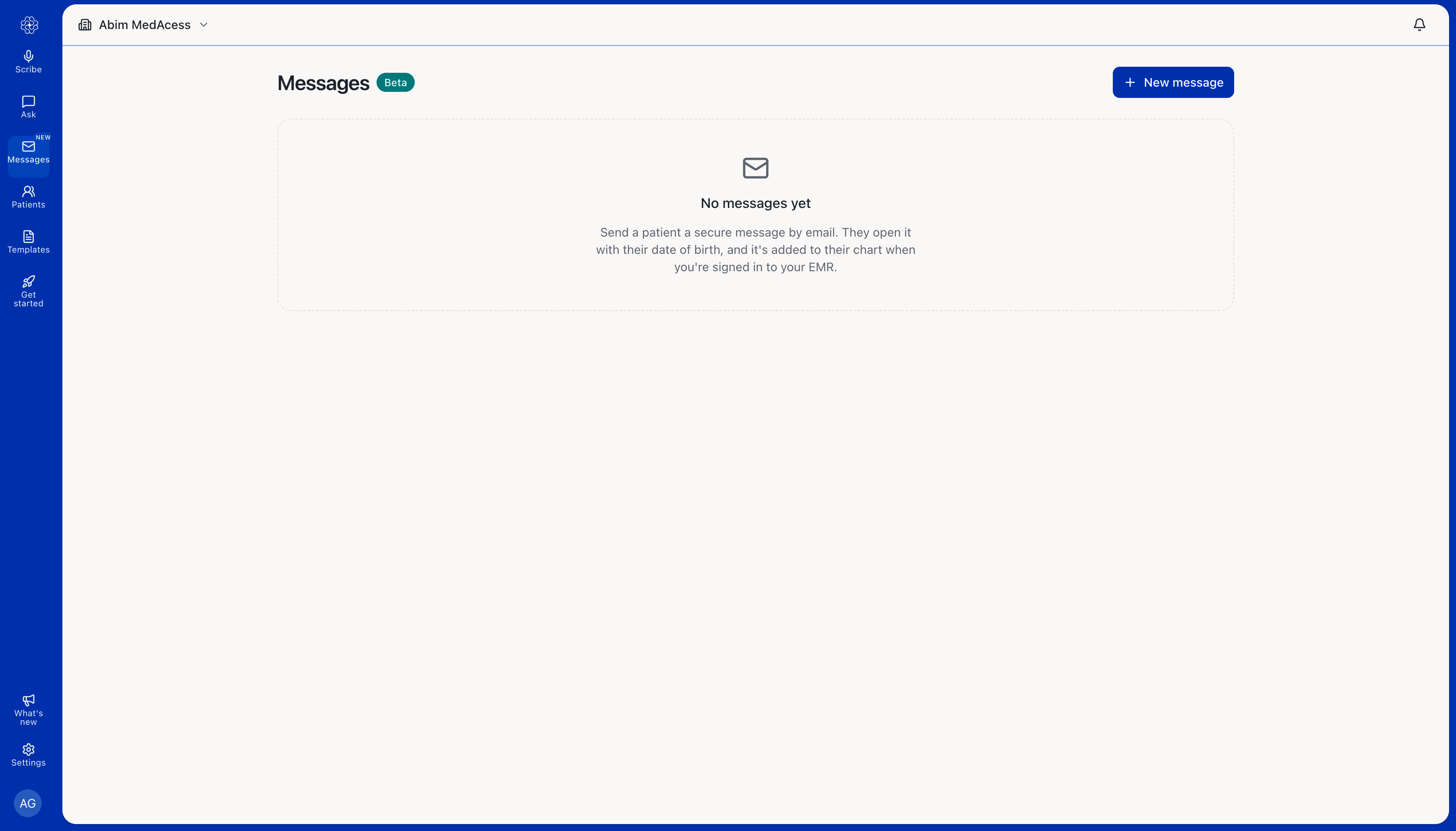
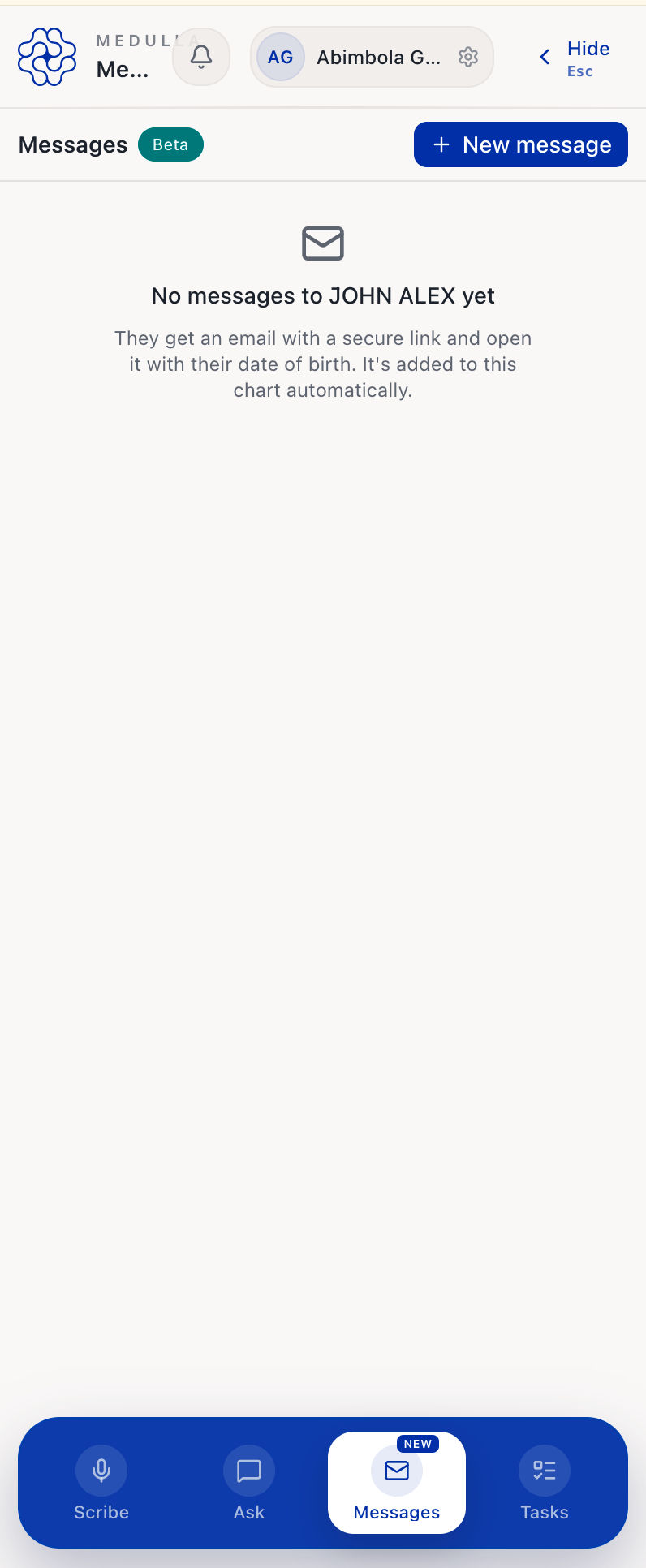
Click New message.
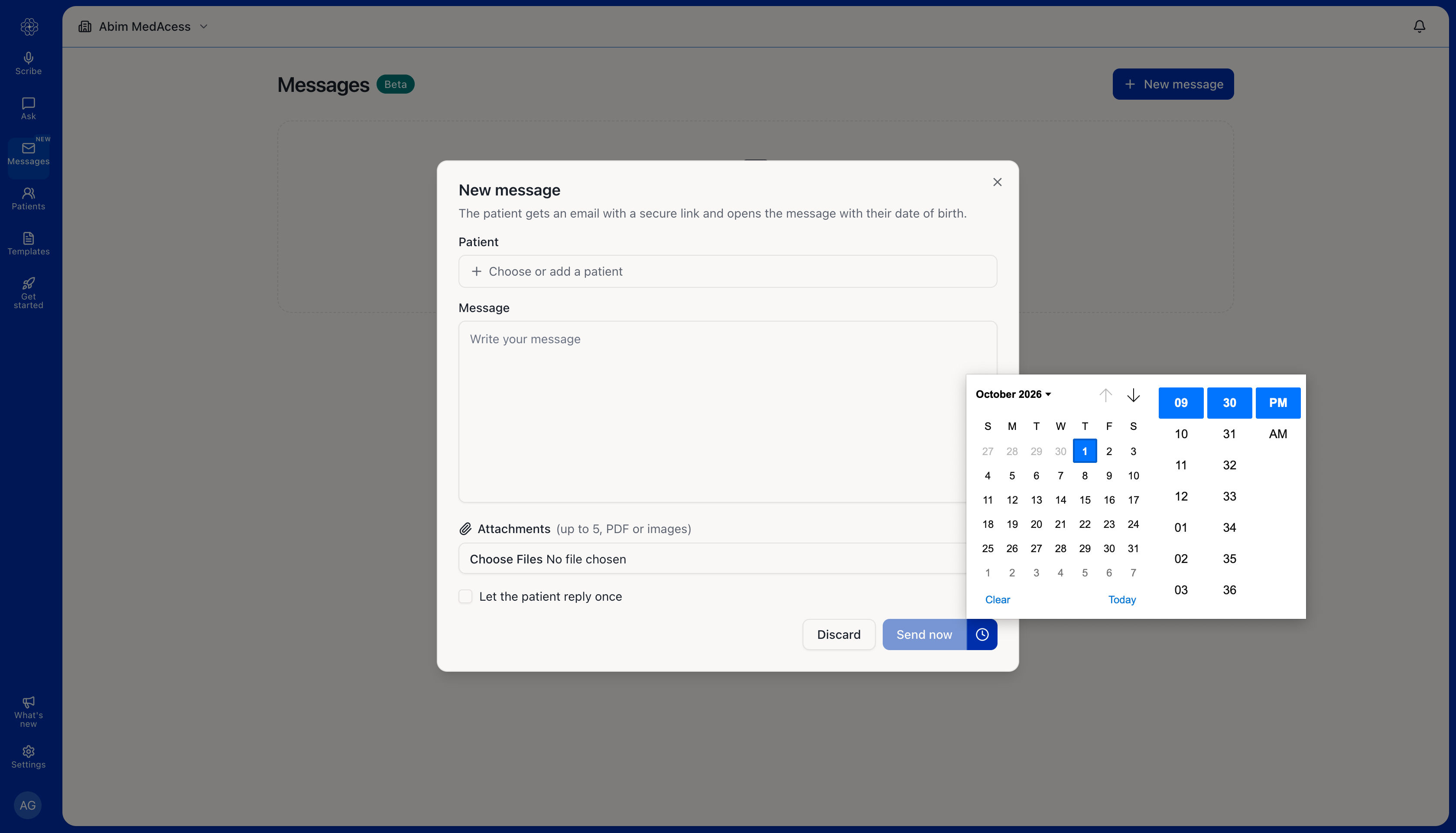
If you’re using the Medulla web app, click Choose or add a patient, then select the patient you want to message. If you’re using the side drawer, enter the patient’s email if it is not already available.
Write your message.
To include an attachment, select Choose Files in the web app or Attach files in the side drawer. You can attach up to five PDFs or images.
If you want the patient to respond, select Let the patient reply once.
Click Send now to send the message immediately. To send it later, click the clock icon and choose a date and time.
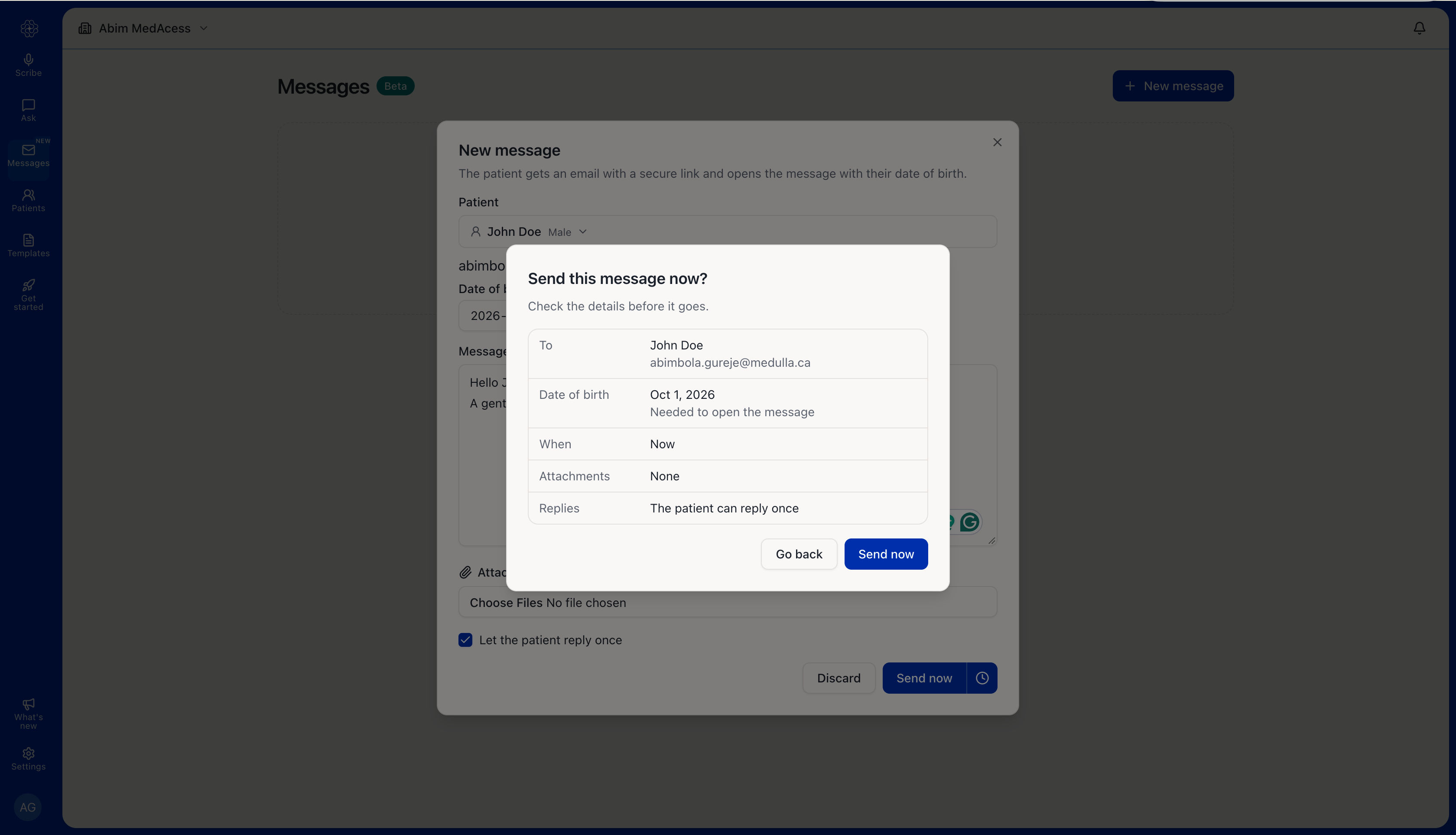
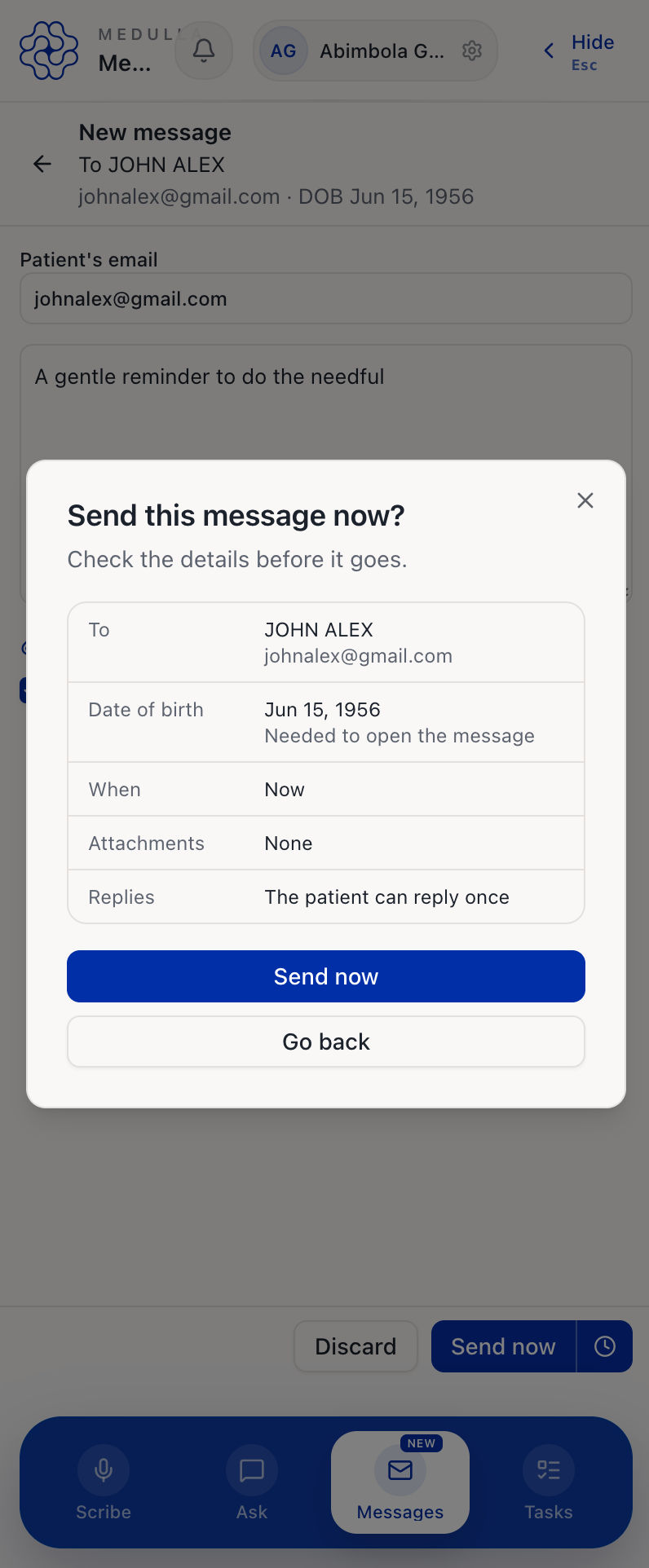
Review the patient and message details, then confirm to send the message.
What happens after you send the message?
The patient receives an email with a link to the secure message. To access it, they click Open secure message and enter their date of birth.
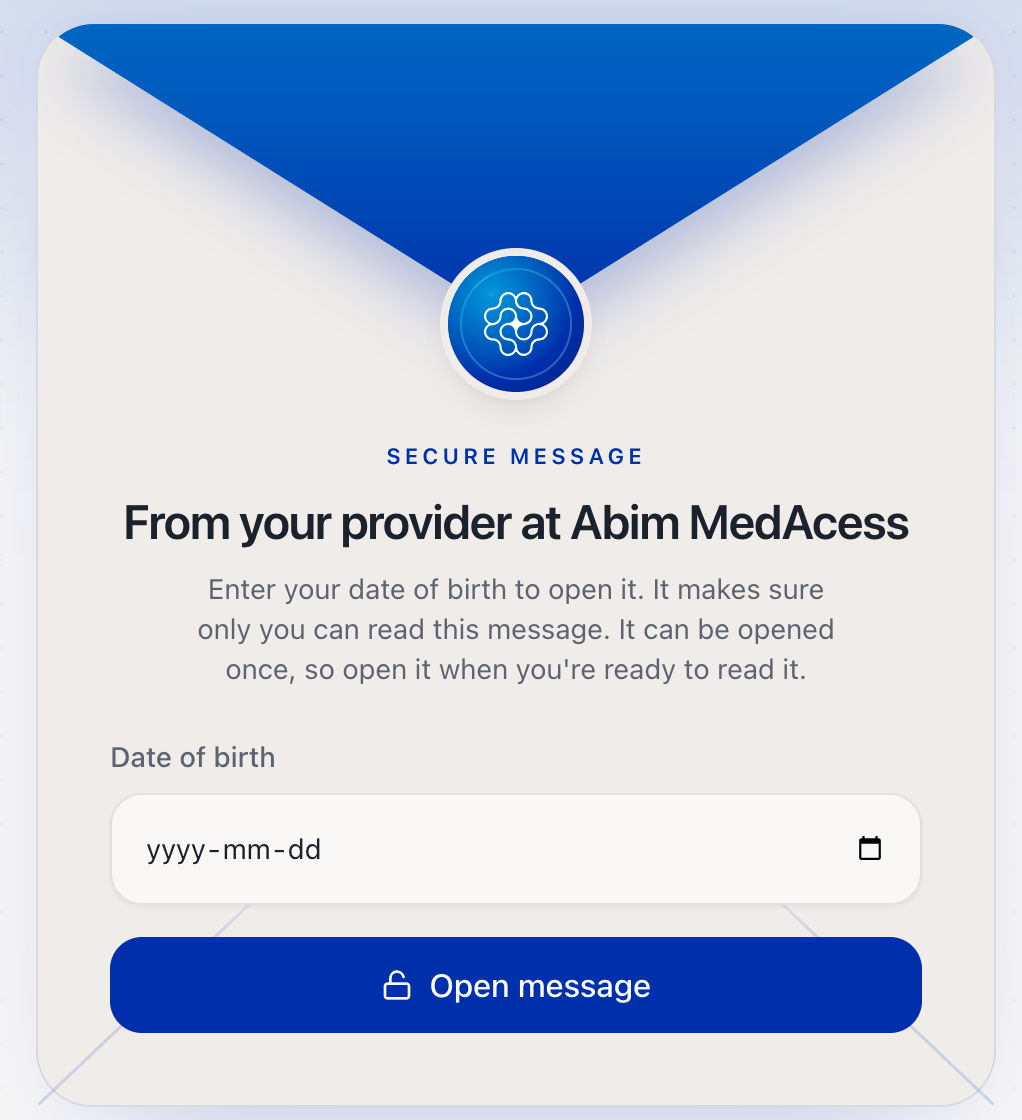
If you allowed the patient to reply, they can send one response from the secure page and attach up to five photos or PDFs.
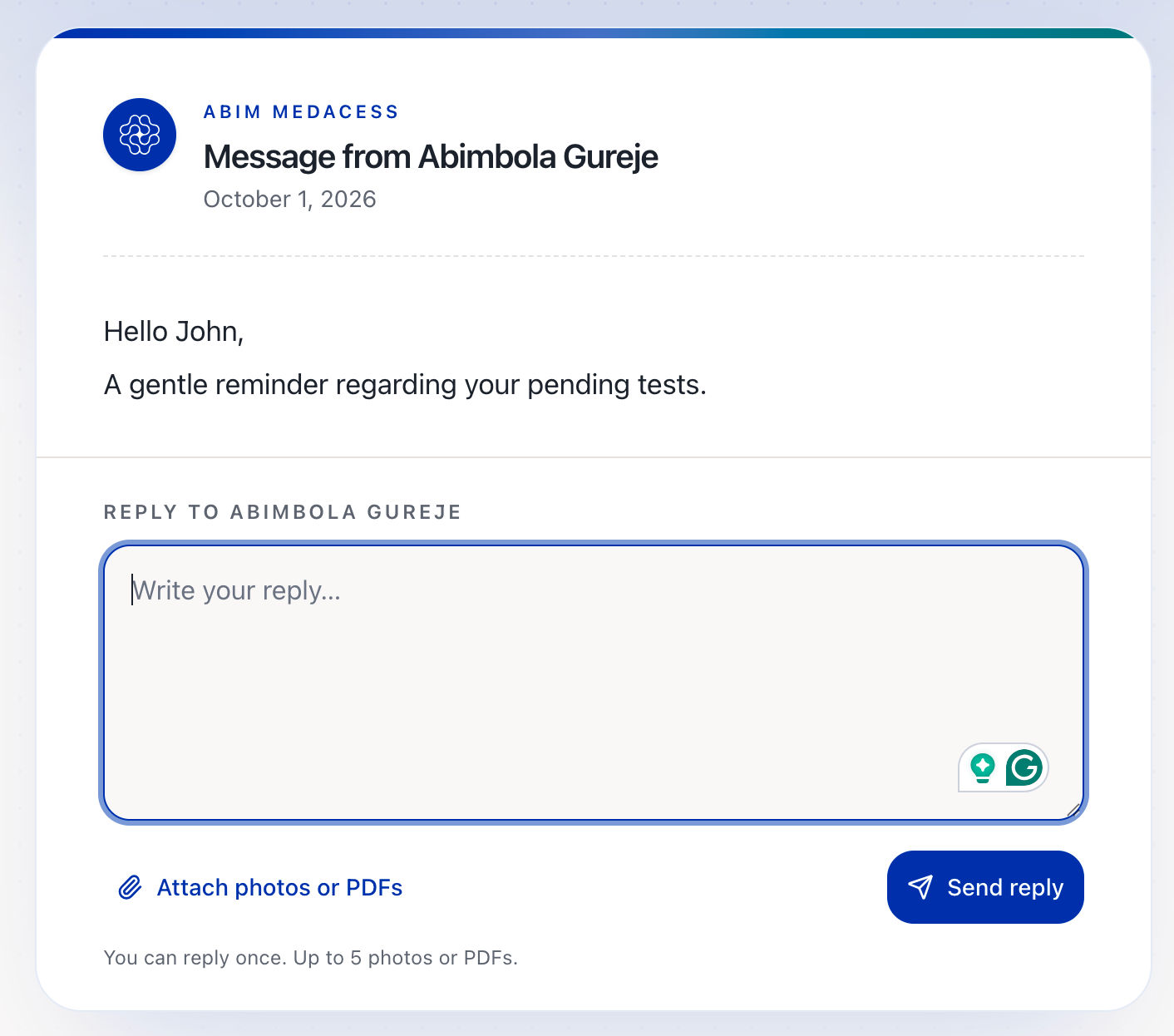
View message status and patient replies
Return to Messages to view the status of a message. You can see when it was sent, delivered, and read.
If a patient replies, you will see an Unread reply indicator beside the message and a notification on the Messages icon.
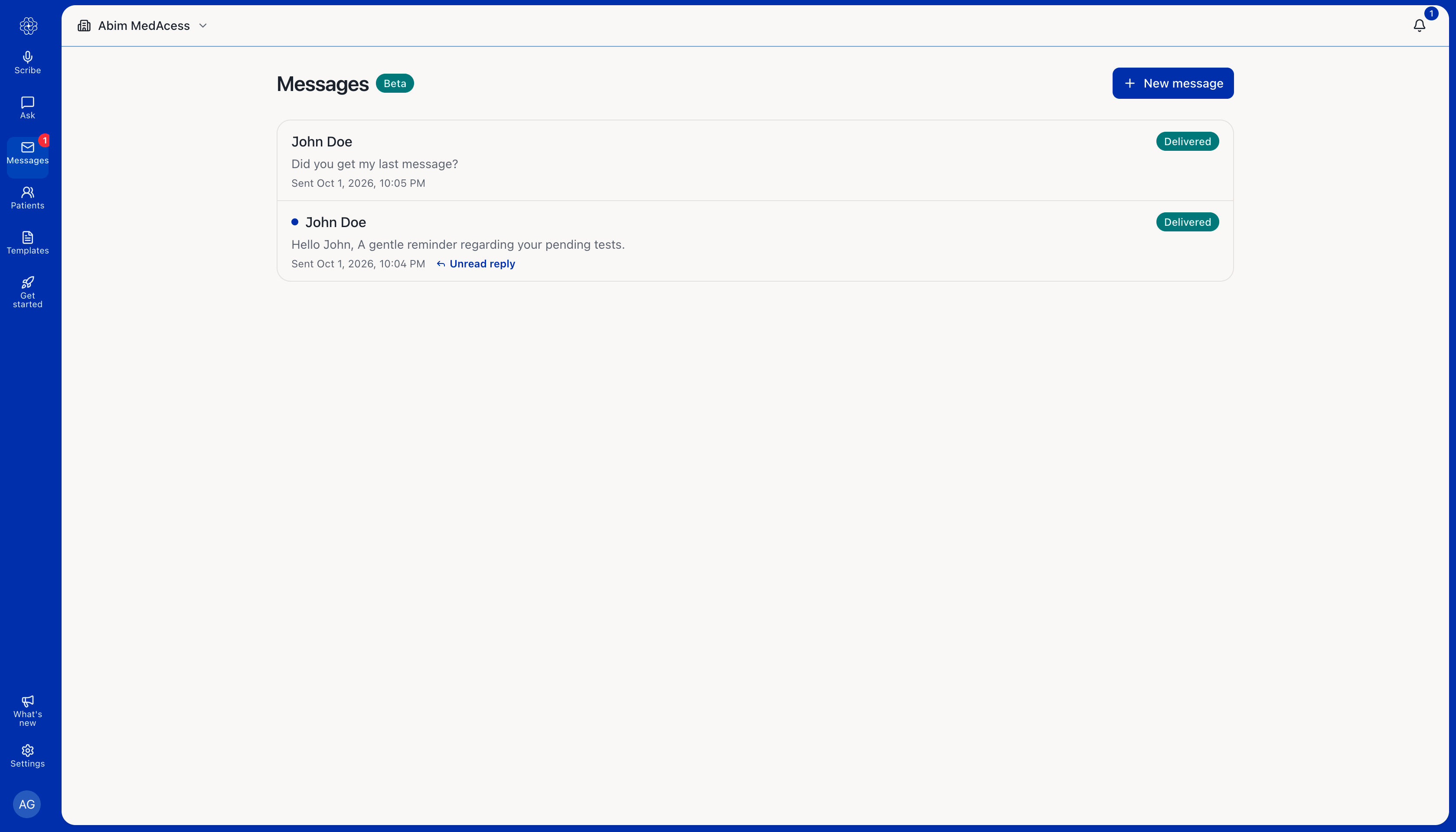
Open the message to view the patient’s response and message activity.