It's super seamless to use Medulla within your EMR. Below are the steps to get it set up:
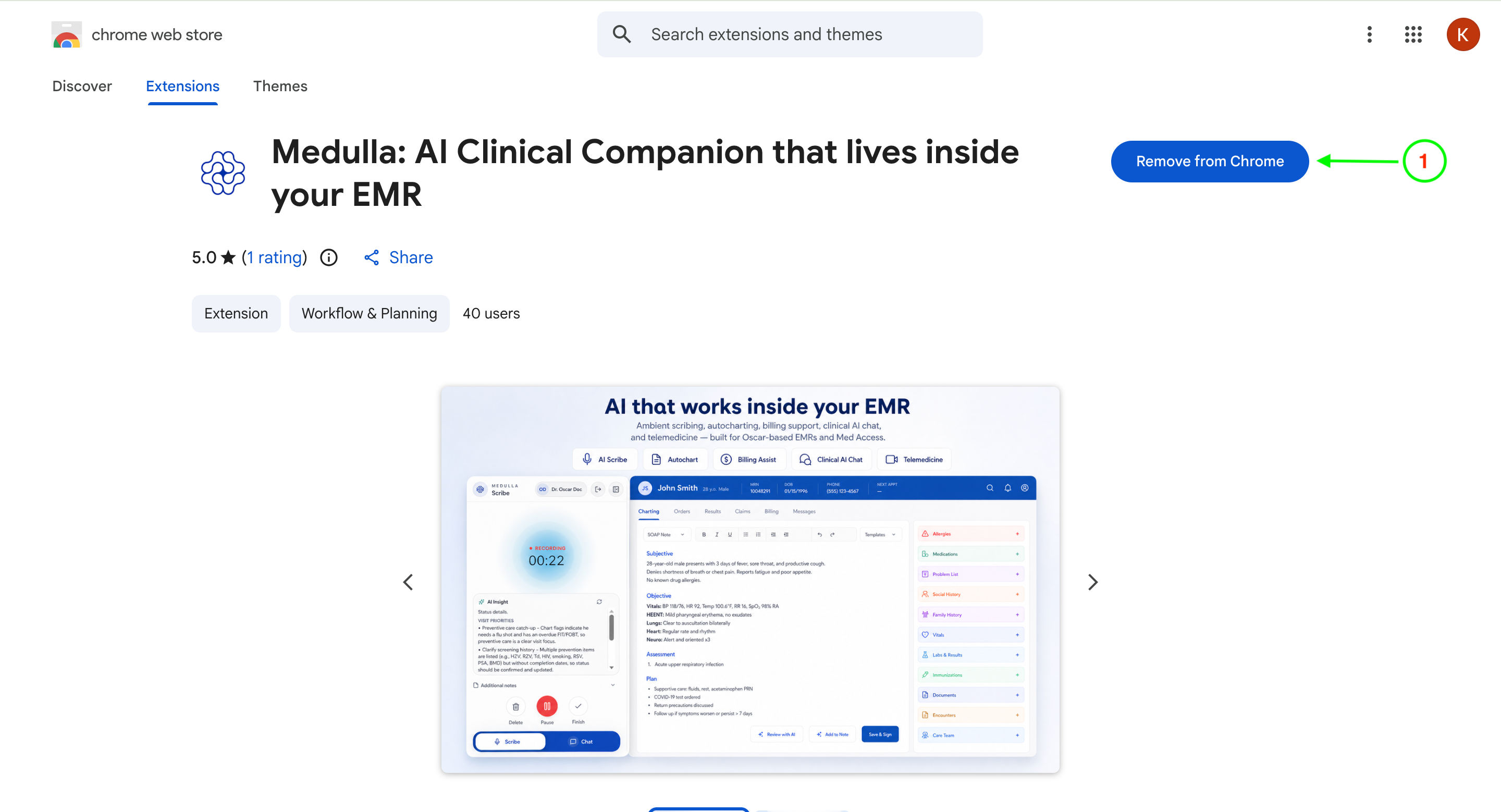
Install the Medulla browser plugin by searching for "Medulla" on the Chrome Web Store and clicking Add to Chrome.
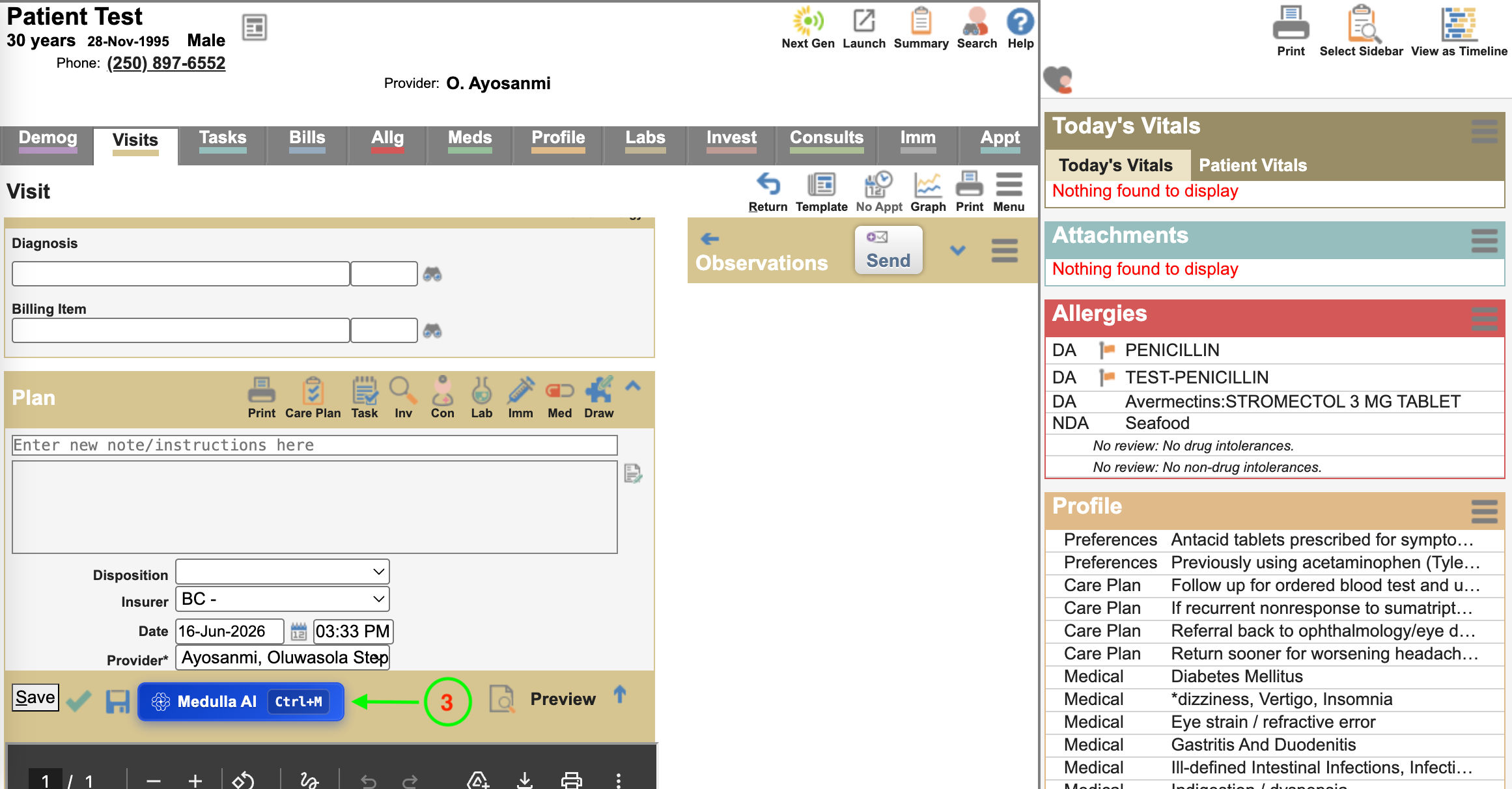
Once you have successfully installed the Medulla plugin, log in to your EMR and open a patient encounter like you would normally do.
Then locate and click the blue Medulla AI button.
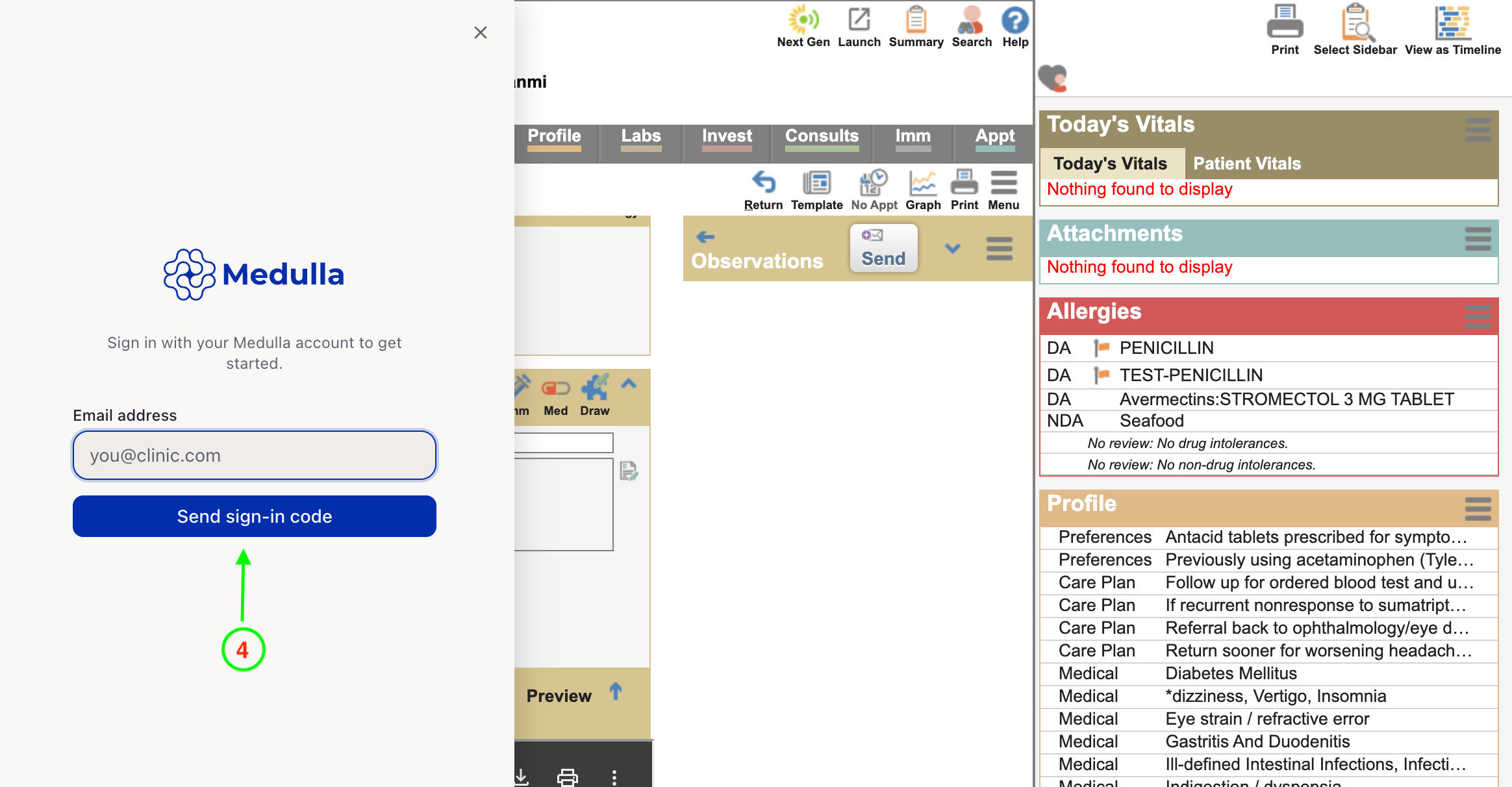
You should see the Medulla side-drawer on the left. Enter the email address you used on Medulla's sign-up page and click Send Sign-In Code.
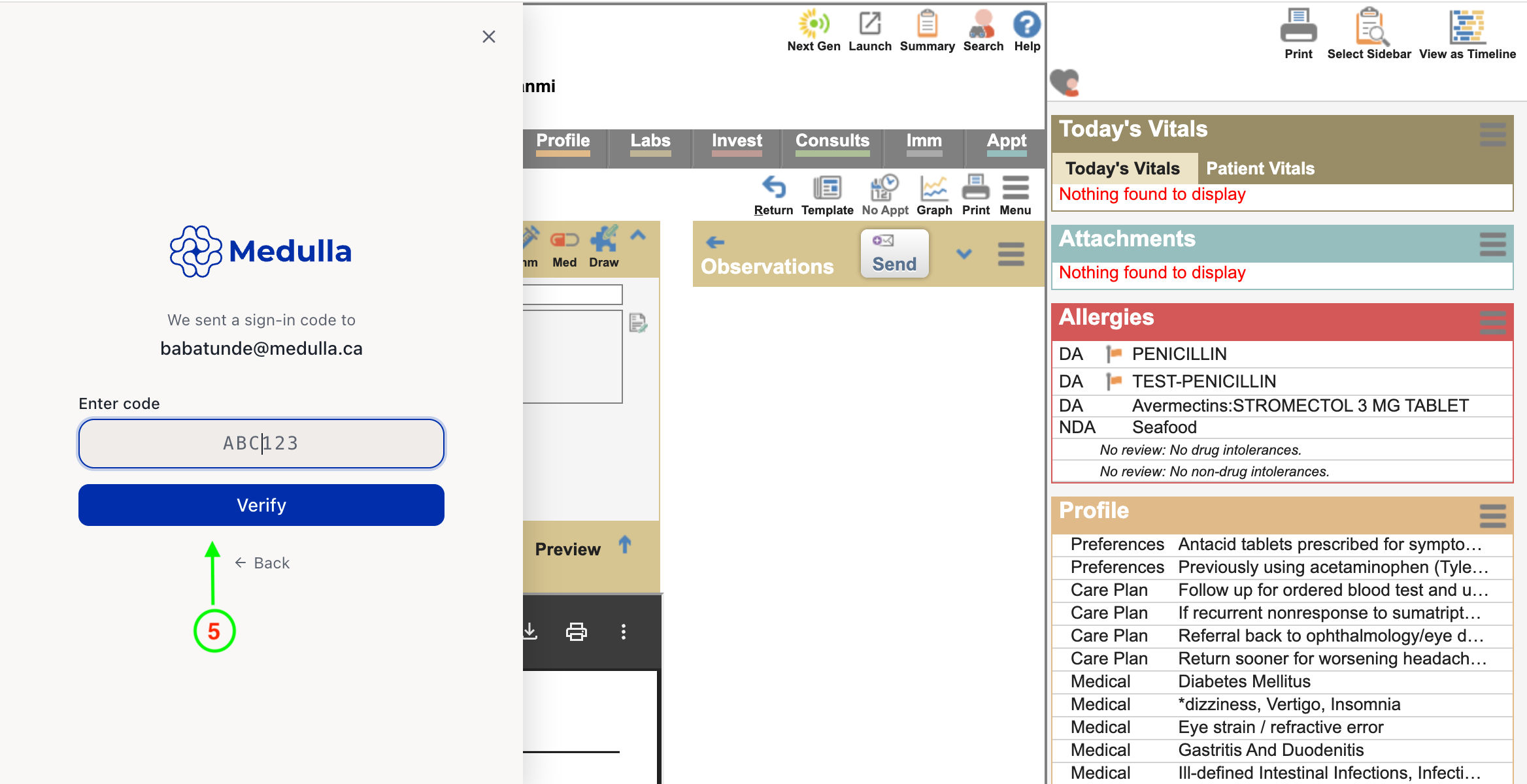
You should receive a 6-character code in your email inbox. Enter the code and click verify.
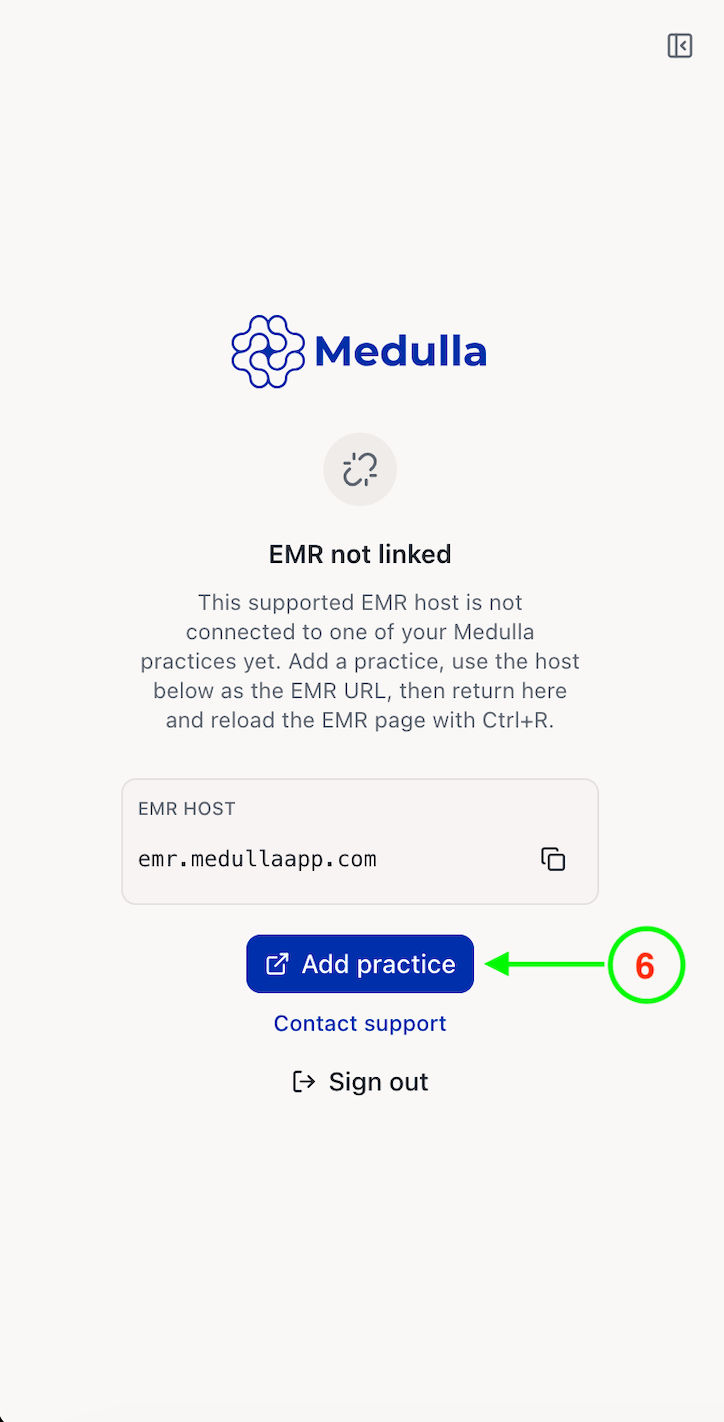
[OPTIONAL] To complete the setup, you may need to link your EMR to Medulla. Copy the EMR Host URL shown on the screen, then click Add practice.
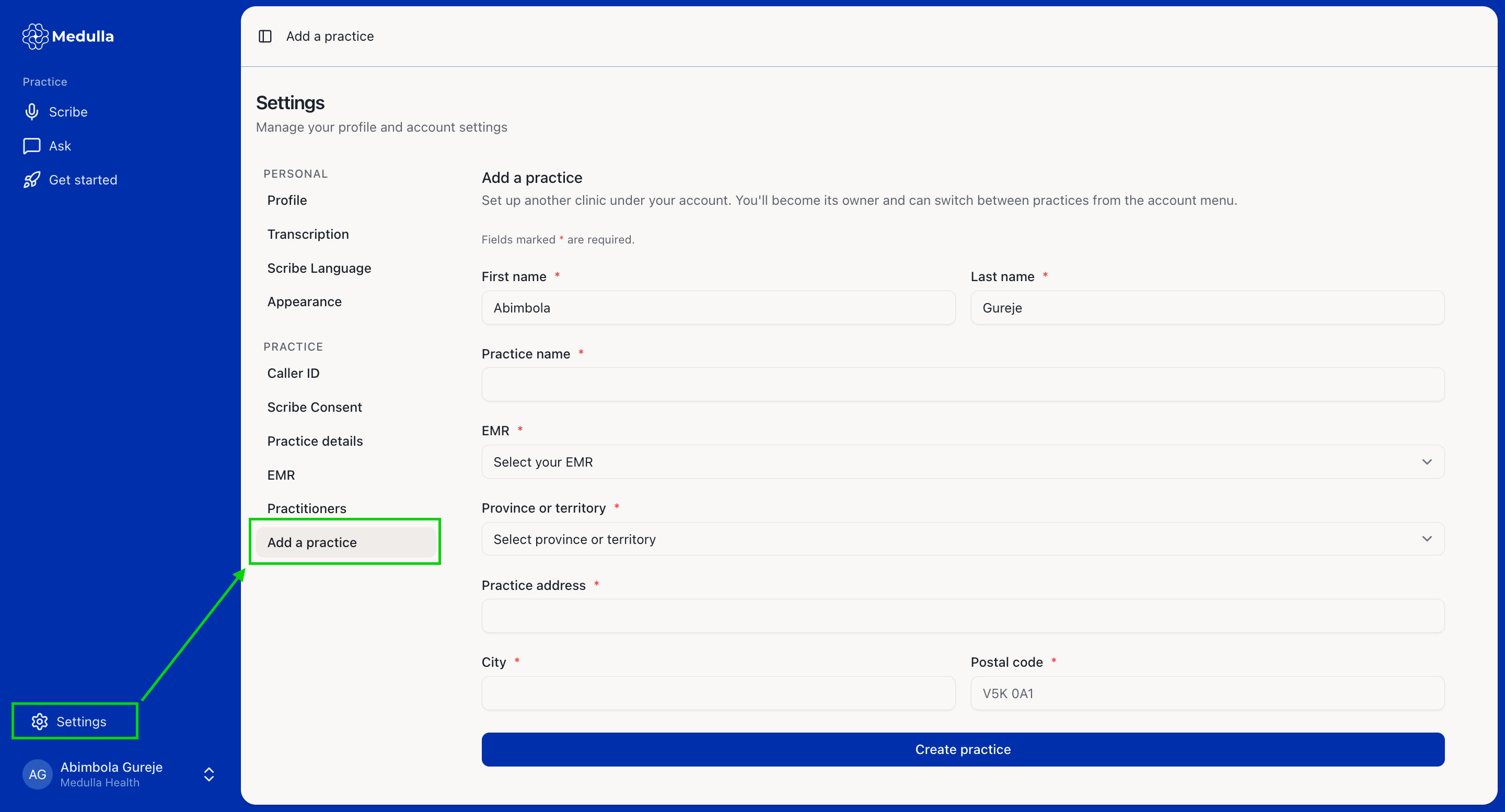
This will redirect you to the Medulla web app interface where you can connect your EMR to your practice.
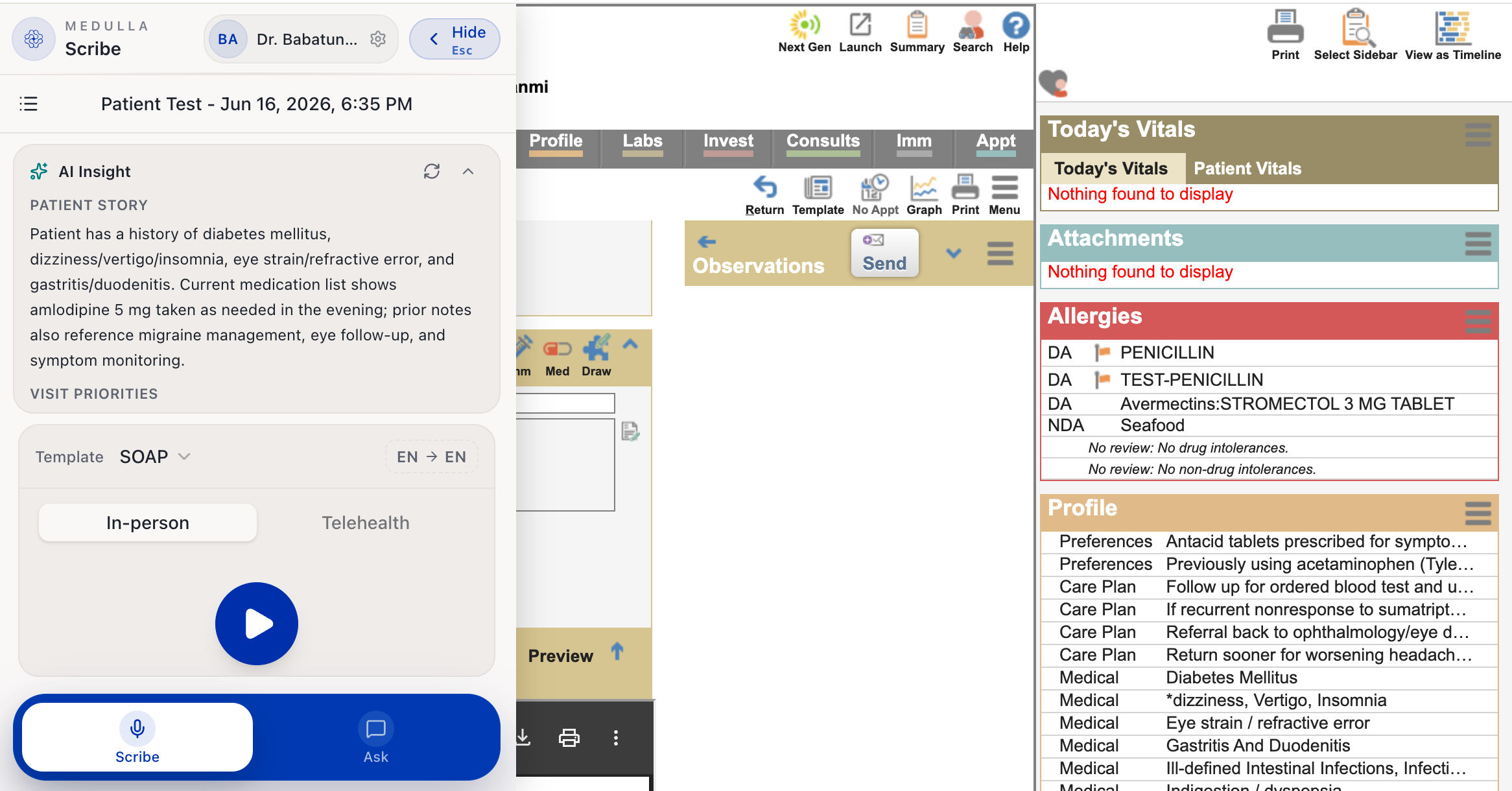
Once connected, the Medulla side-drawer within your EMR should look like the image below, and you're good to go.