
Medulla updates quietly in the background. You never have to install updates, approve anything or think about which version you're on. This is a rare exception.
Medulla is coming to many more EMRs. TELUS CHR is the first, and others follow with our next major upgrade, Medulla 1.0. To work in them, Chrome needs your permission for Medulla to open on your EMR's website. It takes one click now. If you wait, Chrome will switch Medulla off on the day of the upgrade until you approve it. Either way, once you've allowed it, Medulla goes back to updating quietly.
Where Medulla works today
OSCAR, including OSCAR Pro, Open-O and OpenOSP, KAI, AVEE Health and Indivica (WELL)
Juno
Avaros
TELUS Med Access
TELUS CHR (new)
Where Medulla is going next
With Medulla 1.0, you'll be able to send your note straight into the chart fields of:
athenaOne
eClinicalWorks
Elation Health
ModMed EMA
OpenEMR
Practice Fusion
Tebra
DrChrono
ChARM EHR
Office Ally
AllegianceMD Veracity
Veradigm TouchWorks
Hint Health
HealthBook+
Allow it now (recommended)
Open the Medulla drawer in your EMR.
-
On the notice at the top, click Allow now.
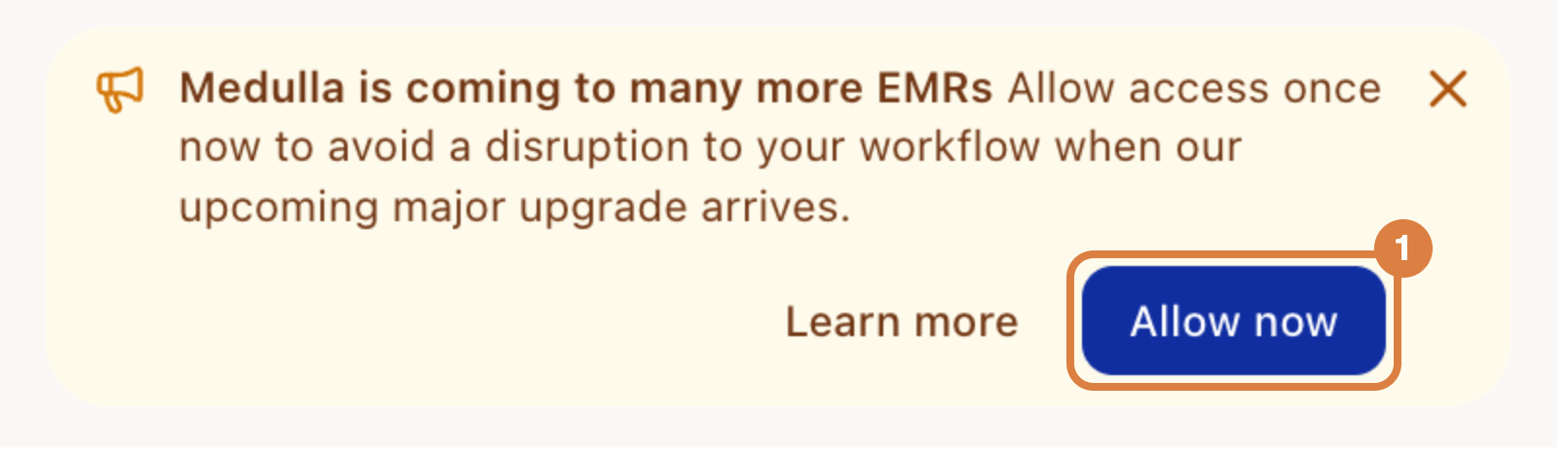
Click Allow now on the notice Chrome asks whether Medulla can Read and change all your data on all websites. Click Allow.
That's it. The notice disappears, the ! on the Medulla icon in Chrome's toolbar goes away, and the upgrade will install without interrupting you.
Why Chrome asks this way
Chrome only has one way to say that an extension may open on websites it doesn't list by name, and that's the wording it uses. Medulla opens on your EMR so it can read the chart you have open for context and put your note into the encounter when you ask it to. It does nothing on the other websites you visit.
What happens if you don't allow it before the upgrade
On the day Medulla 1.0 reaches your browser, Chrome turns Medulla off until you approve the new permission. You'll notice that:
The Medulla AI button and the Medulla tab disappear from your charts.
The Medulla icon disappears from Chrome's toolbar.
The menu button at the top right of Chrome (⋮) turns into a blue Action Required button.
To turn Medulla back on:
Click Action Required at the top right of Chrome.
Click Medulla is disabled.
Click Accept permissions.
Medulla comes straight back and returns to updating quietly. You stay signed in, and your sessions, notes and settings are all where you left them. Approve it as soon as you see it, so you're not without Medulla in the middle of a clinic day.
If you closed the notice or clicked Deny
The notice comes back in the Medulla drawer the next day. You don't have to wait: the notice is there whenever you open the drawer until access is allowed, so click Allow now on it at any time.
Check whether you've already allowed it
Go to chrome://extensions in your browser's address bar.
Find Medulla and click Details.
Under Site access, it should say On all sites.
If it says anything else, open the Medulla drawer and click Allow now on the notice.