
After each note is written, Medulla reads your plan and checks it for crucial misses, such as a prescription the patient is allergic to or a red flag with no safety-net advice. When it finds one, it shows a short reminder under the note, with the reason and a source you can check. Most notes have nothing to flag, and then nothing is shown.
What Medulla looks for
Reminders are kept to a short list of things that matter for patient safety:
A medication the patient is allergic to.
A significant drug interaction.
A treatment the patient's condition rules out.
Monitoring a medication or condition needs that the plan leaves out.
A red flag in the visit with no safety-net advice in the plan.
A critical result in the chart or your notes that the plan doesn't address.
A note gets at most three reminders, most important first. Every reminder comes with a source Medulla found for it, such as a clinical guideline, a drug monograph or a paper.
Reading a reminder
While the plan is being checked, Reviewing plan… shows under the note. It takes a moment, and you can read, edit and copy the note in the meantime.
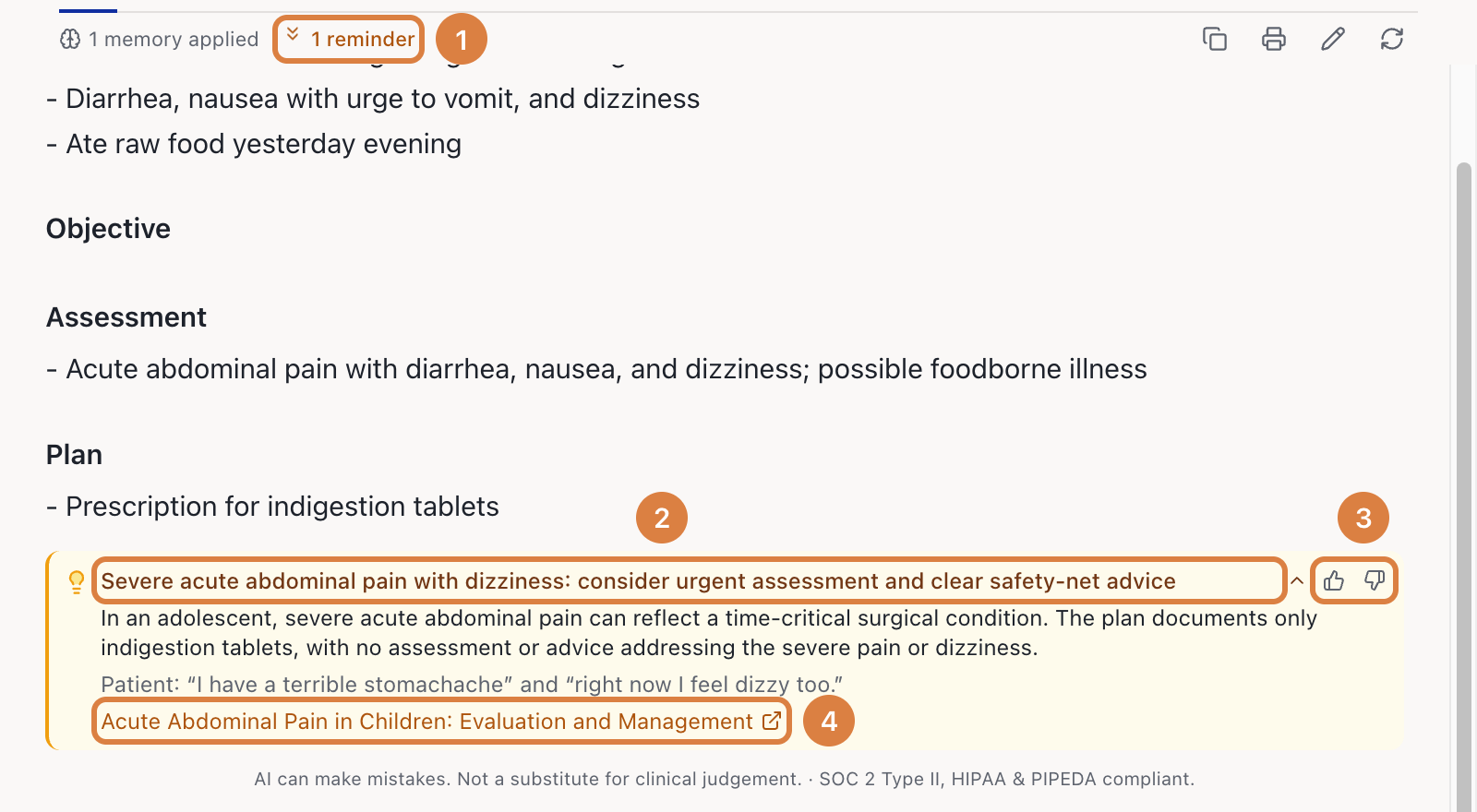
The reminder count above the note shows how many there are. Click it to jump to them.
Each reminder starts with a one-line headline. Click it to open the reason, the part of the note or visit it is based on, and its source.
Use the thumbs up or thumbs down to tell us whether the reminder was helpful. Your ratings help us make reminders more useful.
Click the source to open it in a new tab.
Reminders are only shown to you. They are never added to the note, so copying the note or sending it to the chart works as usual. If a reminder is right, update your plan yourself, for example by editing the note.
Reminders are suggestions from Medulla, which can make mistakes. Use your clinical judgement and check the source before acting on one.
Reminders work the same way in the web app and in the EMR drawer.
Turning plan reminders on or off
Plan reminders are on by default. The setting applies only to you.
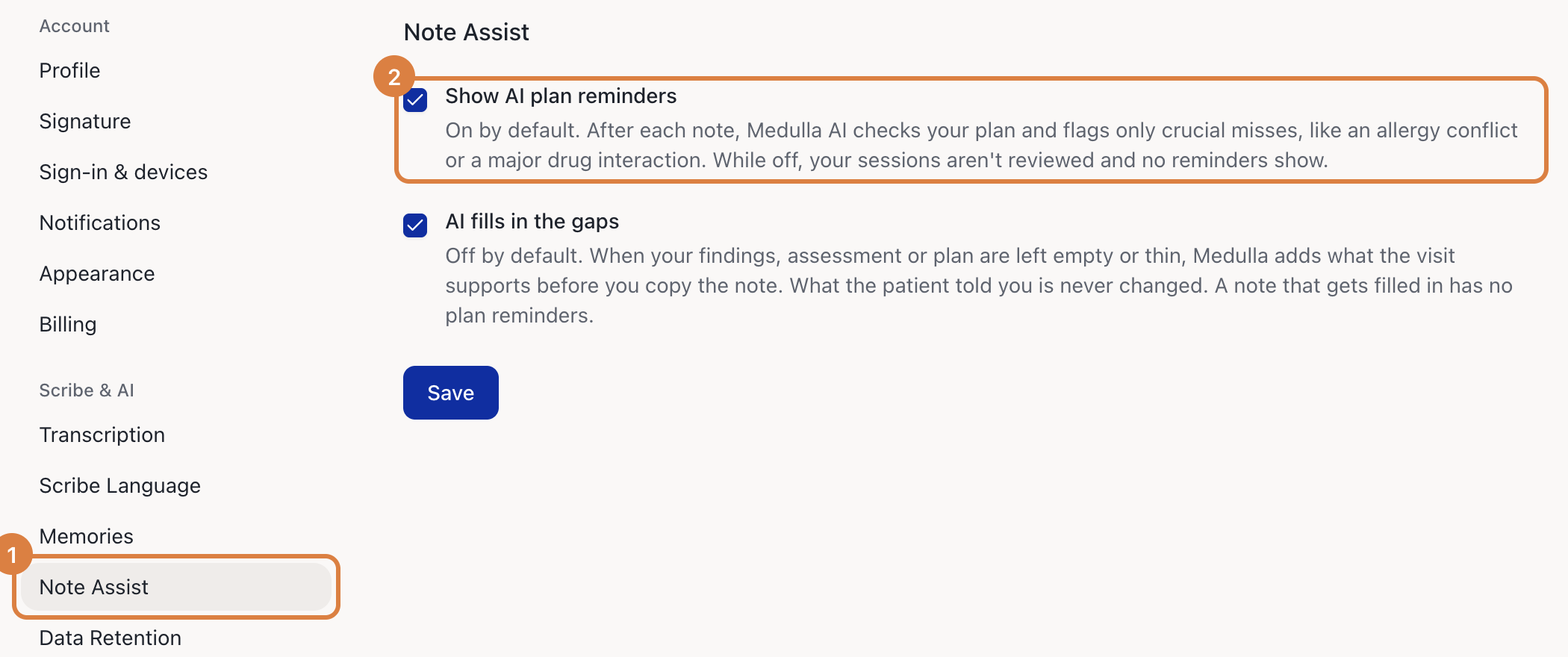
In the Medulla web app, open Settings and click Note Assist under Scribe & AI.
Tick or untick Show AI plan reminders and click Save.
While it is off, your plans are not checked and no reminders show.
Regenerating, continuing and filling in the gaps
When you regenerate the note or continue the session, the new plan is checked again and any earlier reminders are replaced.
If you use AI fills in the gaps, a note that gets filled in does not show plan reminders. Notes that don't need filling in are checked as usual. See How to have Medulla fill in the gaps in your note.