
Patients can book a provider once they're on your Team page with the Provider role and their EMR schedule linked. Medulla reads that schedule's open times, and writes each booking into it. Your EMR needs to be connected first, at the top of the Team page.
Add a provider
Skip this if they're already on your Team page.
Go to Settings → Team and click Add team member.
Choose their EMR user. This fills in their name and, when Medulla finds it, their schedule.
Enter their Email address, tick Provider and check the schedule as below.
Click Add and invite. They get an email inviting them to your practice.
You can add all your providers before your Clinic plan starts. It starts when you go live, and from then every provider with a linked EMR schedule counts toward it.
Link their EMR schedule
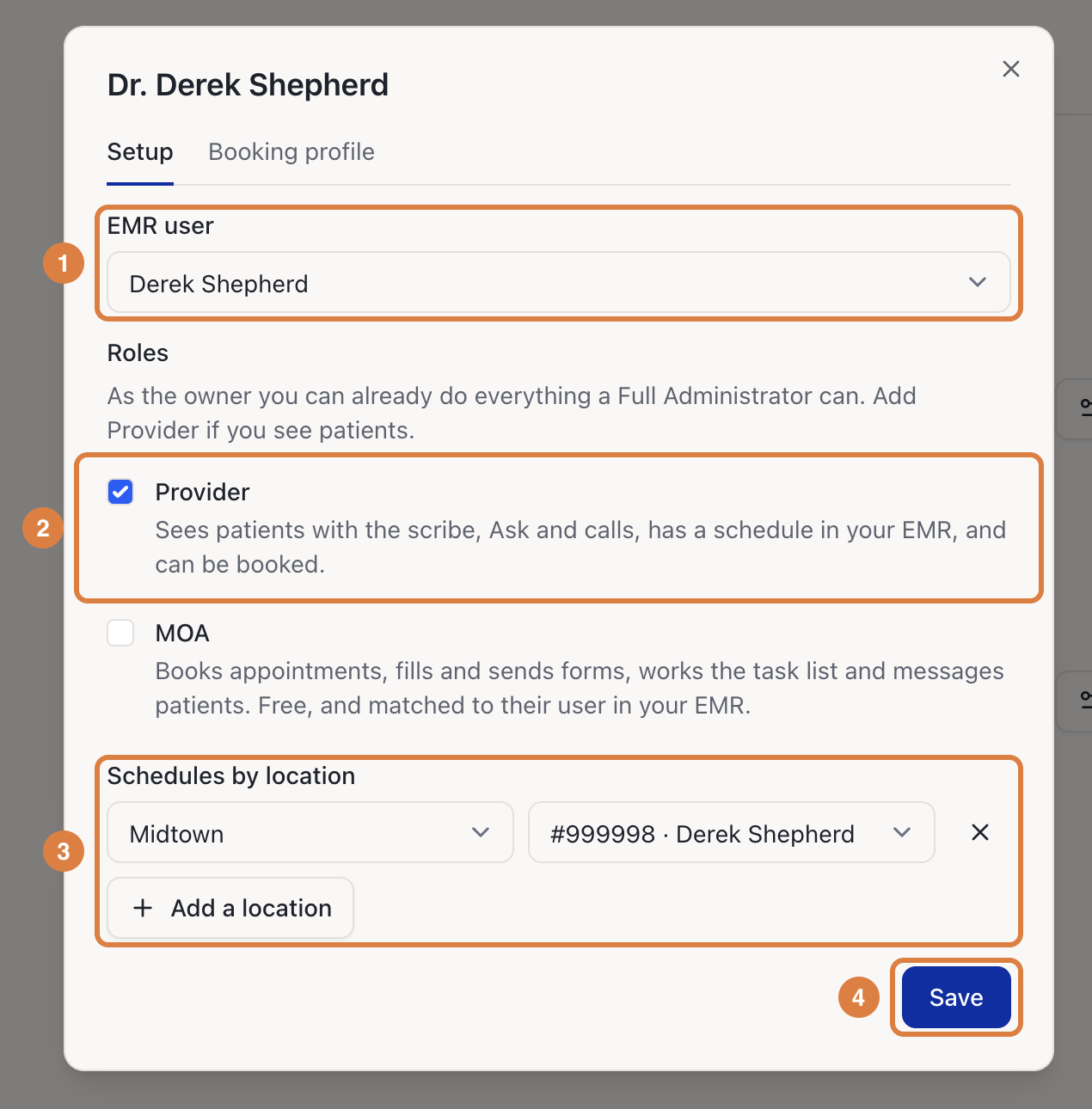
On Settings → Team, click Configure next to the provider.
Under EMR user (1), choose the user they sign in to your EMR with.
Make sure Provider (2) is ticked.
Under Schedule (3), choose their provider number in your EMR. If your clinic has more than one location, this reads Schedules by location: choose the location and the number, and click Add a location for each other location where they have a schedule.
Click Save (4).
Add their booking profile
Patients see each provider's profile on your booking page.
Click Configure next to the provider and open Booking profile.
Upload a Photo: a head-and-shoulders photo, at least 600 × 750 px.
Fill in Role (for example, Family physician), Credentials, Pronouns, Languages and About. Only the photo is needed for the team section.
Click Save.
Your booking page shows its Our team section only when every provider patients can book has a photo.