
You can use the Schedule feature in Medulla AI to book appointments, reschedule visits, and update appointment statuses. Everyone in your practice shares the same calendar, so you can view and book appointments for any practitioner. This guide shows you how to use Schedule and manage appointments.
View your schedule
Open Schedule in the left sidebar of the Medulla web app. On a phone, select Schedule from the bottom menu.
Choose whose appointments to display: My appointments, Everyone, or a specific practitioner.
Select Week, Day, or List to change how appointments are displayed.
Use the arrows to move between dates, or select Today to return to the current date.
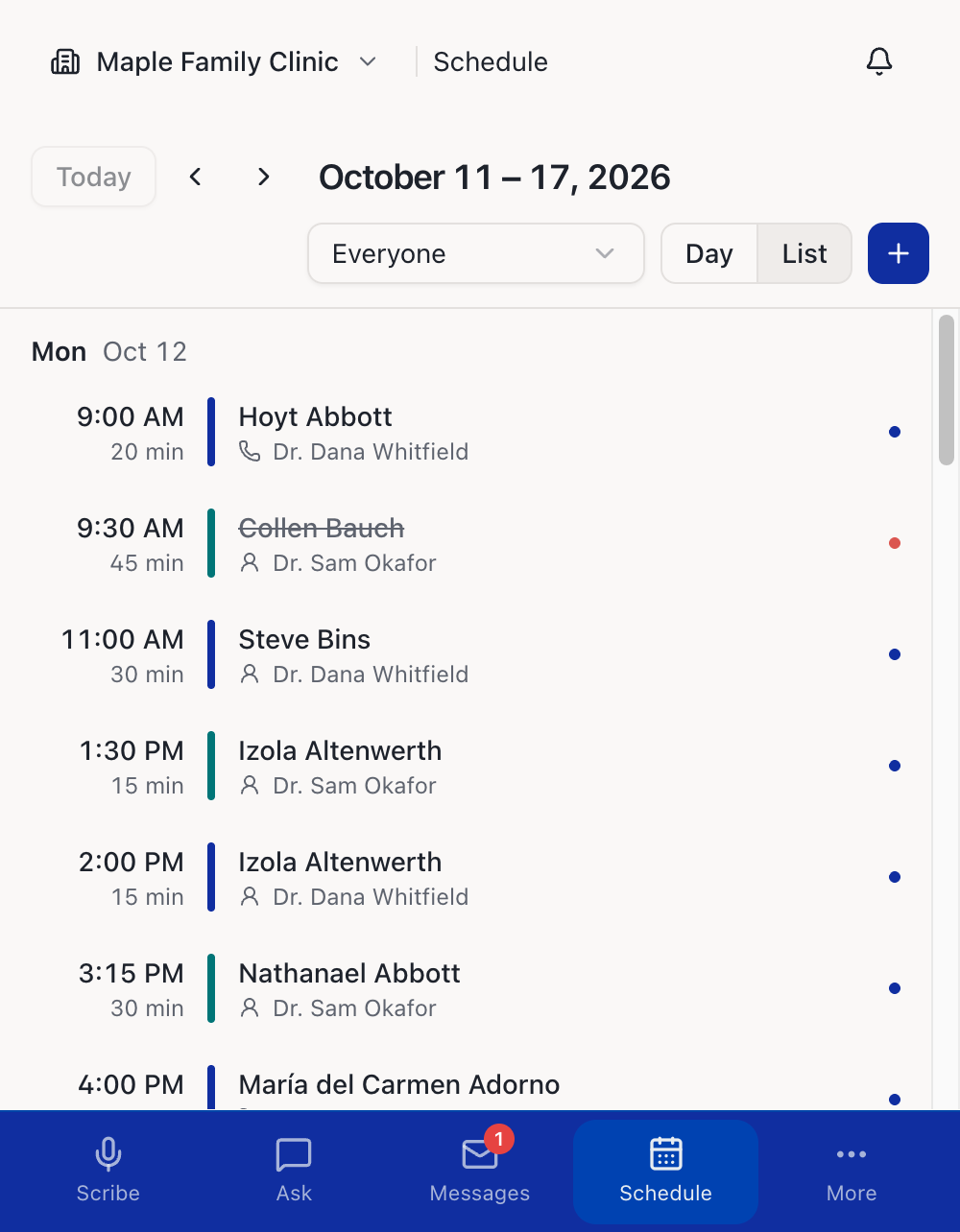
Each practitioner has a different colour on the calendar. Week and Day display appointments on a time grid, while List displays the week’s appointments by day.
On a phone, the Schedule opens in List view.
Find your way around
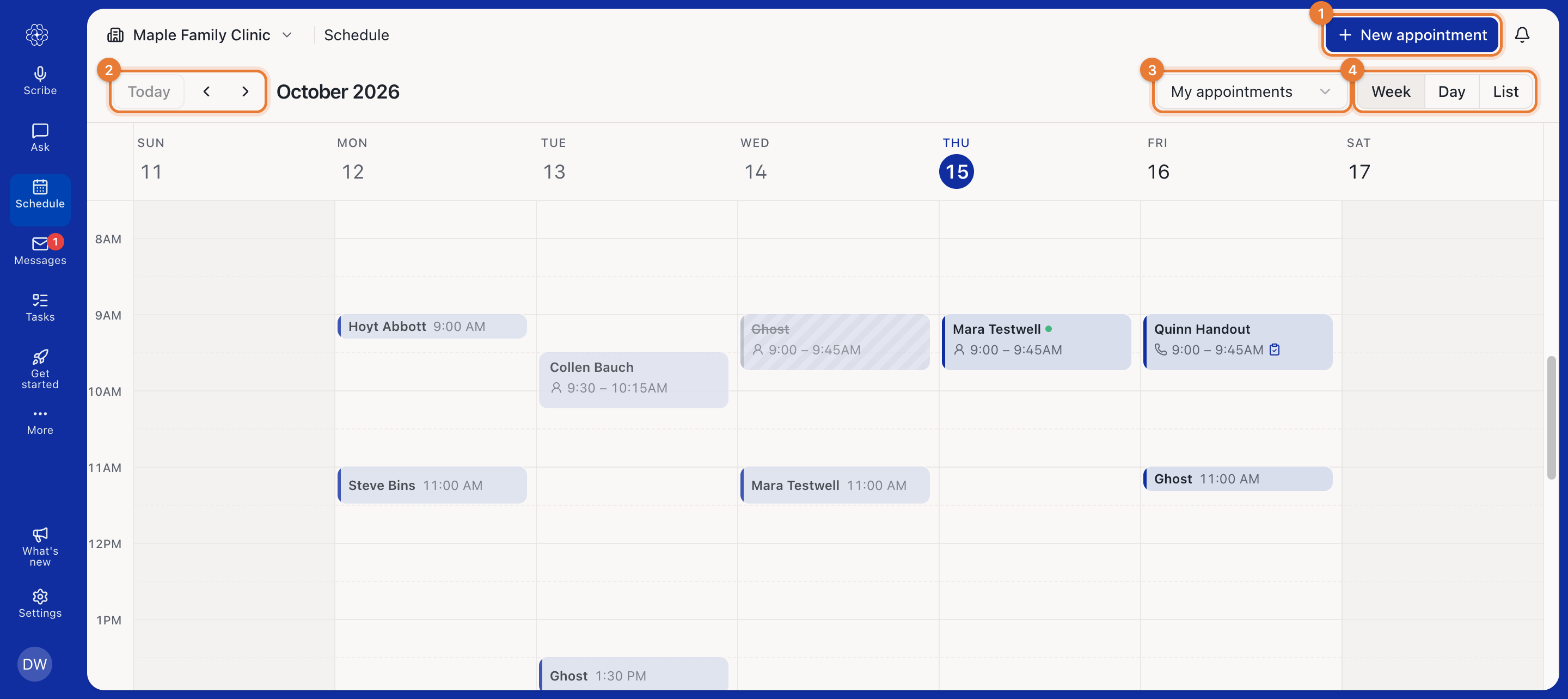
Today and the arrows move the calendar. The title shows the month or week you're looking at.
The filter shows My appointments, Everyone, or one practitioner. Each practitioner has their own colour on the calendar.
Week and Day show appointments on a time grid. List shows the week as a list, one day after another.
Small marks on an appointment tell you more about it: a phone for a phone visit, a camera for a video visit, a check once it's completed, a green dot once the patient has arrived, and a clipboard when the patient has answered their pre-visit triage. List also shows a person for an in-person visit. Waiting means a video patient is waiting for you. Cancelled appointments are struck through.
On a phone, the Schedule opens as a list. Tap + to book an appointment.
Book an appointment
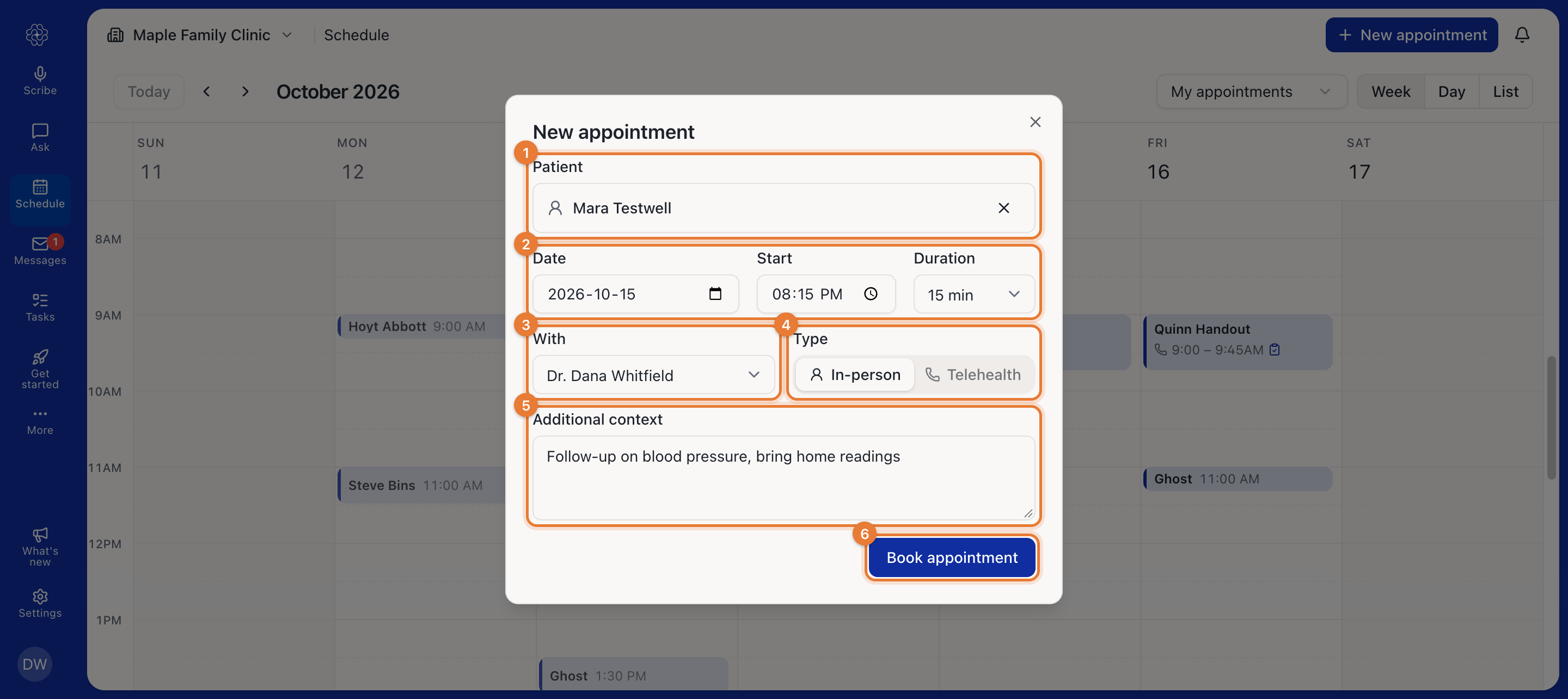
Click New appointment. You can also click or drag across an empty time on the calendar to start a booking at that time.
Click Choose or add a patient and pick the patient. If they aren't in Medulla yet, choose Add new patient. Every appointment needs a patient.
Set the Date, Start time and Duration.
Under With, choose who the patient is seeing.
Choose the Type: In-person or Telehealth. For telehealth, choose Phone or Video under Telehealth by. A video visit needs the patient's email and date of birth, and the form asks for them if they're missing.
Optionally add Additional context, such as the reason for the visit or anything to remember. It's passed to the scribe when you start a session from the appointment.
Click Book appointment. For a video visit, the patient is emailed their join link. See How to run a video visit.
Medulla doesn't stop you from double-booking. If the new time overlaps another appointment for the same practitioner, the form tells you which one, and you can still book it.
Open an appointment
Click an appointment on the calendar to see its details and what you can do with it.
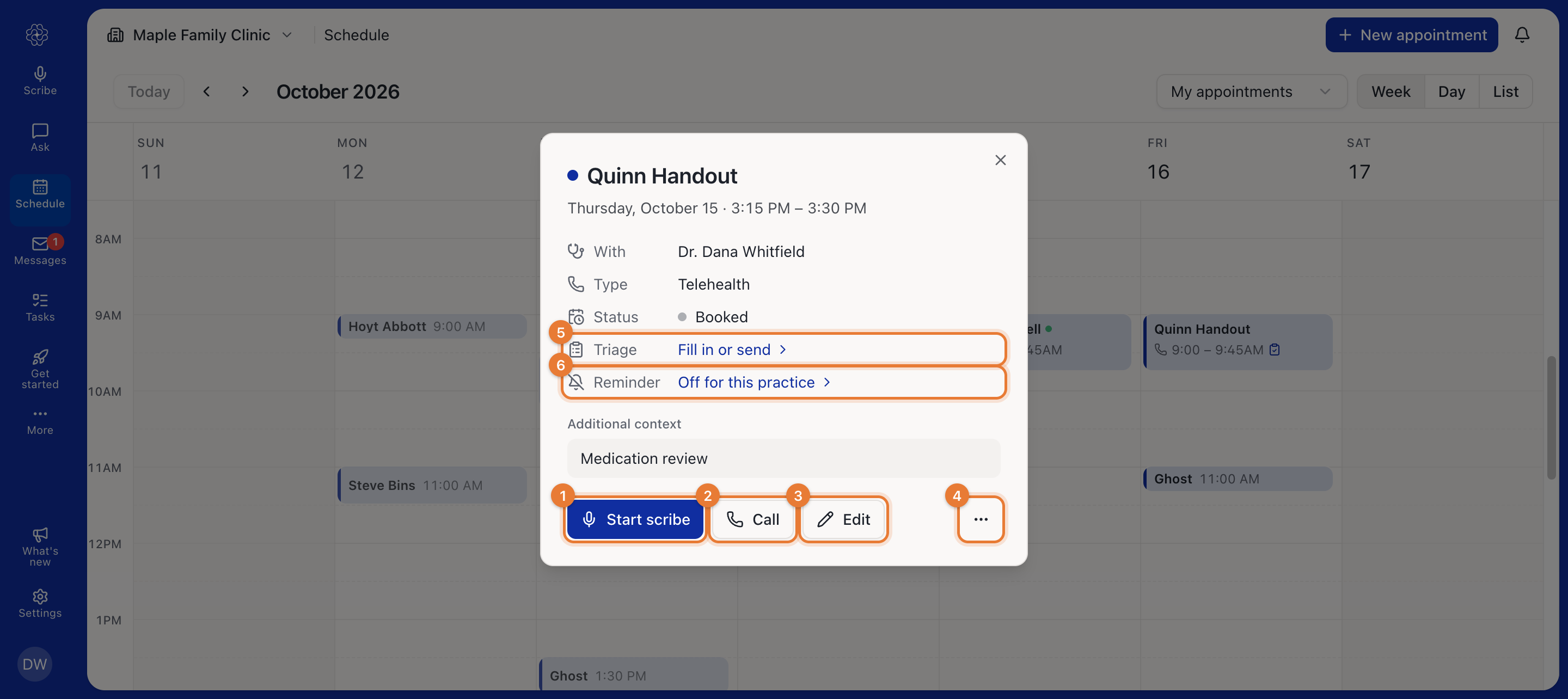
Starting a scribe or a call from here is covered in How to start an encounter from an appointment. The Triage row is covered in How to send a pre-visit triage to a patient. The Reminder row is covered in How to turn on appointment reminder emails.
A video visit also shows a Join link row, which emails the patient a fresh link, and Join for the clinician it's booked with.
Click Fill a form next to Forms to fill a form for the patient, or ask them to fill in their part before the visit. Medulla fills it from the appointment and the patient's details. See How to fill a form for a patient.
Reschedule an appointment
Drag the appointment to a new time or day, or drag its bottom edge to make it longer or shorter. The edit form opens so you can check the change before saving. Close it to put the appointment back where it was.
Or open the appointment, click Edit, change the date, time or duration, and click Save.
A video visit keeps the same join link when you reschedule it, and the link follows the new time.
Change an appointment's status
Every appointment starts as Booked. To change it, open the appointment, click the … button and choose a status under Mark as: Booked, Arrived, Completed, No-show or Cancelled.
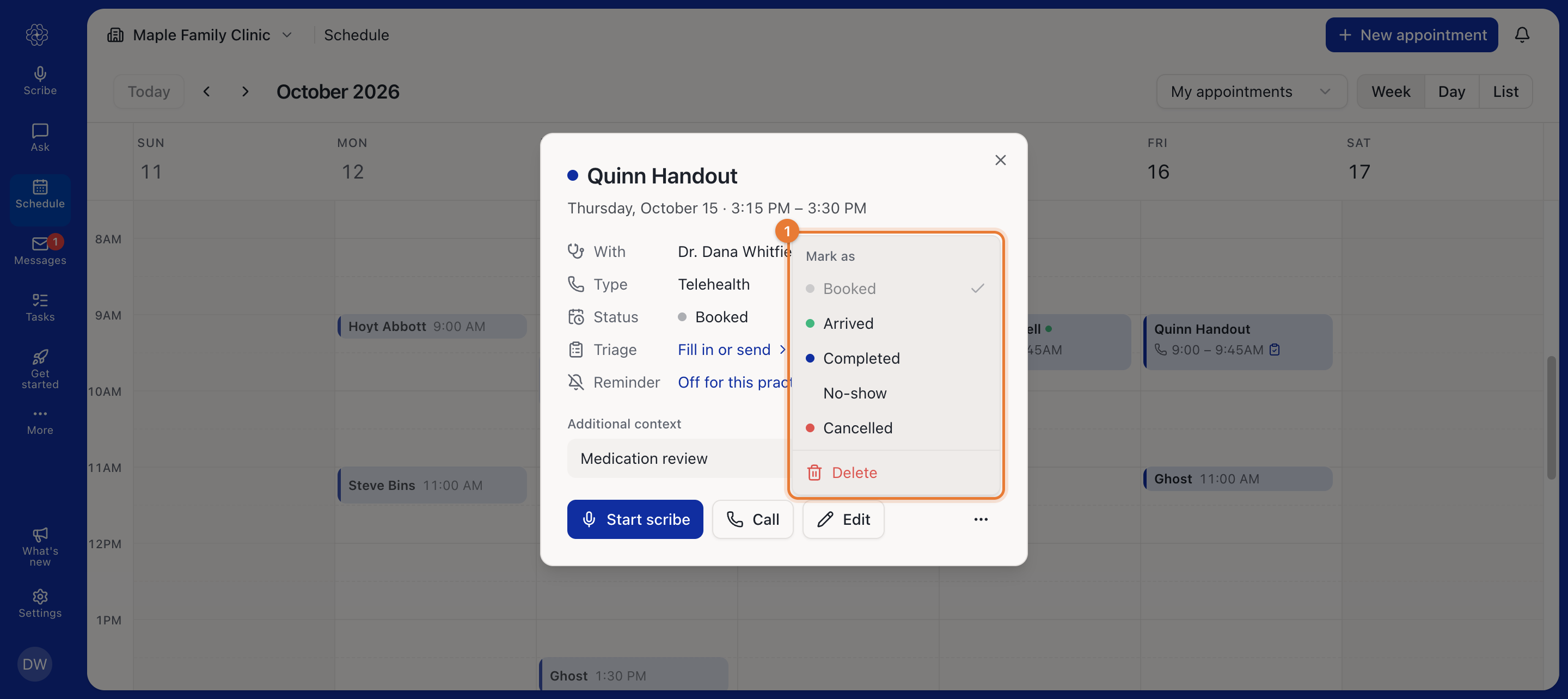
You rarely need to mark an appointment completed yourself. When you start a scribe session from the appointment, Medulla marks it Completed once the recording ends.
Marking a video visit Cancelled or No-show closes its join link. If you reopen the appointment, the patient gets a new link.
Delete an appointment
Open the appointment, click …, then Delete, and confirm. A deleted appointment is removed from everyone's calendar. If you want to keep a record that the visit didn't happen, mark it Cancelled or No-show instead.