
Medulla fills a form for you from the encounter: the transcript, the note and the patient's details. You review the filled form, change anything you need on the form itself, then print it, download it or save it to the patient's chart.
Fill a form from an encounter
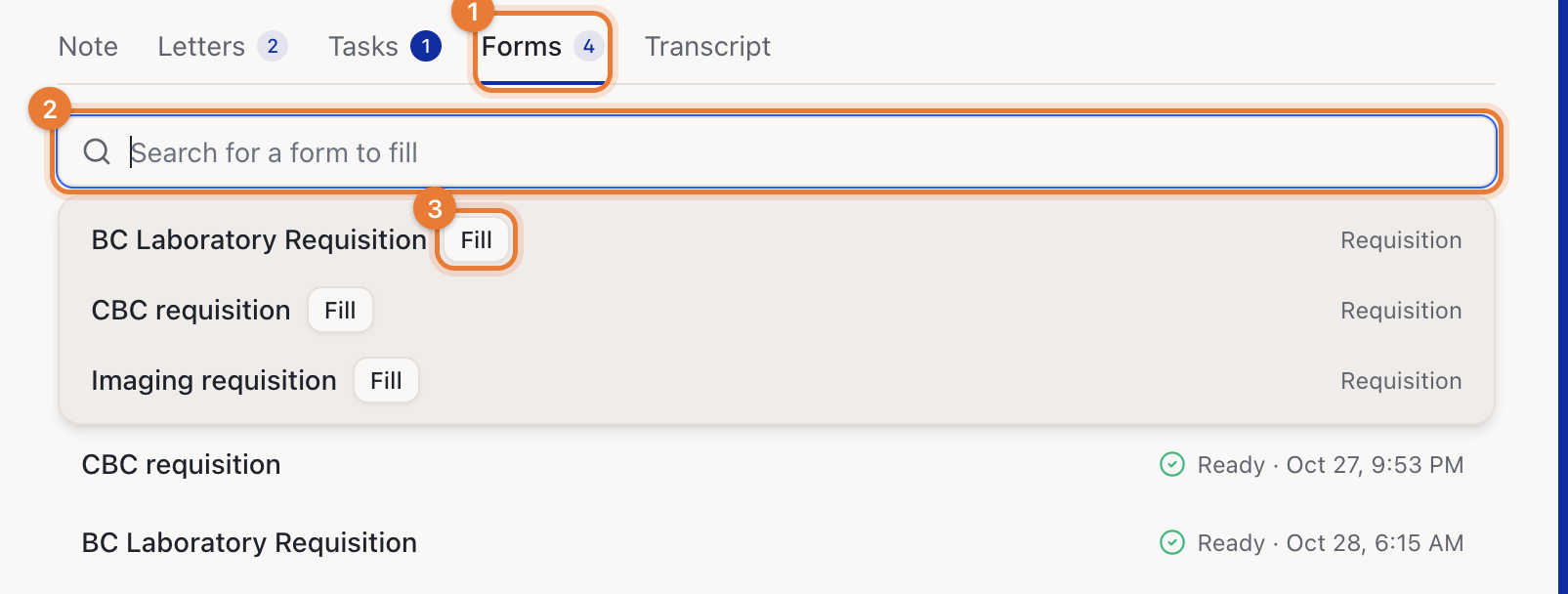
Open the encounter and go to the Forms tab.
Click the search box and type the form's name, or pick it from the list. Favourites come first.
Click Fill.
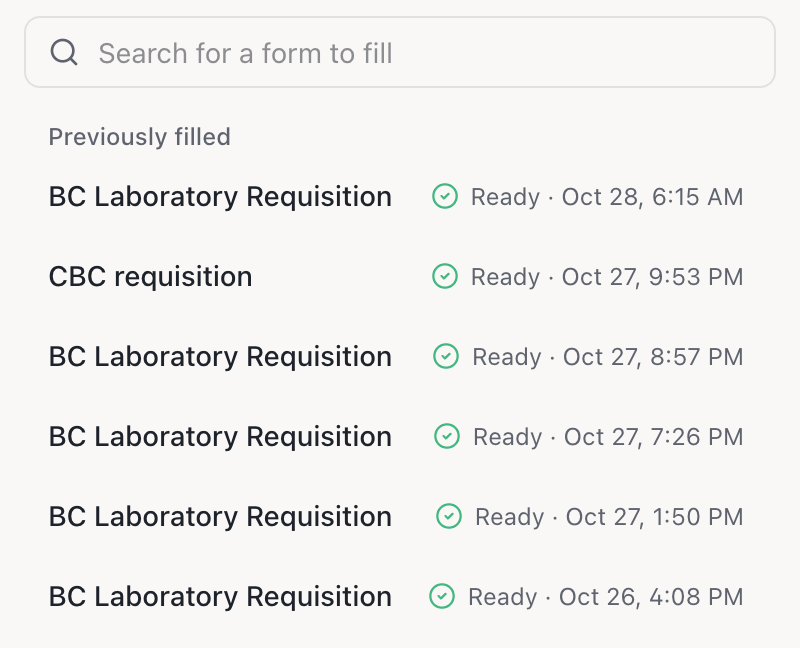
The form appears under Previously filled with Filling…. It takes a few seconds. When it's ready, a message says so; click Open on the message or click the form in the list.
Medulla only fills what the encounter and the patient's details support. Anything it can't find stays blank for you to complete.
If the patient has a part of the form to fill in themselves, click Ask patient instead. See How to ask a patient to fill in their part of a form.
Fill a form from the Forms page
On the Forms page, click the form, or click ⋯ and Fill this form.
Search for the patient or encounter and choose it.
Optionally tick Include earlier visits to let Medulla use the patient's earlier encounters too.
Optionally add an instruction for this fill, such as "Only fill Part B".
Optionally add Other patient information: paste results or history, or attach files the form needs.
Click Fill for the patient.
Review and finish the form
The filled form opens on screen. Click any field to change it, or tick and untick boxes. Your changes save as you go.
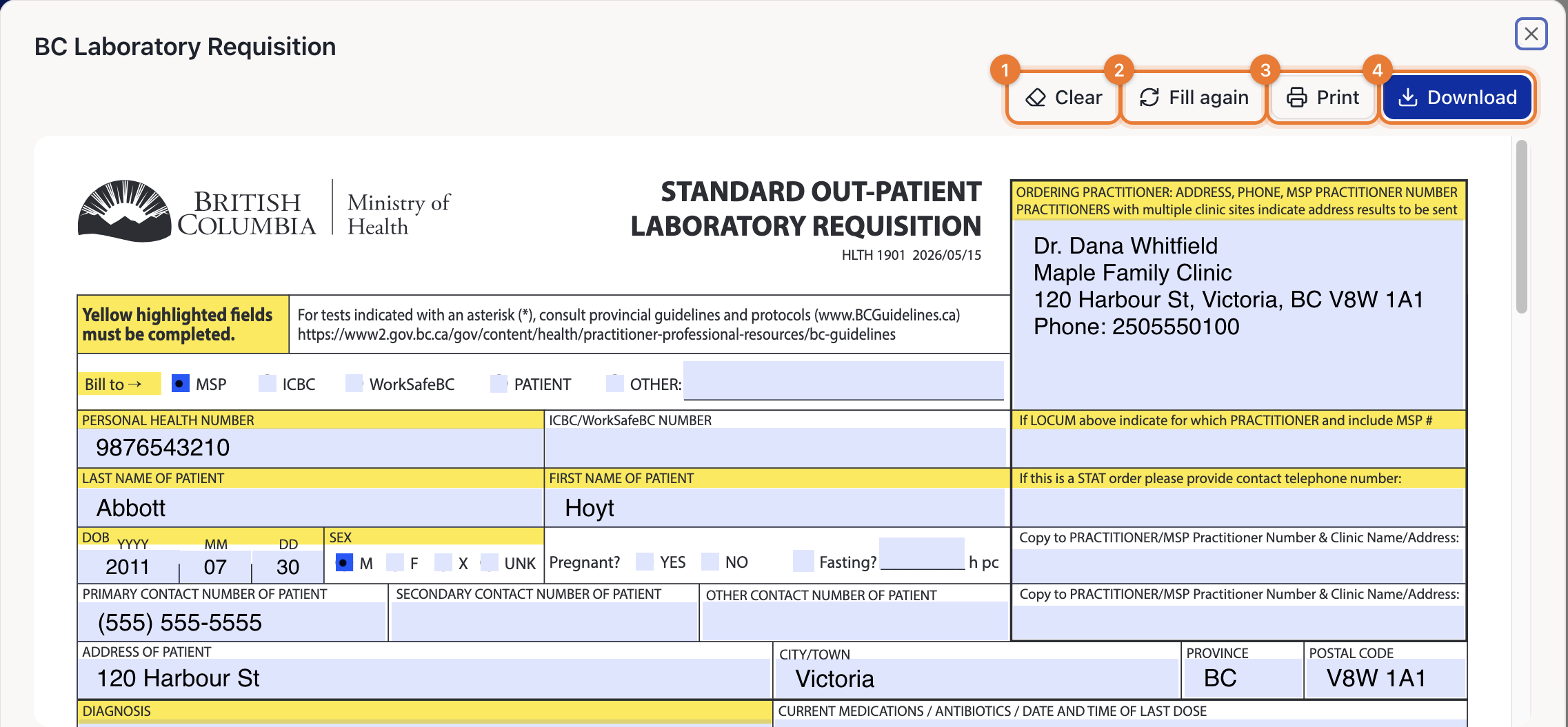
Clear empties every field so you can fill the form by hand.
Fill again refills the form, optionally with an instruction such as "Don't tick cortisol". It replaces your edits, but keeps any answers the patient sent back.
Print or Download the finished PDF.
To delete a filled form, hover over it under Previously filled and click the bin.
Fill a form in your EMR
In the Medulla side drawer, click Forms in the bar at the bottom, or open the Forms tab of the session. Search for the form and click Fill. In the drawer, Medulla also fills from the patient chart that's open in your EMR, so demographics, medications and history come straight from the chart.
Opening a filled form widens the drawer so you can review the whole page next to the chart.
Save a form to the patient's chart
When you've finished the form in the drawer, click Save to chart. Medulla adds the PDF to the documents of the chart open in your EMR. This works in Oscar, Juno, Avaros and MedAccess. In MedAccess, the form is saved as an attachment.
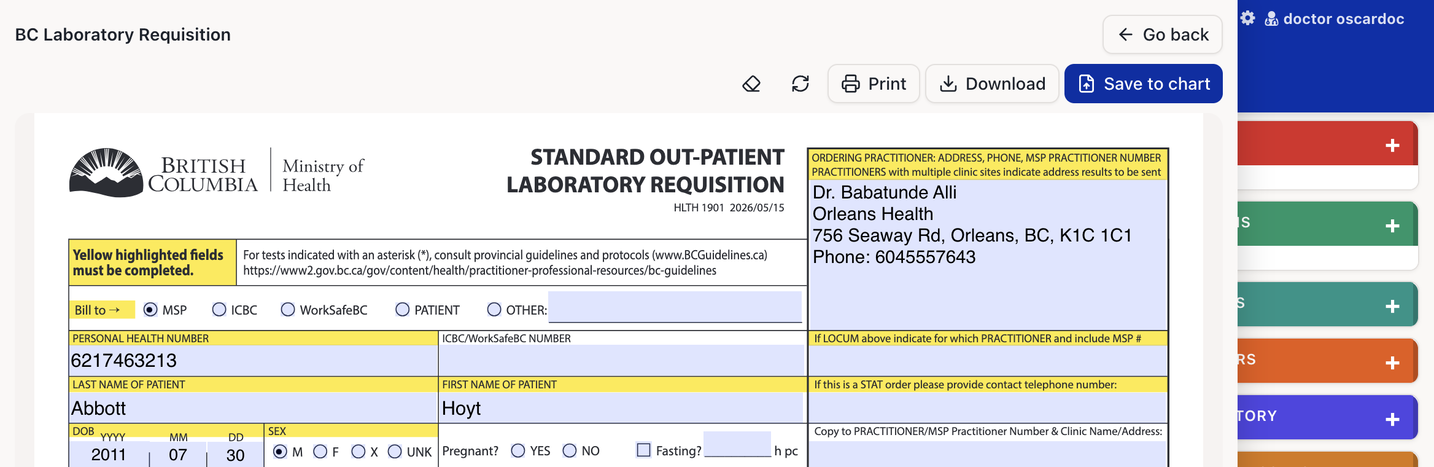
The document is named after the form, followed by the date and time of that version, such as BC Laboratory Requisition (2026-10-28 14:05:33). When it's saved, the button shows Saved to chart. The filled form shows when it was saved, both in the drawer and in the web app.
If you edit the form after saving it, click Save to chart again to add the new version. Saving a form you haven't changed doesn't add a second copy.
Medulla only saves to the chart of the patient the form was filled for. If another patient's chart is open, open the right chart first.
You can only save to the chart from the drawer. In the web app, print or download the form instead.
Referral letters and handouts can be saved the same way. In the drawer, open the session's Letters tab, choose the letter and click the save to chart icon next to the print icon. The letter is saved with your letterhead and signature.