
Your booking page shows your clinic's name, logo, colours, locations and team. You change all of it in one place and see each step as patients will before you save.
Go to Settings → Online booking, open the Booking page tab and click Design your booking page.
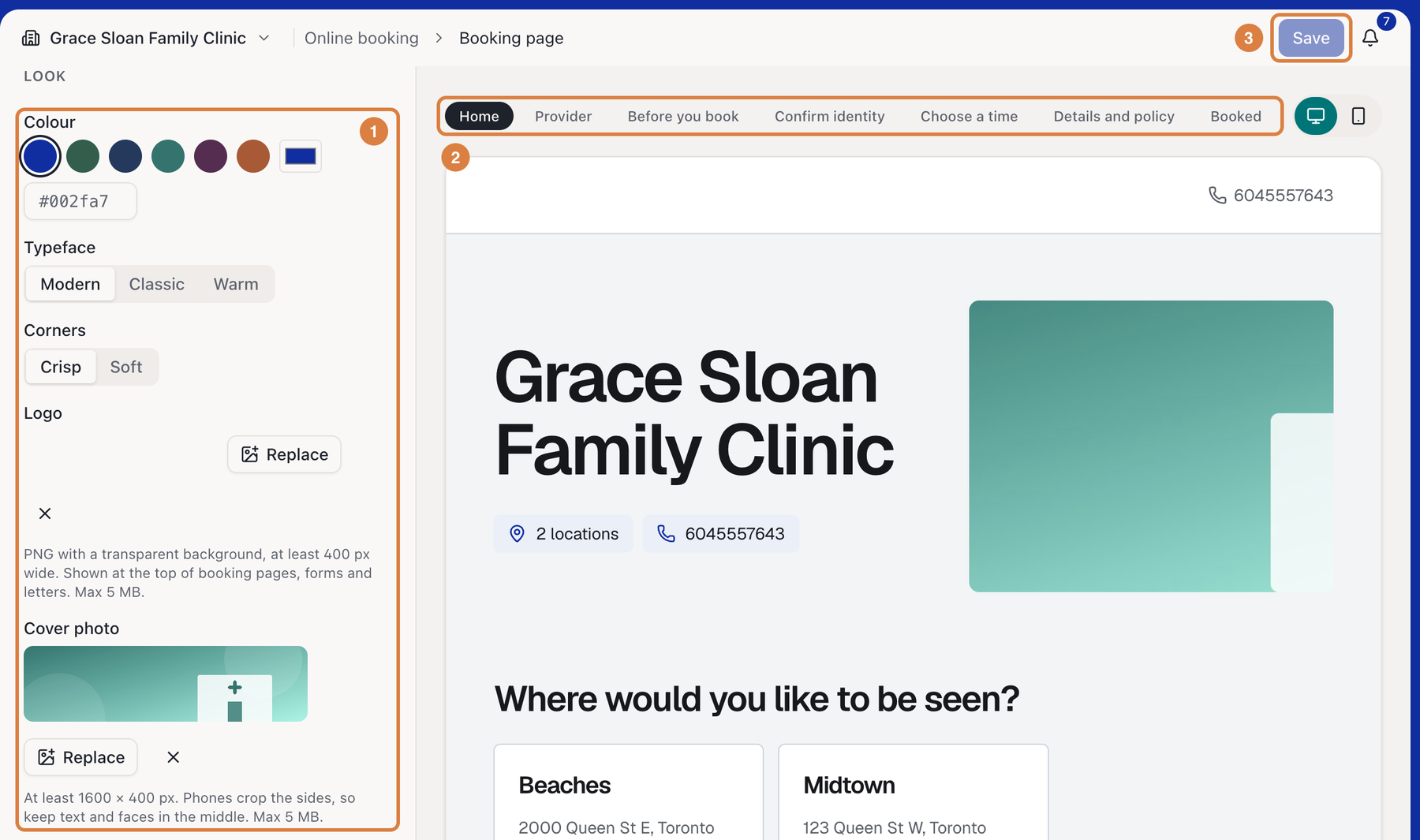
On the left, check your clinic details and locations, then set the look (1): Colour, Typeface, Corners, Logo and Cover photo. The cover photo should be at least 1600 × 400 px. Phones crop its sides, so keep text and faces in the middle.
Under Words, add a Welcome line and, if you need one, an Announcement such as holiday hours.
Use the tabs above the preview (2) to check each step patients go through, on a computer or a phone.
Click Save (3).
Your team
The Team list in the designer shows the providers patients can book. Click one to add their photo and profile. The booking page shows its Our team section only when every one of them has a photo.
Post an announcement
To post a short notice without opening the designer, type it under Announcement on the Booking page tab and click Publish.