
New patients can register with your clinic online, on their own or as a family, and fill in your intake form as they do. You then invite them to a meet and greet, or let them book one themselves straight after registering.
Turn on registration
Go to Settings → Online booking and open the Registration tab.
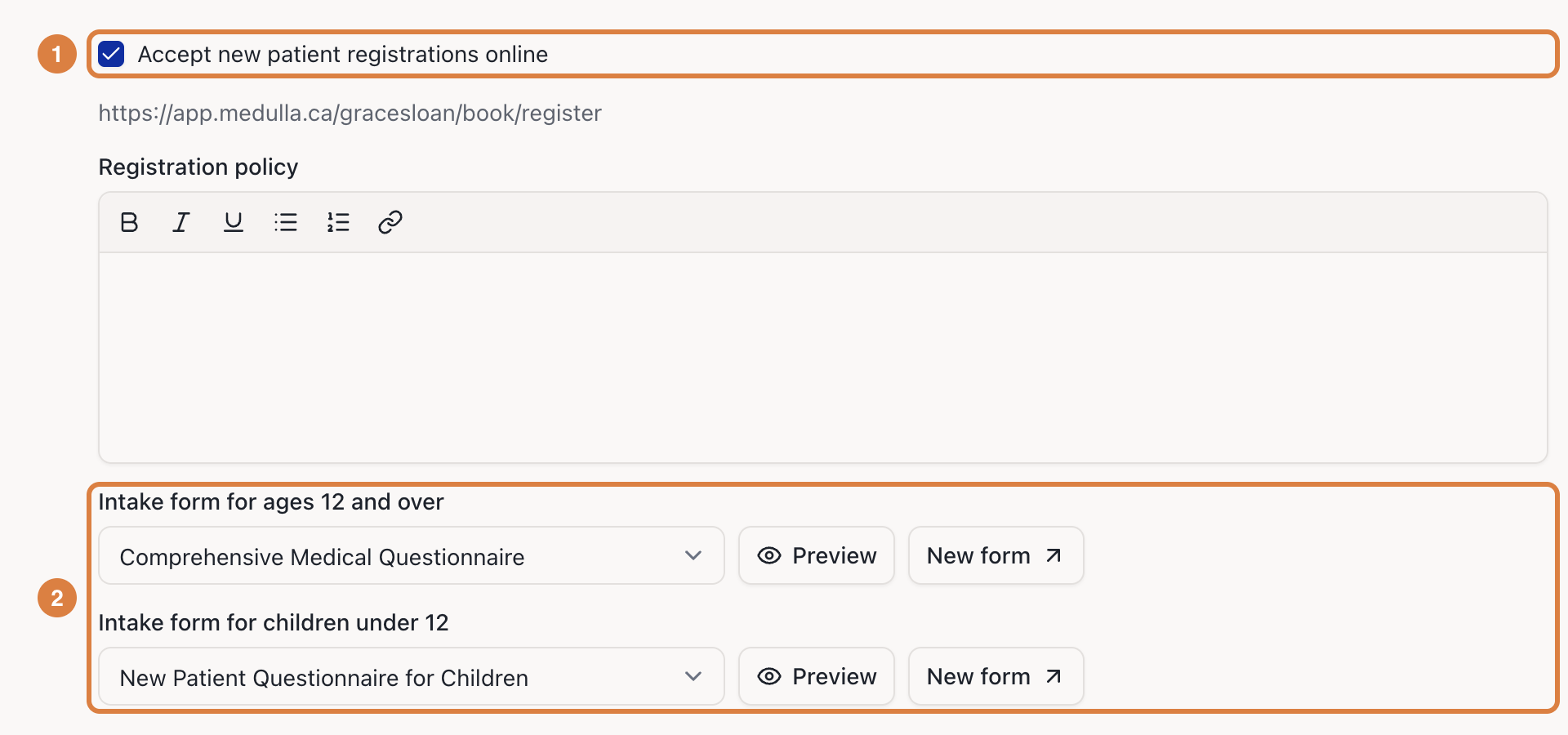
Tick Accept new patient registrations online (1). The registration link appears below it.
Under Registration policy, add anything new patients should read before they register, such as who you're taking on.
Choose an Intake form for ages 12 and over and an Intake form for children under 12 (2). Click Preview to see a form as patients will, or New form to build one.
Under Emails to patients, check the text of the emails sent after they register, when they're added to the waitlist and when they're invited to a meet and greet.
Under Staff, enter who gets the Daily summary email of new registrations, and how many days a registration is kept under Waitlist expires after (days).
Click Save.
Let new patients book a meet and greet themselves
By default, new patients register and wait for you to invite them. To let them book a meet and greet straight after registering:
On the Appointment types tab, click the pencil next to Meet and greet.
On Details, set the Length (minutes) booked for each person. It starts at 15.
On Providers, turn on each provider who's taking new patients.
Click Save type.
New patients then choose one of those providers after the intake form and pick a time. Their booking page profile says Accepting new patients, with a button to book a meet and greet with them. Turn everyone off to go back to inviting new patients yourself.
What new patients see
Patients reach registration from the registration link, or from the booking page when no chart matches their health card number and date of birth. They fill in their details, then your intake form with those details already filled in. Each family member gets their own details and intake form. They get a confirmation email when they submit.