
You can see a patient on video from Medulla, with nothing for them to install. They open a secure link from their email and confirm their date of birth to join. The visit is scribed like any other, and the note is ready when you end the call.
Video visits work in the EMR plugin and the web app. Only the audio is used to write the note. Video is never recorded.
Start a video visit now
In the Medulla drawer on the patient's chart, select the Telehealth tab and click Call. In the web app, open Scribe, select Telehealth and click Call patient.
Select the Video tab. In the web app, choose the patient.
Click Send link and join now.
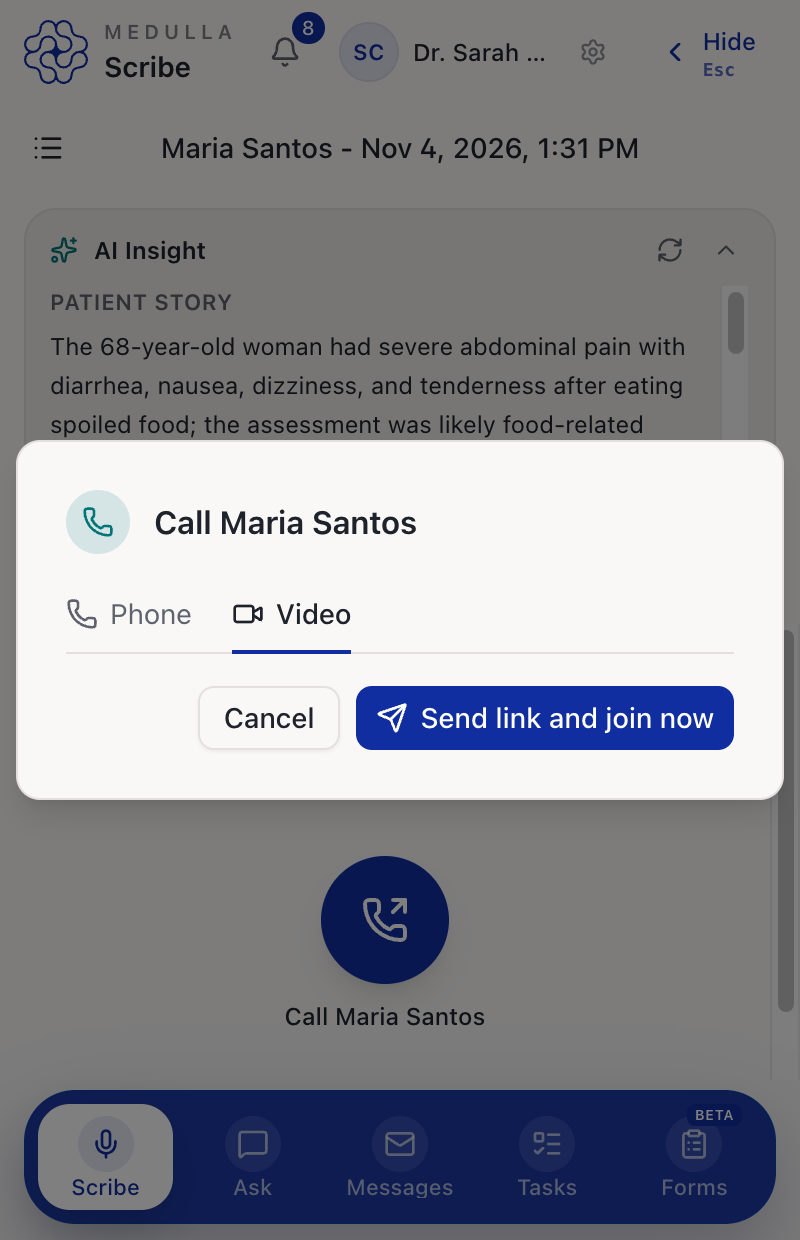
Medulla emails the link to the patient, copies it for you, and joins you to the visit. It uses the email and date of birth on the chart, then any saved on the patient in Medulla. It asks you only for what's missing.
Book a video visit ahead
Booking is done on the Schedule in the web app.
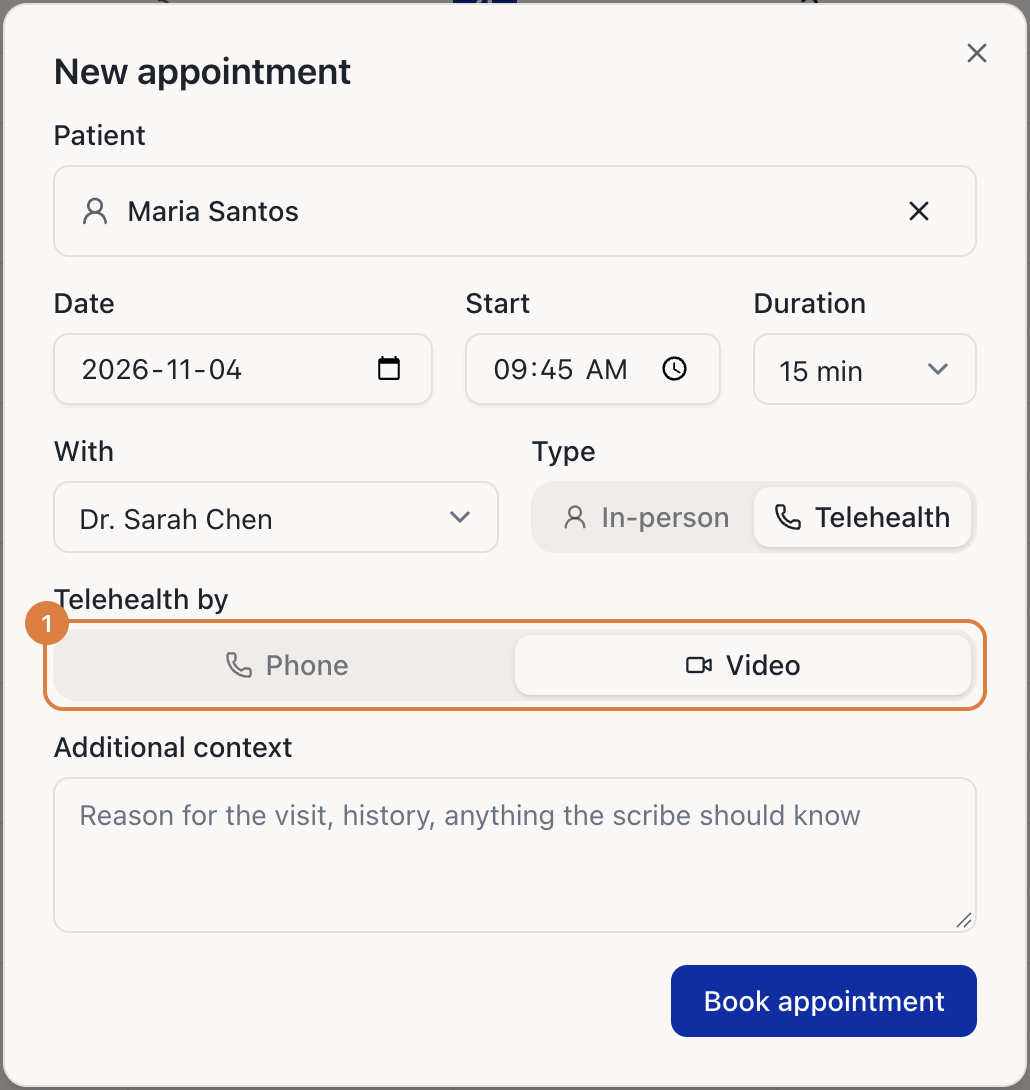
Click New appointment and choose the patient, date and time.
Under Type, choose Telehealth.
Under Telehealth by, choose Video. If the patient has no email or date of birth in Medulla, add them here.
Click Book appointment. The patient is emailed their link.
The link opens 15 minutes before the appointment and closes 60 minutes after it's due to end. If the patient opens it early, they see when they can come back. If you reschedule, the same link follows the new time. Cancelling the appointment or marking it a no-show closes the link.
If reminder emails are on for your practice, the reminder carries the link too.
Join a booked visit
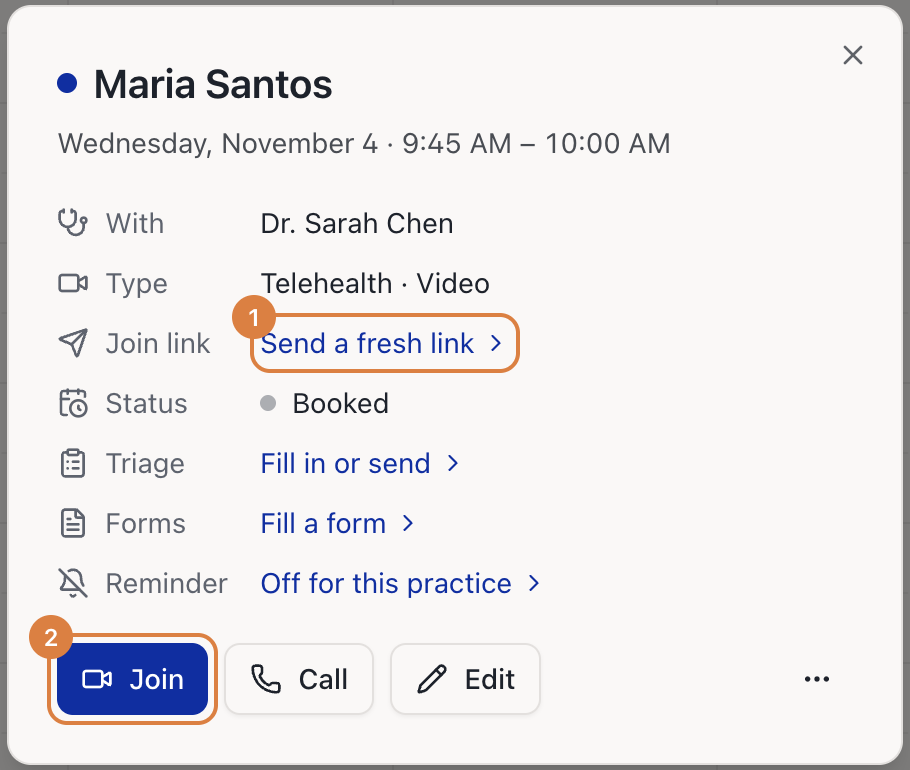
When the patient arrives, the notification bell tells you and the appointment shows Waiting on the calendar. Click the appointment, then click Join. You can also join before the patient arrives.
What the patient does
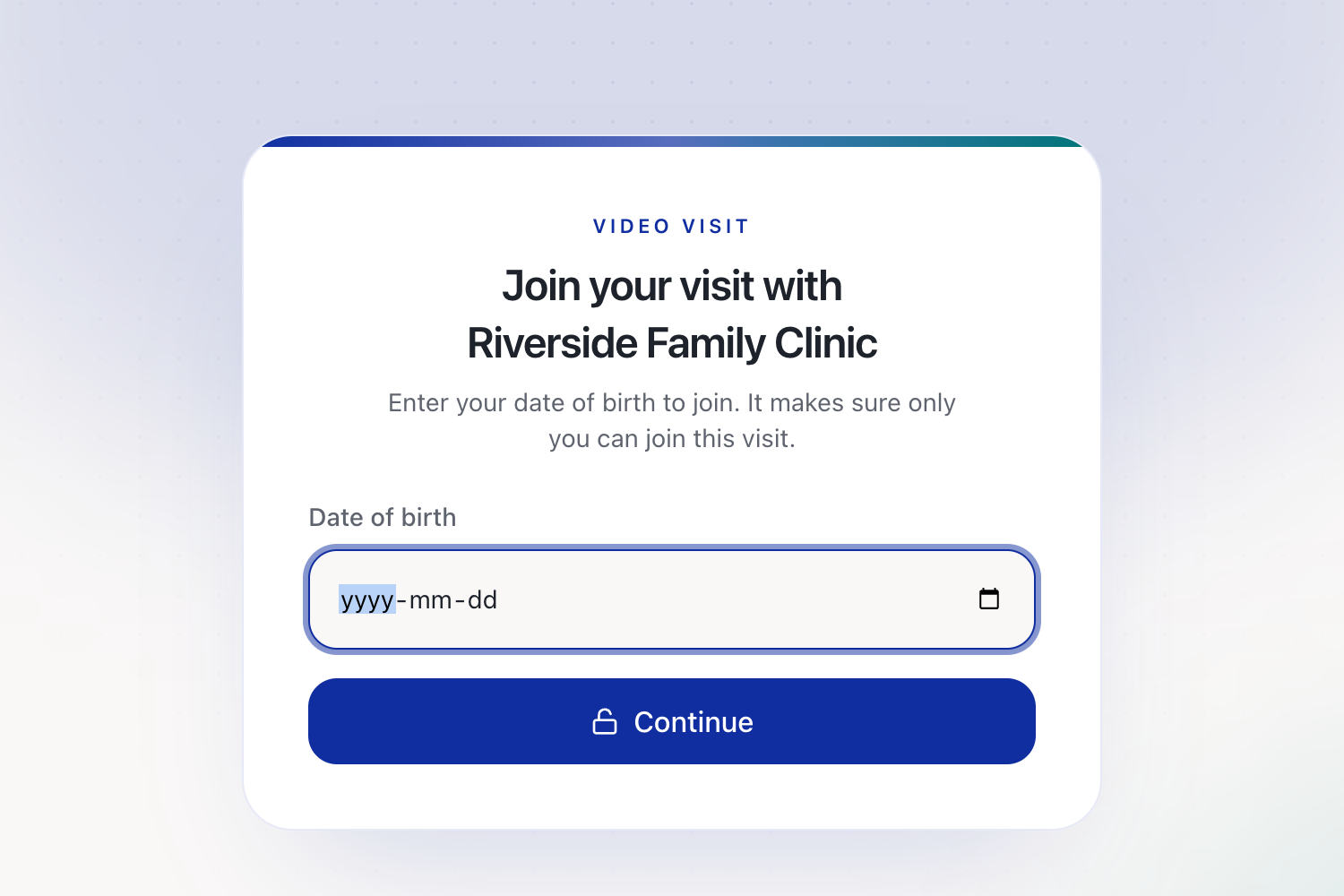
They open the link from their email. There's no app to install and no account to create.
They enter their date of birth. After five wrong tries the link locks. Send a fresh link or Send link again unlocks it.
They allow their camera and microphone, check that they can see themselves, and join.
If they arrive before you, they're told they're waiting for you. If you're more than 10 minutes late, the page tells them you're running late and to stay on the page. If they lose their connection or reload the page, they can rejoin without entering their date of birth again.
During the visit
The scribe starts when the patient joins. Your camera always starts off, so click Camera off when you're ready to be seen.
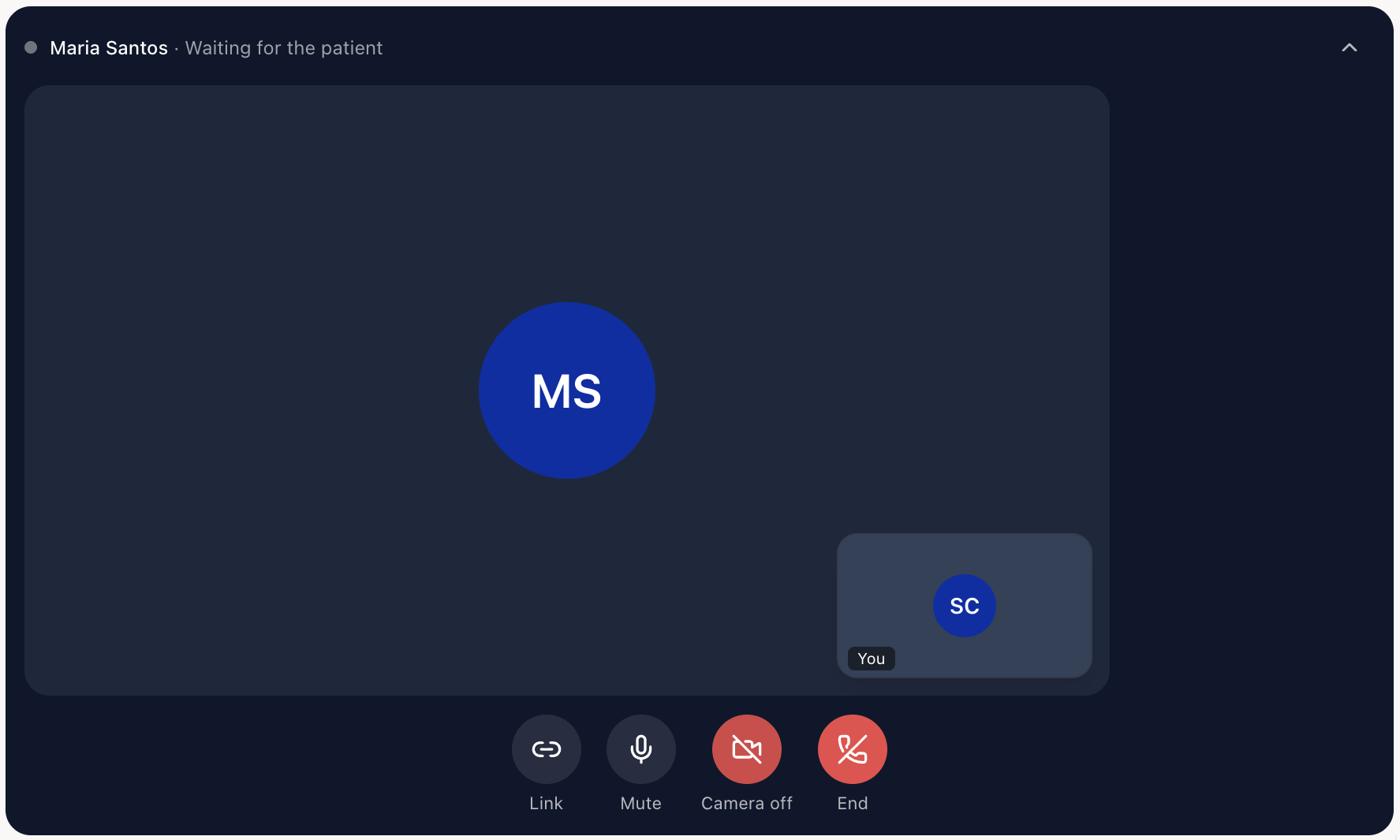
Link copies the patient's join link.
Mute turns your microphone off and on.
Camera turns your camera off and on.
End ends the visit.
In the EMR plugin, the video opens in its own small window at the corner of your chart. It stays open when you switch charts, so you can keep working while you talk. The bar at the top of the drawer shows who you're on a call with, and Show video brings the window back. If your EMR is in full screen on a Mac, the chart leaves full screen so the window can sit beside it.
If the patient doesn't join
After five minutes of waiting, Medulla offers Send link again. In the web app it also offers Call instead, which ends the video and opens the dialer.
If you end the visit before the patient joins, nothing is saved and the appointment stays open. That link stops working, so send the patient a fresh one from the appointment.
End the visit
Click End, then End call.
The note is ready on the chart, with the transcript and billing suggestions, like any other visit.
Only you can end the session. If the patient leaves first, the video closes and Medulla keeps recording your microphone, so you can dictate anything you want in the note. Click Finish when you're done.
A visit booked on the Schedule is marked Completed when the session ends.
Add video to a phone call
If you need to see something during a phone call, you can add video without hanging up.
During the call, click Add video. In the web app, choose the patient if you haven't yet.
Click Send link.
The patient opens the link and joins with their camera. Their voice stays on the phone.
When you've seen what you need, click End, then End video only. The call carries on, and you can add video again later.
The patient can also stop the video and stay on the phone, or end the call, from their page.