
Invite everyone who works in your practice, from physicians to medical office assistants (MOAs), and give each person the roles they need. Only the practice owner or a Full Administrator can invite staff and change roles.
What each role can do
Full Administrator: runs the practice. Invites staff, assigns roles and changes practice settings such as practice details, the EMR connection and appointment reminders. This role doesn't see patients on its own; add Clinician as well if the person also sees patients.
Clinician: sees patients with the scribe, Ask and calls. Each clinician needs a Medulla plan, so give this role to everyone who sees patients and to no one else.
MOA: books appointments, sends pre-visit questions, works the task list and messages patients, across the whole practice. MOAs don't use the scribe or Ask, and they don't need a plan. In the Medulla EMR plugin, MOAs see the Messages and Tasks tabs, so messages they send to a patient are saved to that patient's chart.
Roles add up: tick every role that applies. For example, a physician who also manages the practice is a Full Administrator and a Clinician.
The person who created the practice is its Owner. The owner can already do everything a Full Administrator can, so they only need Clinician added if they see patients.
Invite a staff member
-
In the Medulla EMR plugin, click your name at the top of the drawer and select Invite staff. You can also go to Settings > Staff in the Medulla web app.
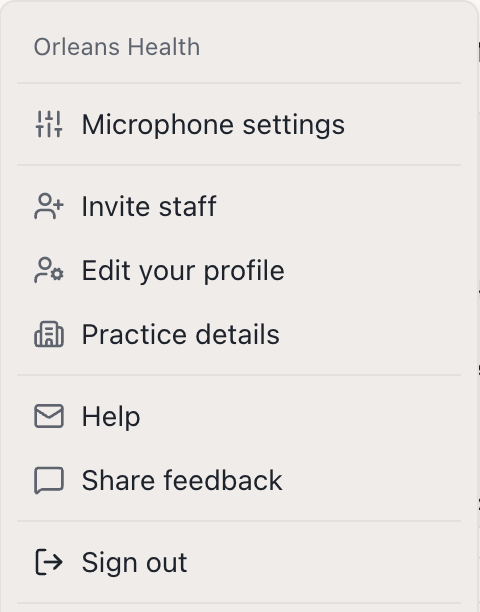
Invite staff in the drawer menu Under Invite staff, enter their title, first name, last name and email address.
Under Roles, tick every role they need. You must pick at least one, and you can pick more than one. Send invite stays greyed out until you do.
-
Click Send invite.
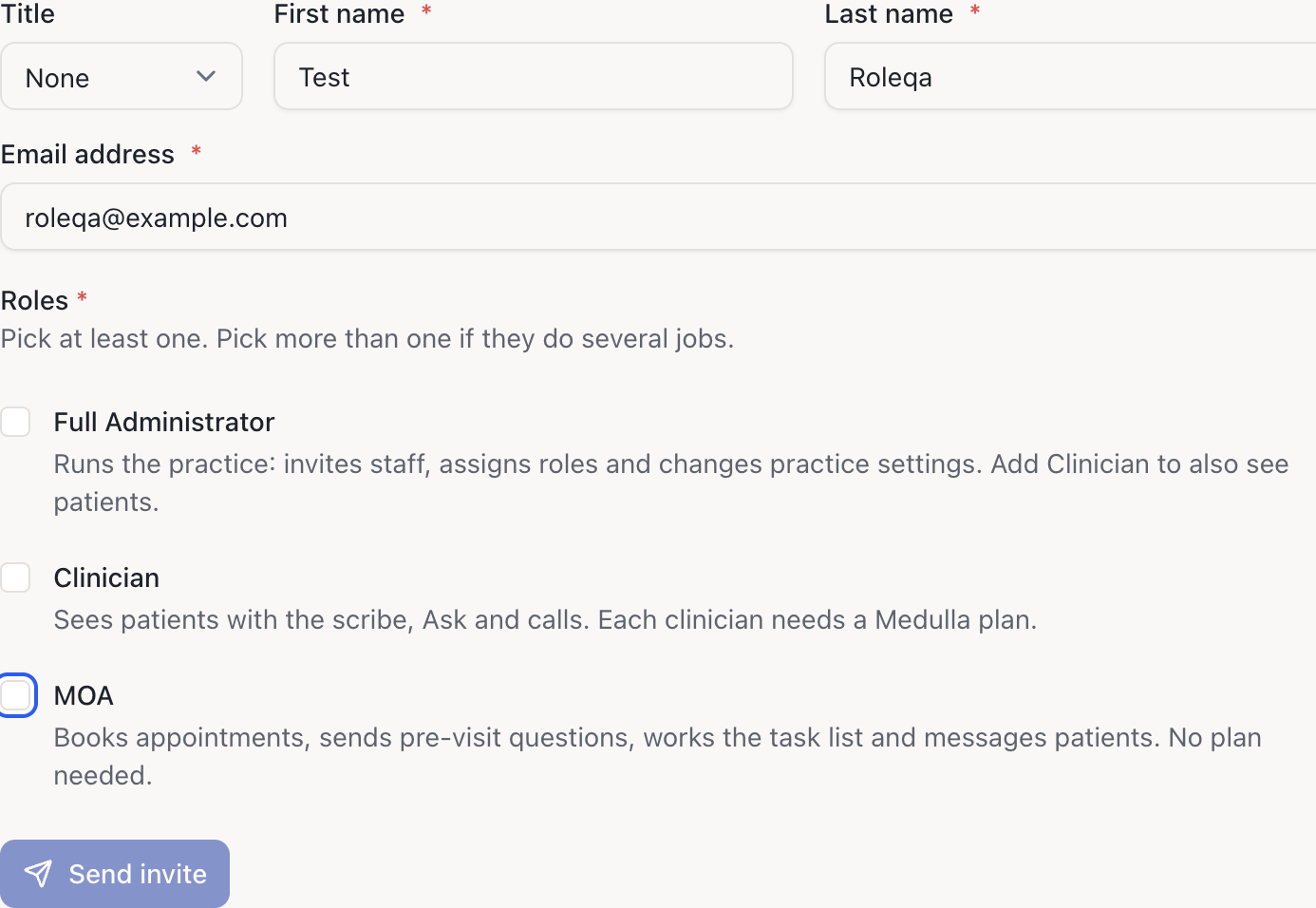
Invite staff form with roles
They'll receive an email with an invitation link that's valid for 24 hours. Until they accept, the invitation shows as pending on the Staff page, where you can resend it if it expires. Once they accept, Medulla walks them through any setup steps on the Get started page.
Change someone's roles
Go to Settings > Staff in the Medulla web app.
Find the person and click Roles.
-
Tick or untick roles, then click Save roles. Everyone except the owner needs at least one role.
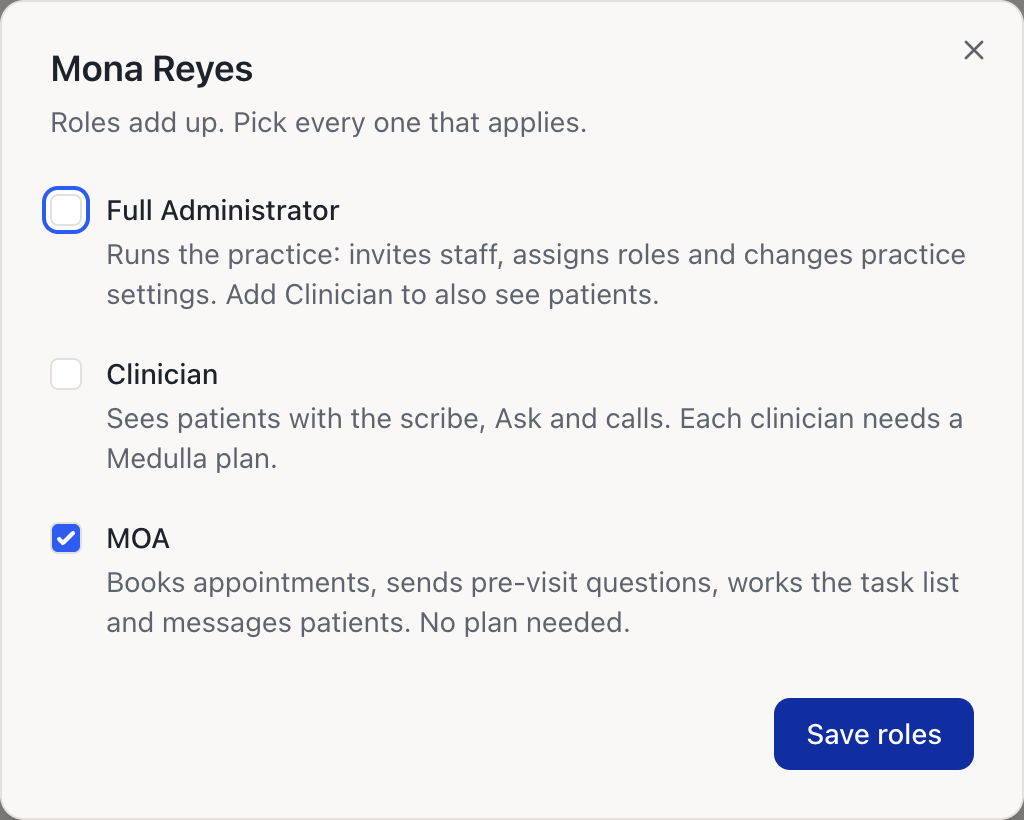
Changing someone's roles
Adding Clinician to someone gives them the scribe, Ask and calls, and they'll need a Medulla plan. Removing it takes those features away.