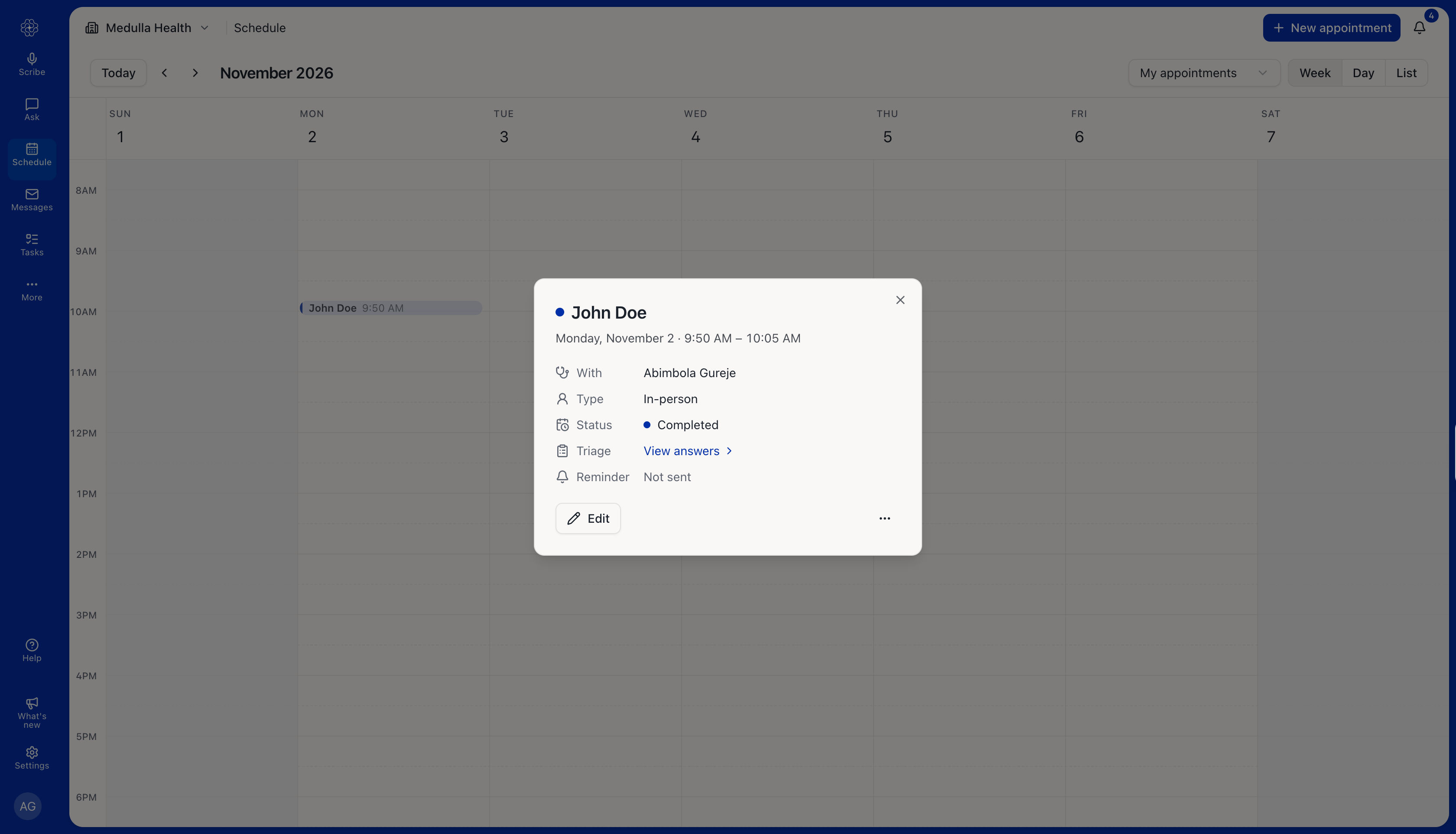
You can start an in-person or telehealth encounter directly from an appointment on the Schedule page. Medulla automatically fills in the patient, visit type, and additional context, including appointment notes and any completed pre-visit triage responses.
Start an in-person encounter
Open Schedule and click the appointment.
Click Start scribe.
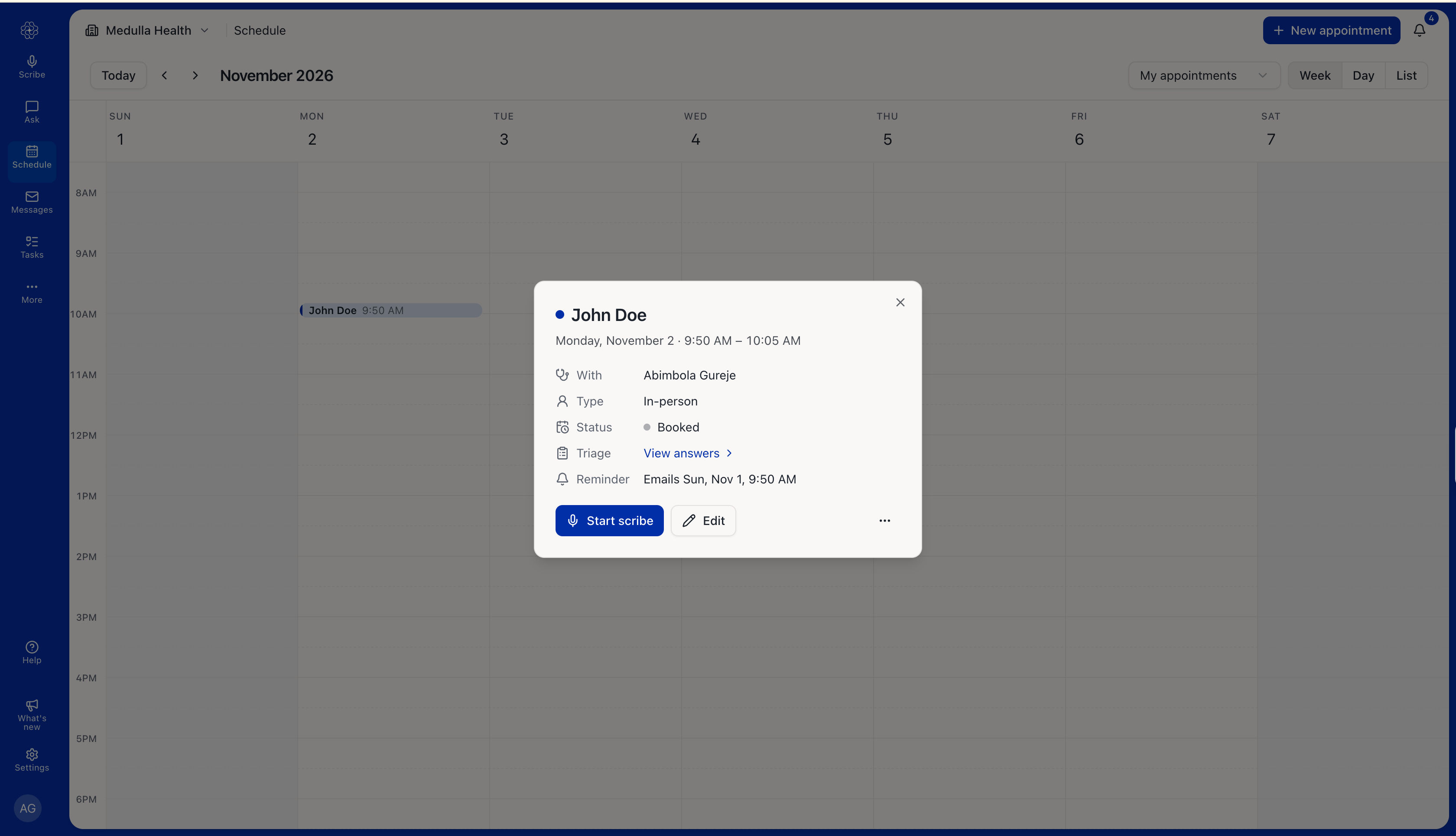
The Scribe page opens with:
Patient: The patient linked to the appointment.
Visit type: In-person or Telehealth, matching the appointment.
Additional context: The appointment notes and the patient’s pre-visit triage responses, if completed.
Review these details, make any changes, and start recording.
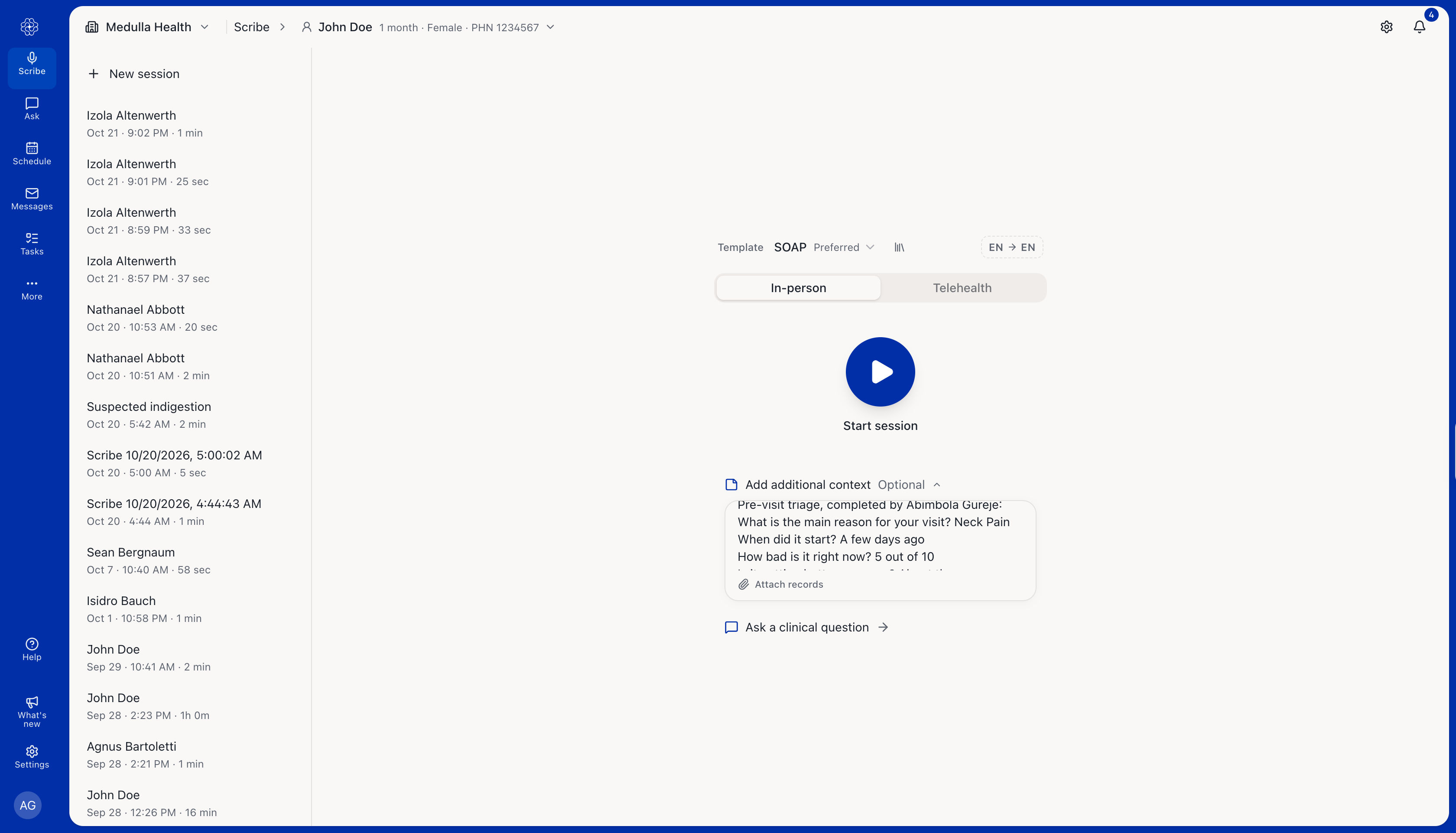
Start a telehealth encounter
Open the appointment.
Click Call.
Medulla opens the Scribe page with the patient’s phone number already filled in and asks you to confirm it.
Check the number and confirm to place the call
Before your first call, set up your caller ID. See How to set up your caller ID.
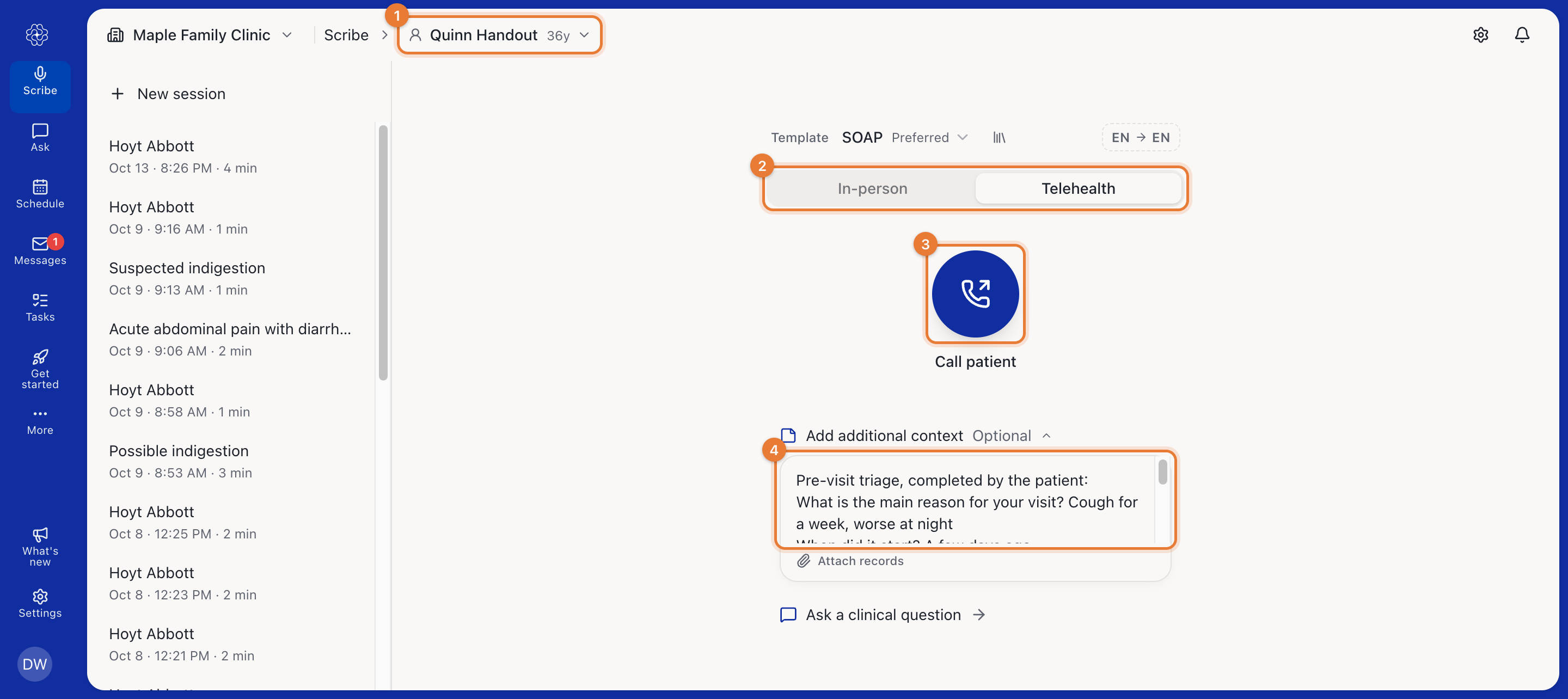
What happens to the appointment
When the recording ends, Medulla marks the appointment Completed. The Start scribe and Call buttons are hidden on completed and cancelled appointments.