
Medulla's AI scribe lets you document in-person consultations directly from your EMR, without switching tabs or leaving the encounter page. Follow the steps below:
-
Open a patient encounter in your EMR, locate the Medulla side drawer, and select your preferred encounter template.
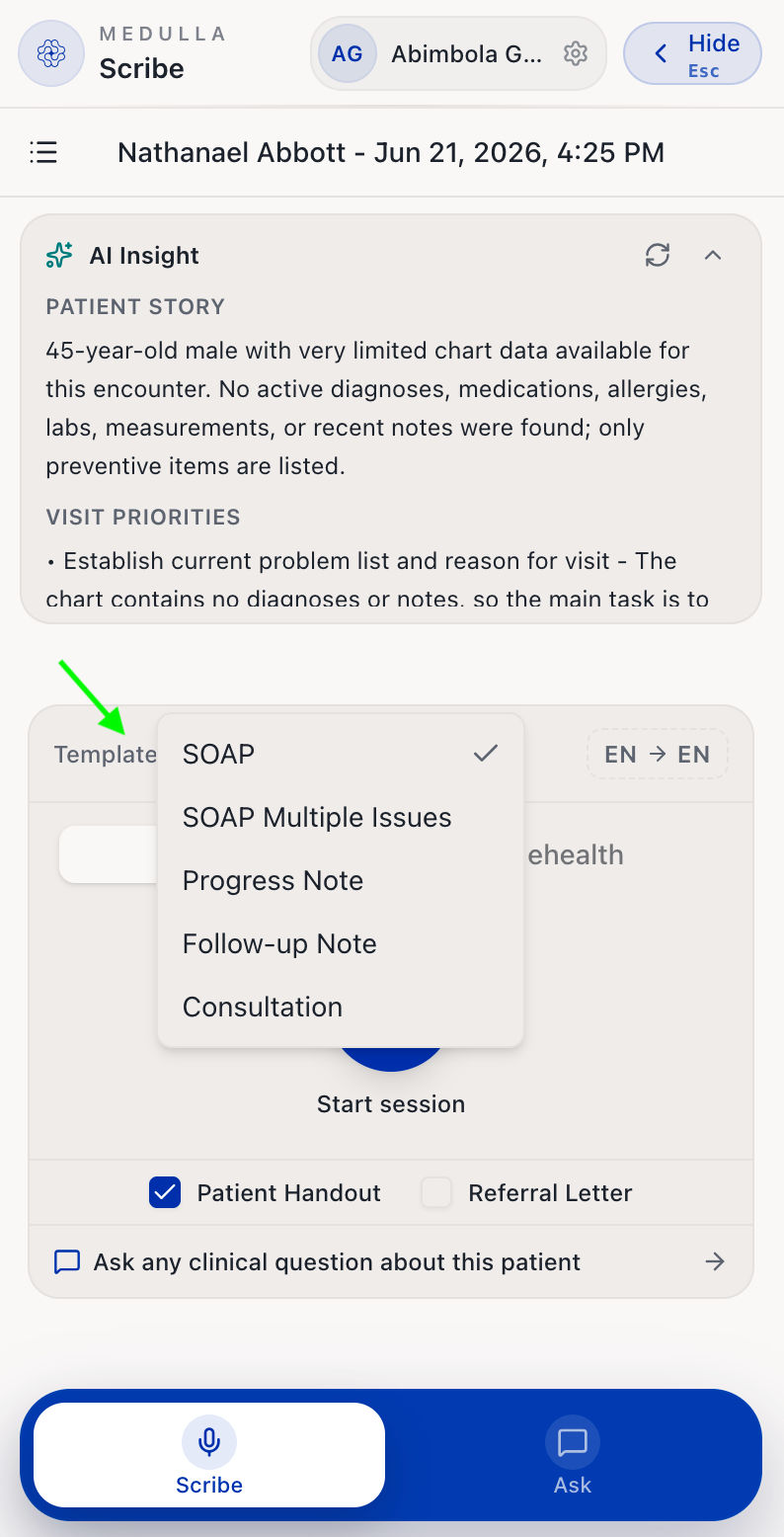
Medulla Side Drawer -
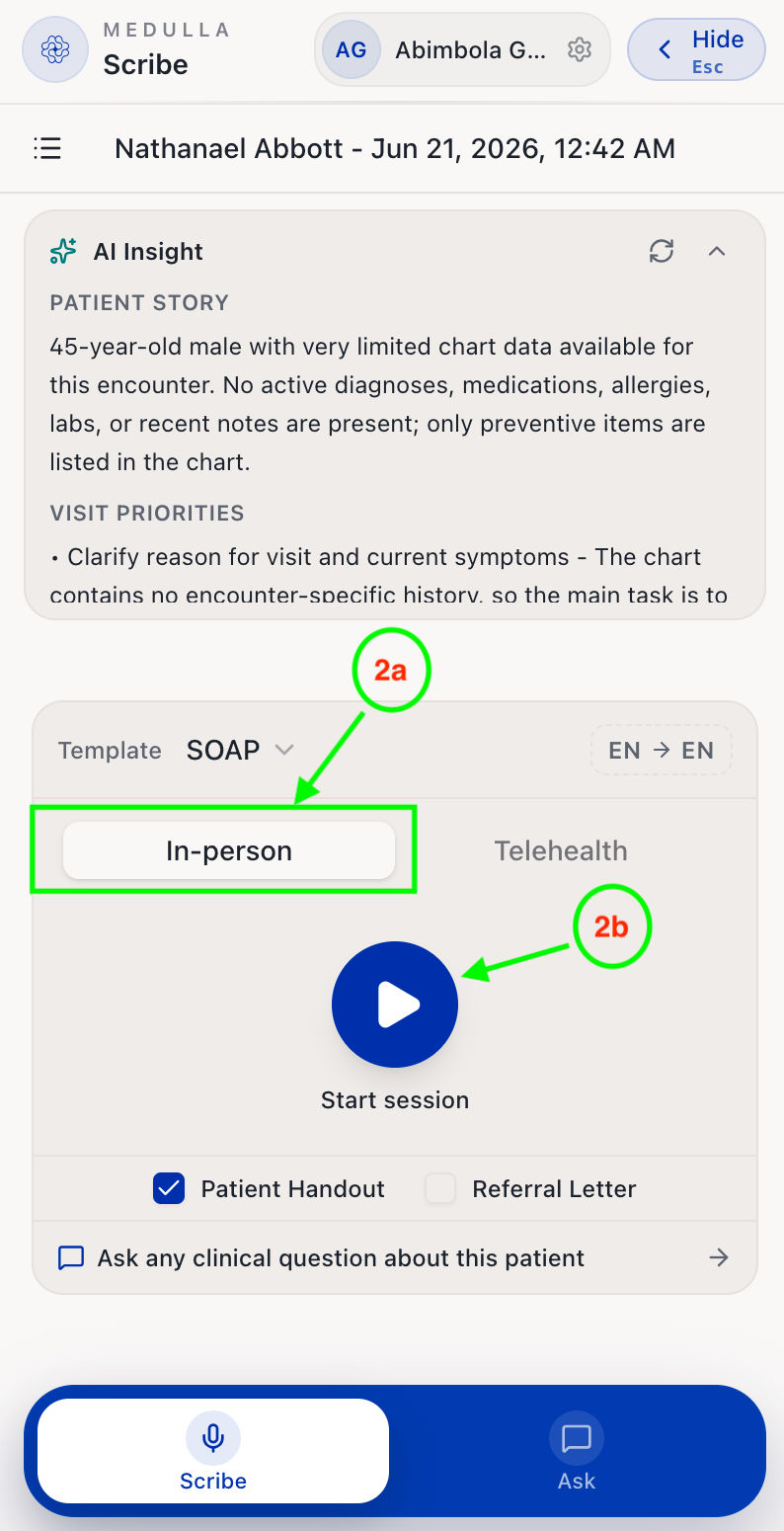
Ensure you are on the In-Person tab. Then click Start Session.
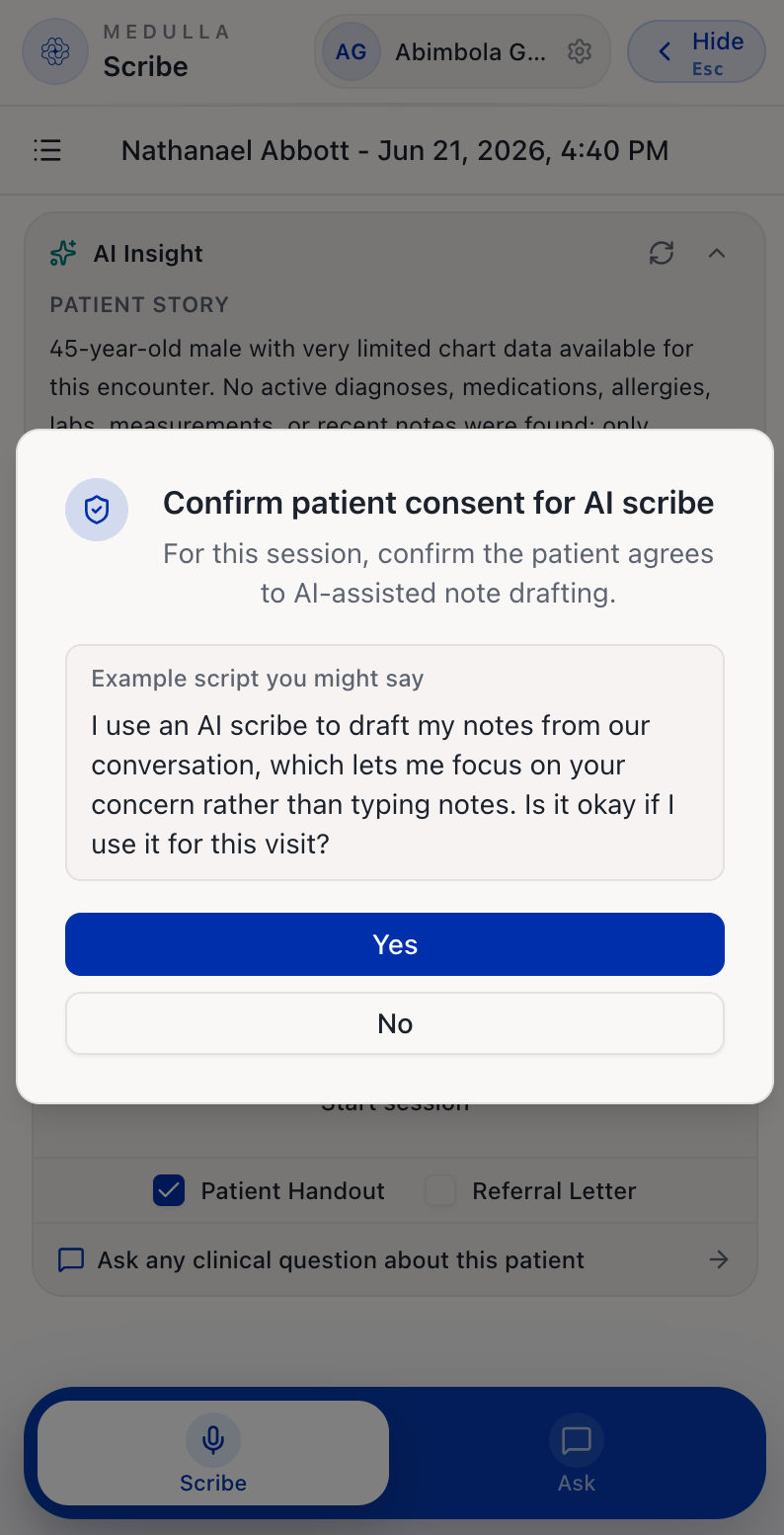
A consent popup will appear asking whether the patient has consented to AI scribing. Select Yes or No accordingly.
Please ensure your selection is accurate, as this will be reflected in the patient's notes.
-
If you select Yes, your conversation with the patient will be transcribed live. However, if you select No, there will be no scribe session.
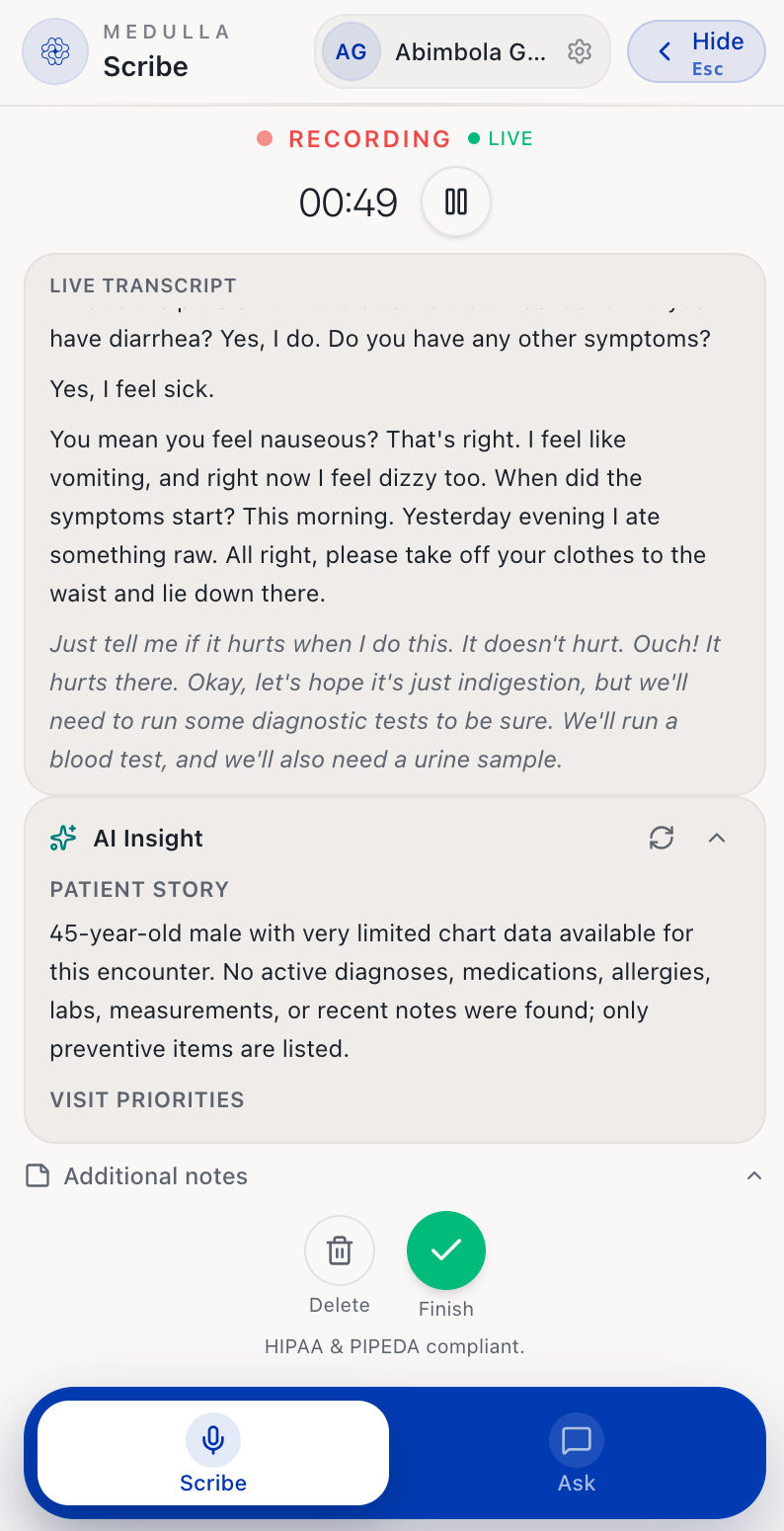
Live Transcription -
Click Finish when you are done with your encounter.
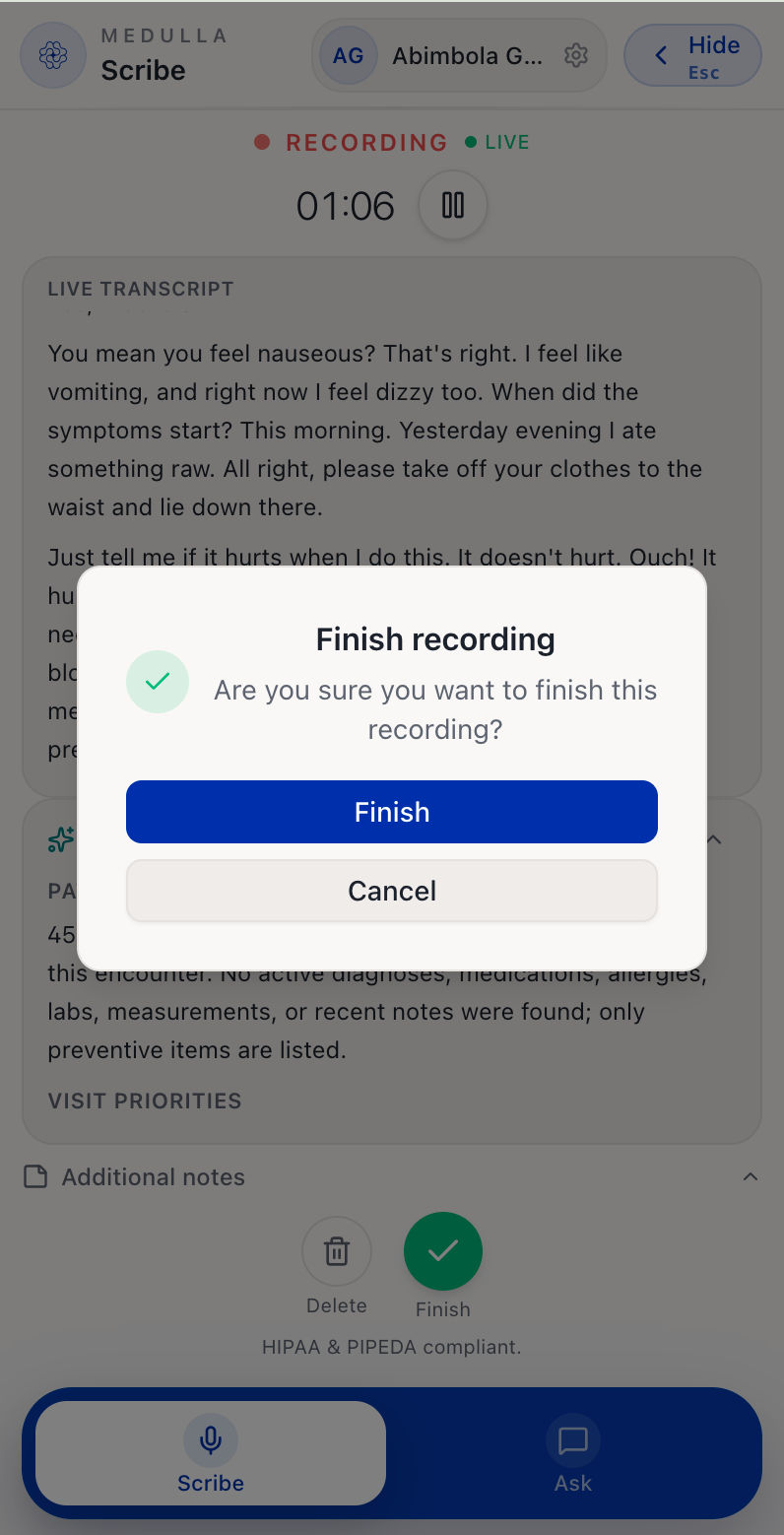
Your clinical notes, transcript and any other preferred documents will be auto-generated.
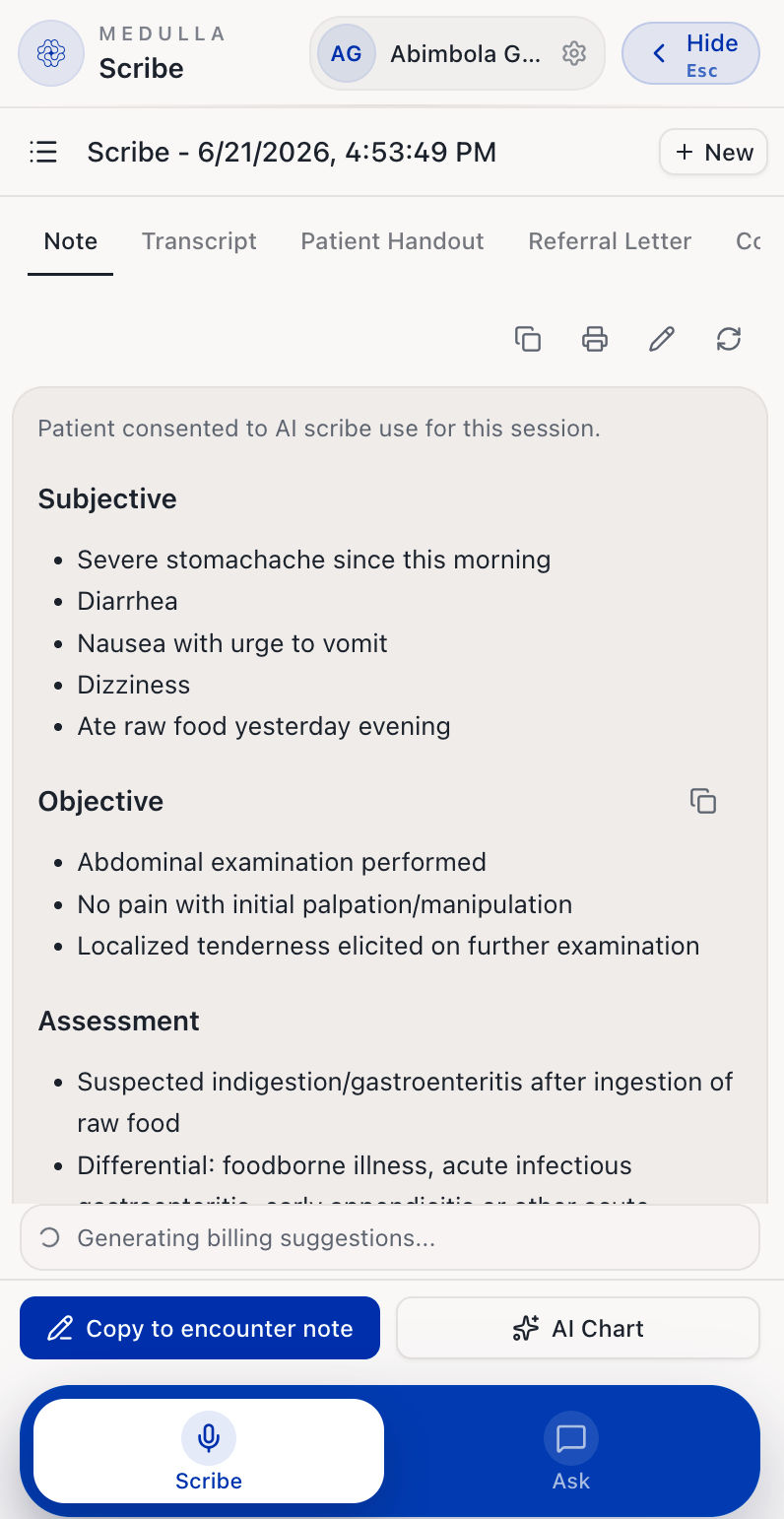
For more information on what can be generated, see How to generate clinical documents after a scribe session.