
When your plan orders a test or asks for paperwork, Medulla suggests a task for it on the encounter's Tasks tab. If one of your practice's forms fits the task, such as the lab requisition for a blood test, the task names that form.
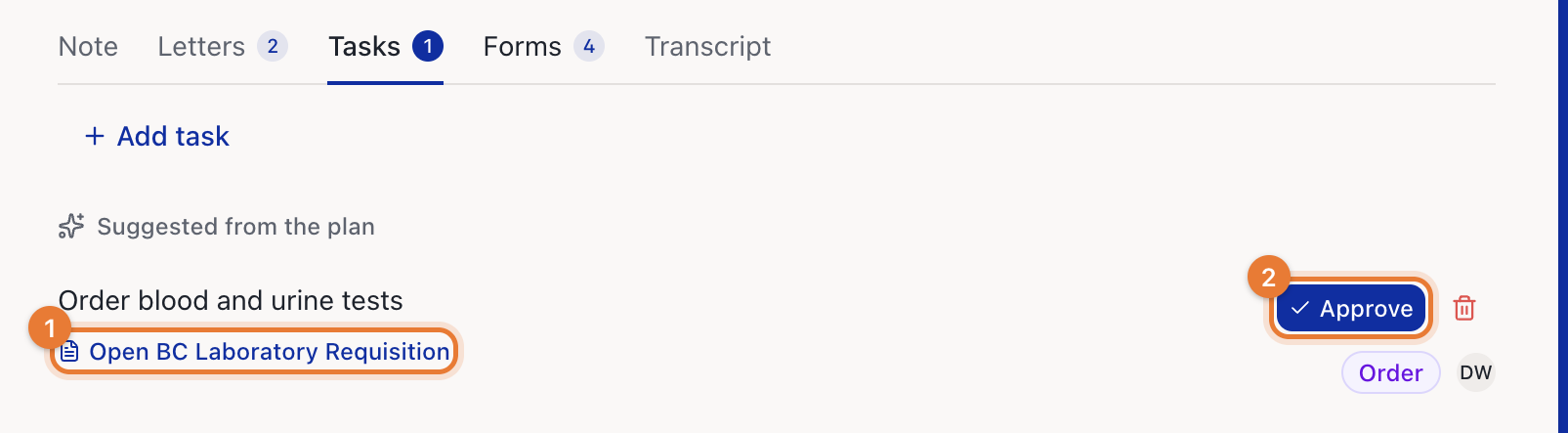
Approve the task to fill its form
Open the encounter and go to the Tasks tab.
Check the suggested task and the form under it.
Click Approve.
Approving the task starts filling its form. The task then shows Filling and the form's name; click it to watch the form fill. When it's done, the task shows Open and the form's name. Click it to review, print or download the form, the same way as any filled form. In the drawer, you can also save it to the patient's chart. See How to fill a form for a patient.
If the form has already been filled for this encounter, approving the task doesn't fill it again. The task links to the form already filled.
Good to know
Only orders and paperwork tasks carry a form.
Medulla only suggests forms from your practice's forms library, so upload the forms you use most. See How to add forms to your practice's forms library.
A suggested task can't be edited. Approve it, or delete it with the bin and add your own task.