
An appointment type is what patients choose to book. Three come built in, and you can add your own.
Regular visit: 15 minutes, in clinic, by phone or by video. Under Who can book, choose Only patients of the provider or Patients of any provider in a care team.
Walk-in: same-day visits that open for booking at a set time each morning. You can change its settings, including whether people who aren't patients at your clinic can book it.
Meet and greet: a first visit for new patients. You can change its length. See How to set up new patient registration.
The built-in types book into any open time in the provider's EMR schedule. A built-in type appears on your booking page once at least one provider is turned on for it.
Turn providers on for a type
Go to Settings → Online booking. On the Appointment types tab, click the pencil next to the type.
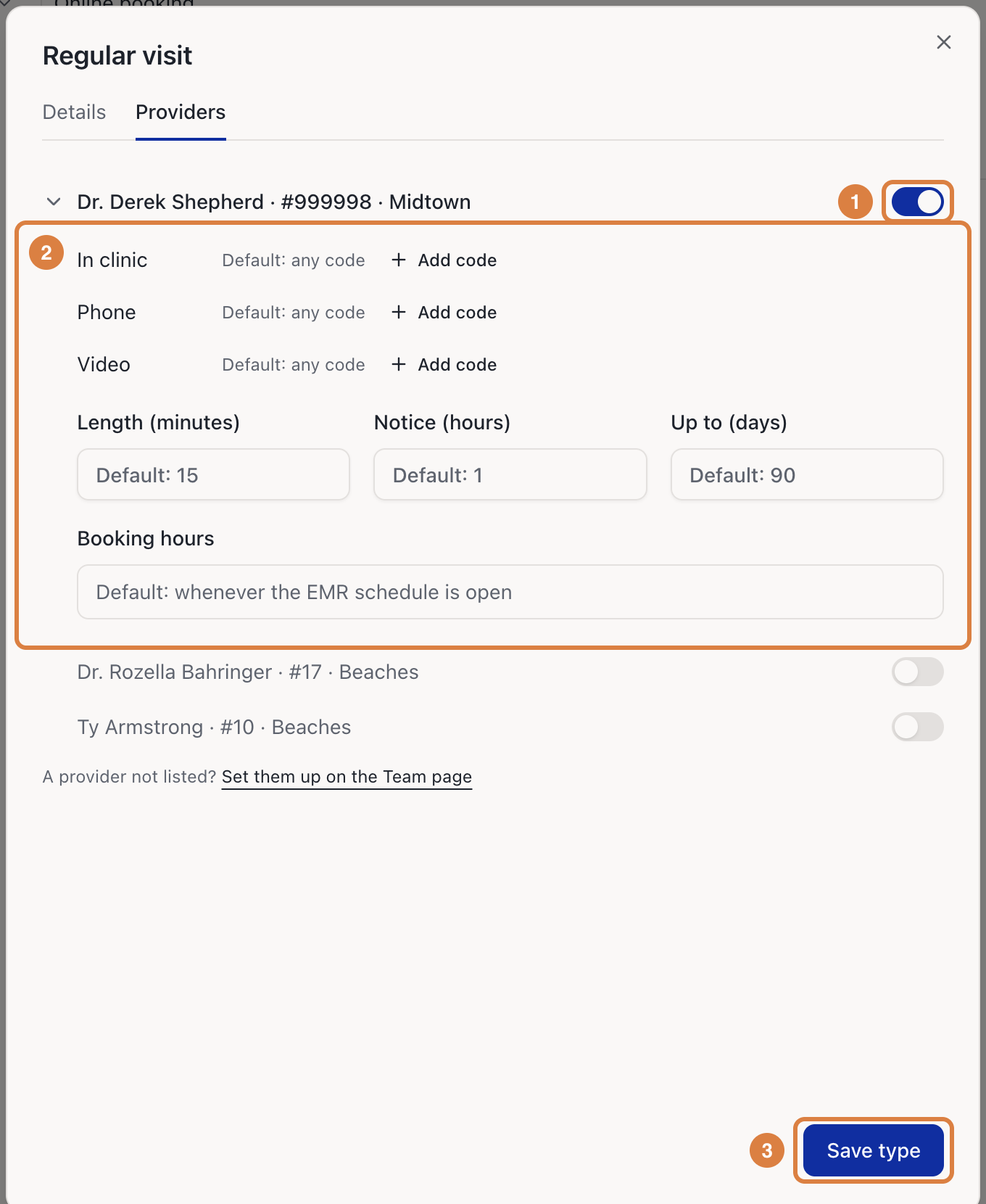
Open the Providers tab. Every provider set up on the Team page is listed, turned off.
Turn on each provider patients can book for this type (1). Their settings open below (2).
Leave the settings as they are to use the type's defaults, or set this provider's own codes, Length (minutes), Notice (hours), Up to (days) or Booking hours. Under Add code, choose the schedule codes in your EMR whose times this provider can be booked into.
Click Save type (3).
A provider who isn't listed isn't set up on the Team page yet. See How to add your providers for online booking.
Add your own type
On the Appointment types tab, click New type.
On Details, enter the Label and Description patients see. Under How patients are seen, tick In clinic, Phone or Video and choose the schedule codes for each. Any code books into any open time.
On Booking, set the Length (minutes), Minimum notice (hours) and how far ahead patients can book. Under Who can book, choose Only patients of the provider, Patients of any provider in a care team or Anyone.
On Providers, turn on the providers patients can book.
Click Save type.
The arrows next to each type set the order patients see them in.