
Many forms have a part the patient fills in and a part you fill in, such as a disability certificate or an insurance claim. Medulla emails the patient a secure link to fill in their part on the form itself. When they send it back, their answers are on your form, ready for you to finish by hand or with Fill again. You can send a form back and forth as many times as you need.
Ask a patient to fill in a form
Open the encounter and go to the Forms tab.
Search for the form.
Click Ask patient next to Fill.
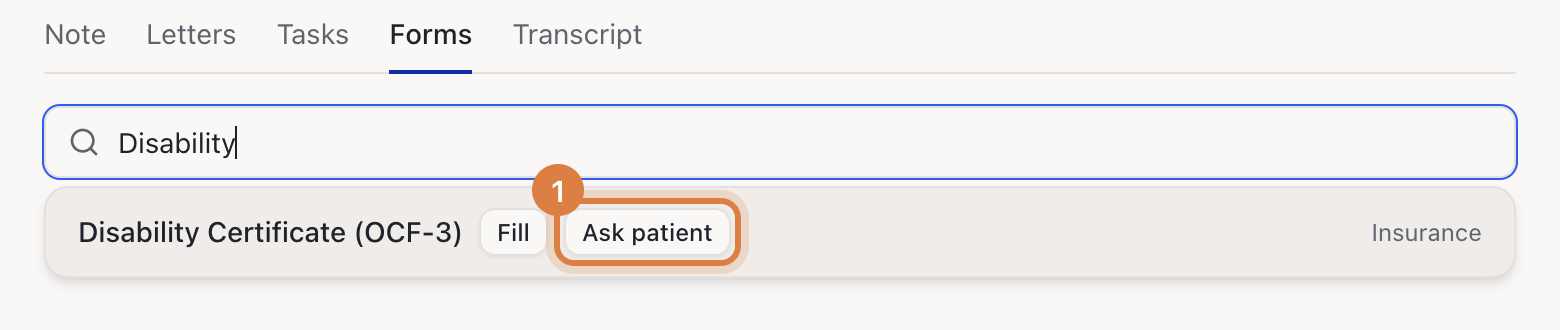
Medulla doesn't fill the form first, so the patient gets it blank. You can also ask the patient from the Fill a form dialog on the Patients page, or from the Forms page, with Ask patient to fill in under Fill.
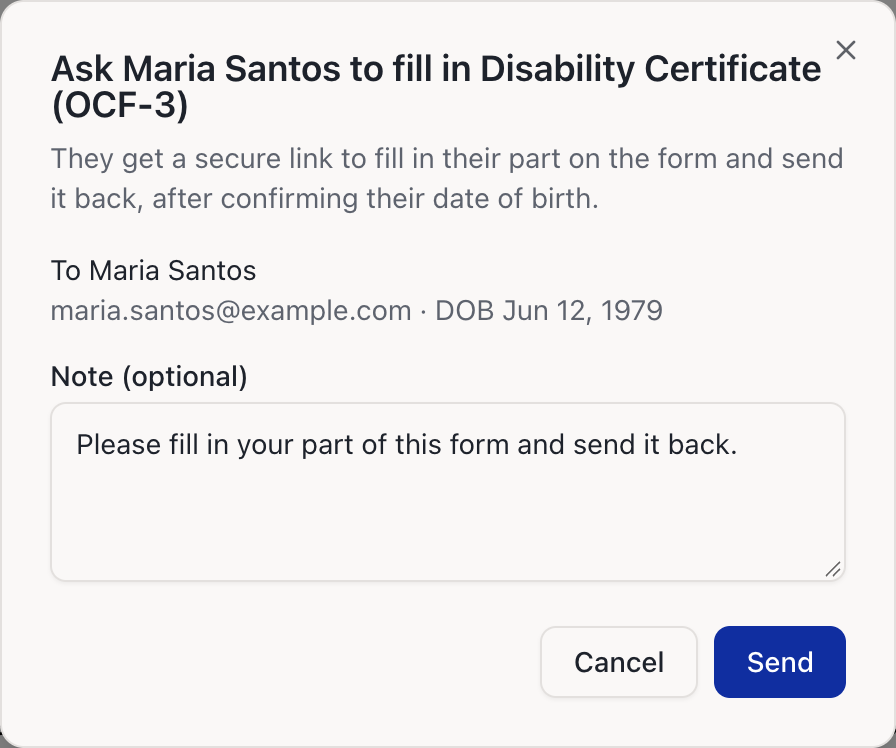
A dialog opens with the patient's email and date of birth. If either is missing, add it here; Medulla saves it to the patient. The note starts with "Please fill in your part of this form and send it back." Change it if you want to tell the patient which part is theirs. Click Send.
The form opens and shows Waiting for patient since the day you sent it. The request is also listed in Messages, with the form's name.
Ask about a form you've already started
If you've filled part of a form yourself, or Medulla has filled it, open the form and click Ask patient to fill in. The patient sees everything that's already on the form. You can't ask while Medulla is still filling a form.
Ask a patient from your EMR
If the patient's chart is in your EMR, ask them from the Medulla side drawer with their chart open. In the drawer's Forms tab, choose the form and click Ask patient to fill in, or on a filled form click the send icon next to Fill again. Medulla takes the patient's email and date of birth from the chart. In the web app, you can only ask patients you added in Medulla.
What the patient sees
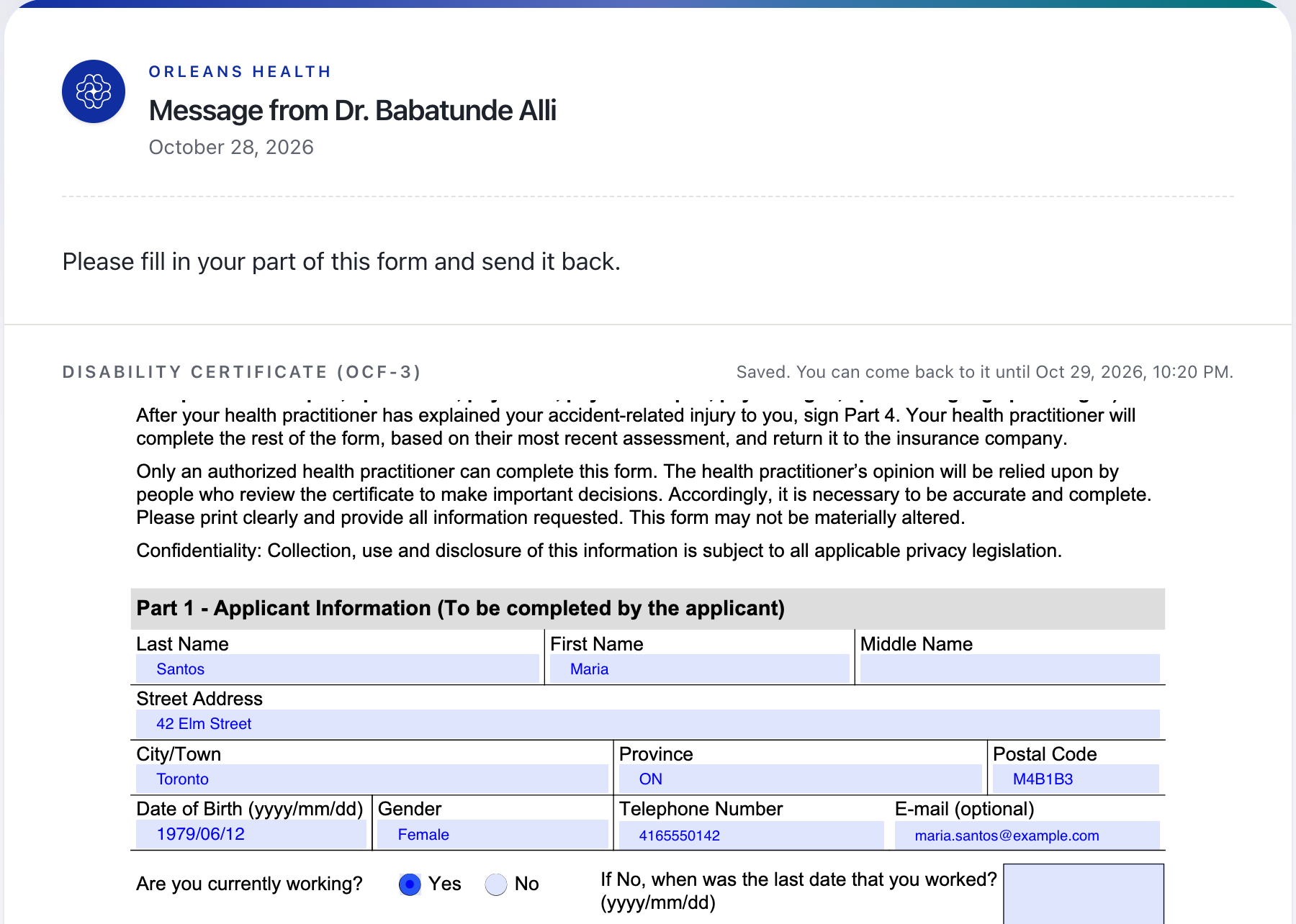
The patient gets an email with a secure link. After they confirm their date of birth, they see your note and the form, and fill it in on the form the same way you do. Their answers save as they go, so they can stop and come back. They can open the link as often as they need for 24 hours after they first open it, on any device, by entering their date of birth again.
When they're done, they can add a note for you and click Send back.
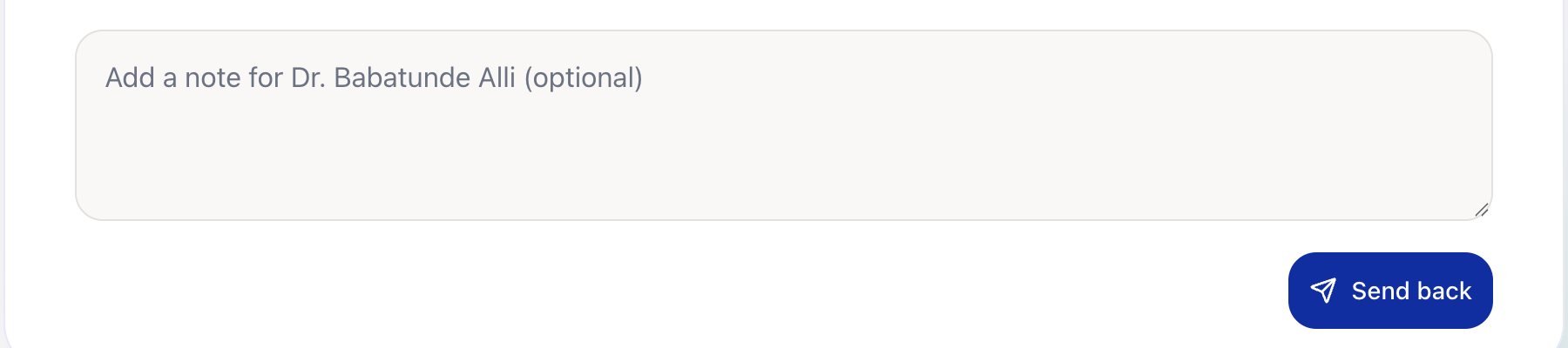
Only what they send back reaches your form. Answers they've saved but not sent back stay with the request.
Finish the form
When the patient sends the form back, you get a notification and an email. Open the form from either one: it shows Filled in by patient, and their answers are on the form.
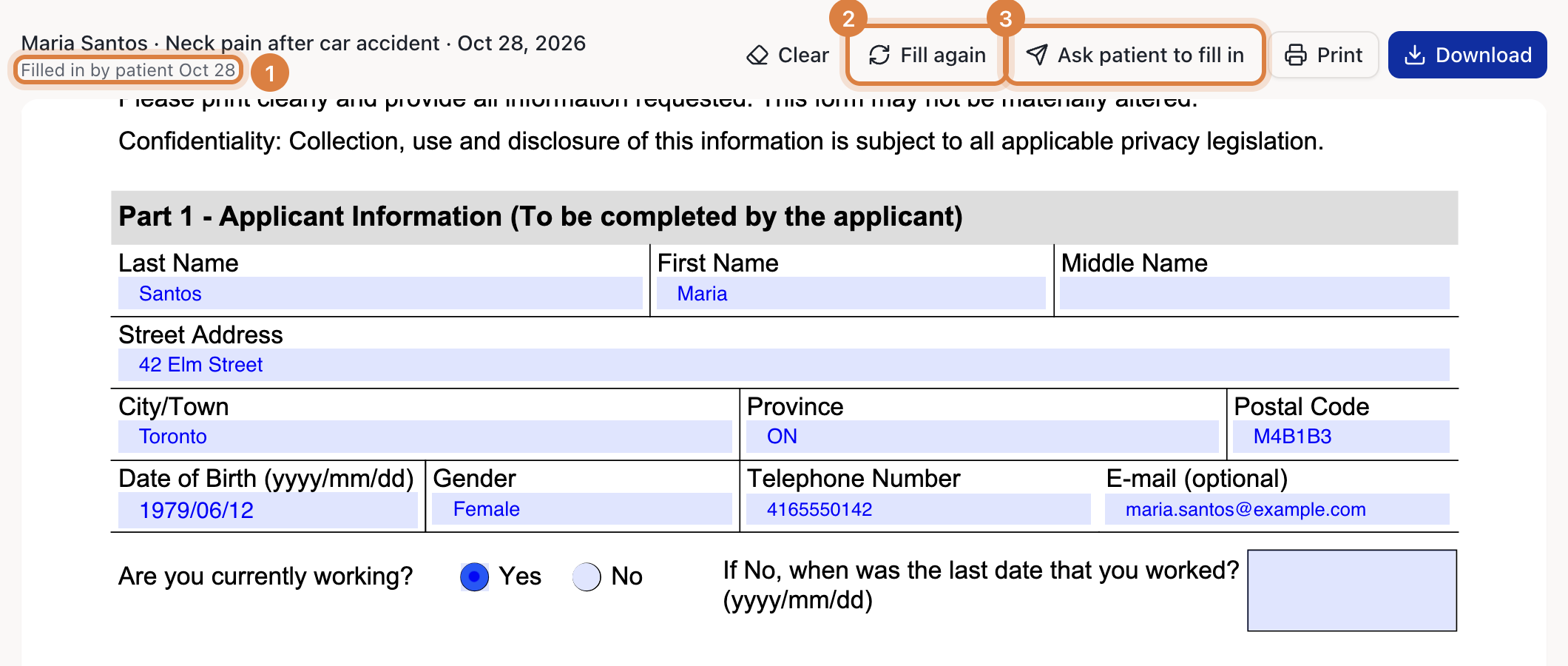
Fill in your part on the form, or click Fill again to have Medulla fill it from the encounter. Fill again keeps the patient's answers and uses them for your part. You can still change any of their answers yourself.
If something is missing, click Ask patient to fill in to send the form back to them. They get a new link and see the form as it stands now.
Then print it, download it or save it to the patient's chart as usual.
Good to know
The link expires 7 days after you send it. Once the patient opens it, they have 24 hours to fill in the form, and it closes when they send it back. To give them more time, ask them again.
The patient can change anything on the form, including fields you filled. Check the form before you send it on.
In the side drawer, a message confirms when the email has gone out.