
If your clinic sees patients at more than one site, patients choose a location first and see its address and phone number, and each provider's schedule is set per location. With one site, you don't need locations: the booking page uses your practice address and phone number.
When your EMR has two or more sites, Medulla adds a location for each one as soon as your EMR is connected, with the name, address and phone number from the EMR. Check them before you set up your team.
Check or add a location
Go to Settings → Team. Locations are listed under the EMR connection.
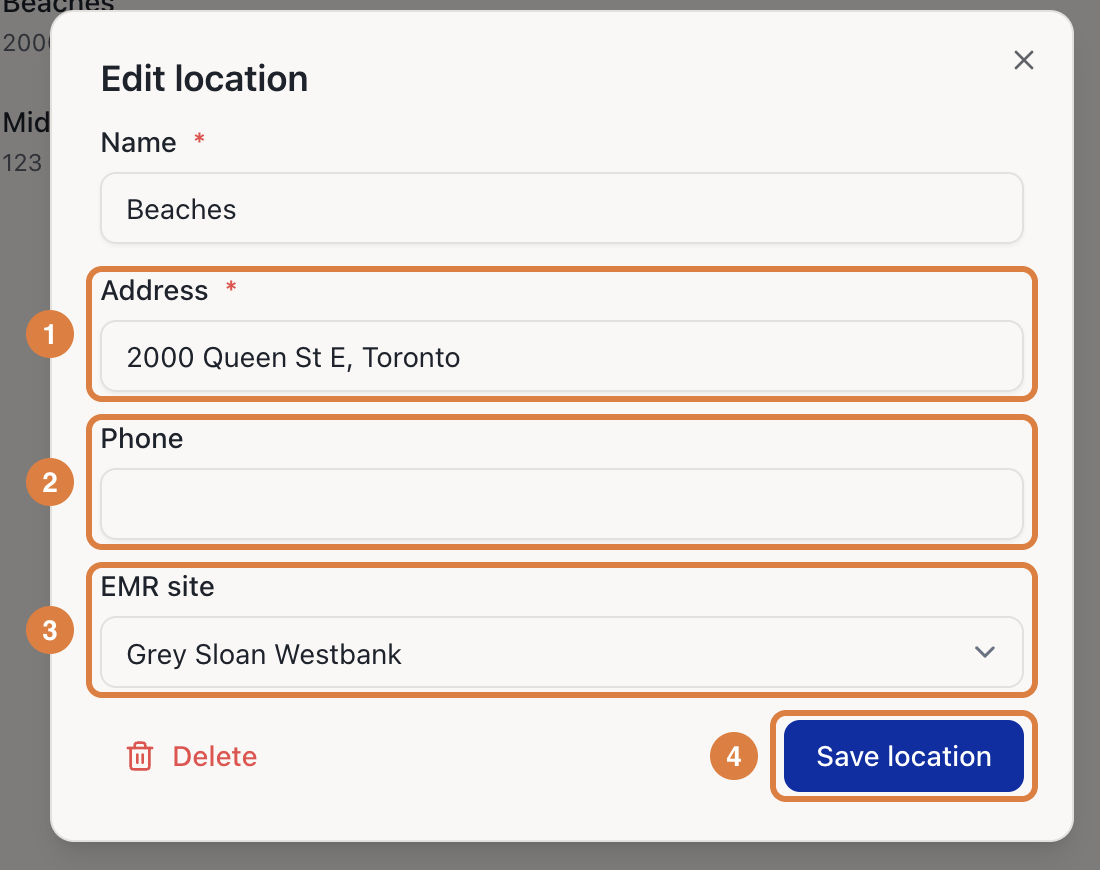
Click the pencil next to a location, or click New location.
Fill in the Name patients see and the Address (1). The address is required when you have more than one location.
Add the location's Phone (2) if it has its own number. Leave it empty to show your practice phone number.
Under EMR site (3), choose the site in your EMR that this location books into.
Click Save location (4).
With two or more locations, each provider's Configure dialog on the Team page shows Schedules by location, so you can pick their schedule at each one. See How to add your providers for online booking.
If you delete a location Medulla added from your EMR, it isn't added again.