
New patients who register online land on the Registrations page. From there you add them to your waitlist or invite them to a meet and greet. Booking the meet and greet makes them your patients: Medulla creates each person's chart in your EMR and books their appointments back to back.
Review a registration
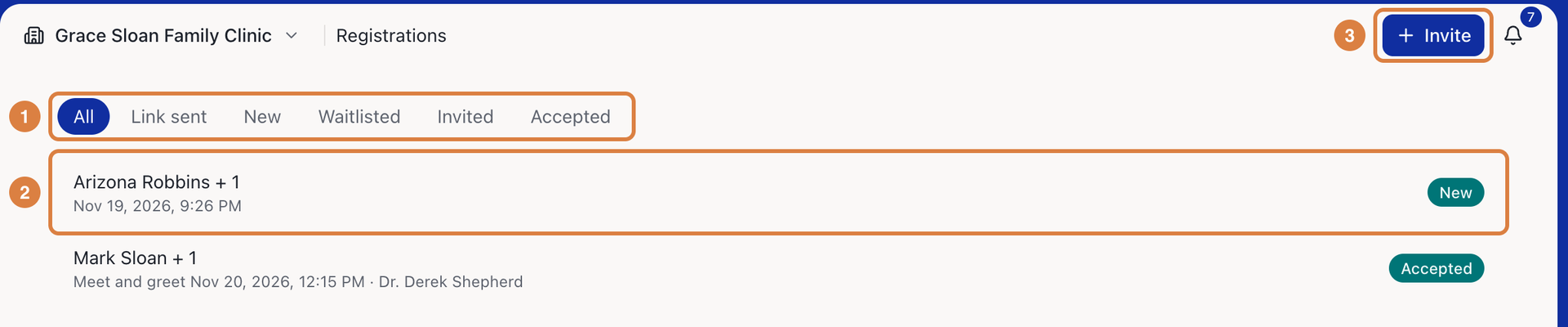
Open Registrations from the menu. Use the filters (1) to see registrations by status: Link sent, New, Waitlisted, Invited or Accepted.
Click a registration (2) to see each person's details and intake answers.
Click Waitlist to add the family to your waitlist. They get your waitlist email.
Invite them to a meet and greet
On the registration, click Invite to meet and greet.
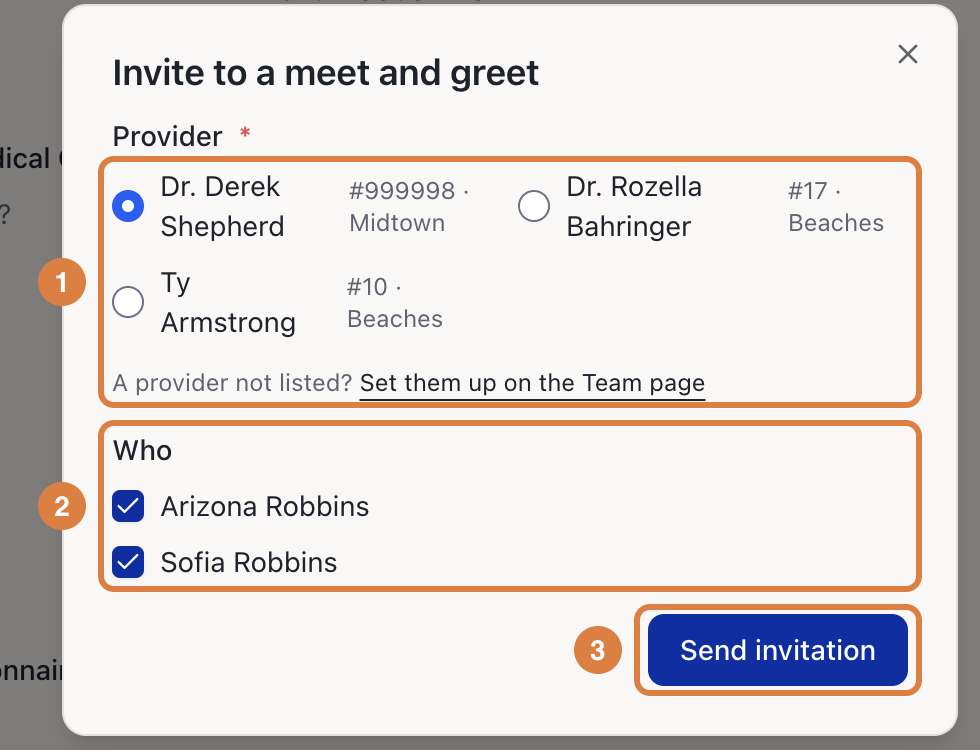
Choose the Provider. Every provider set up on your Team page is listed.
Under Who, tick everyone to invite.
Click Send invitation. They get an email with a link to book.
From the email, they confirm their health card number and date of birth and pick a time with that provider. The visit covers everyone invited, at the Meet and greet's length per person.
When they book, Medulla creates each person's chart in your EMR, books their appointments and marks the registration Accepted. If a chart with the same health card number, or the same name and date of birth, is already in your EMR, Medulla doesn't create a duplicate, and the registration says why.
Invite someone yourself
On the Registrations page, click Invite (3) and enter their name and email.
Choose Registration link to email them a link to register with your intake form, or Meet and greet to invite them straight to a meet and greet with the provider you choose.
Add their health card number so Medulla can check they aren't already a patient. If you don't have it, tick I've checked they aren't already a patient here.
Click Send invitation.
Intake answers on the new chart
Once the chart is created, the intake form is on it. With the chart open, the Medulla side drawer says when an intake is ready to add. In the drawer's Forms tab, open the intake and click Autochart to review the medications, allergies, history and concerns Medulla found in the answers, and add the ones you want to the chart.