
Online booking lets patients book, reschedule and cancel appointments themselves. Medulla reads the open times from your EMR schedule, and each booking goes straight into it.
Full Administrators can change the settings. Only the practice owner can connect the EMR and go live.
Set it up, in this order
Connect your EMR at the top of Settings → Team. See How to connect your Oscar EMR to Medulla. When the connection check passes, Settings → Online booking opens.
Check your locations, if you have more than one site. They're on the Team page, under the connection. See How to set up your locations.
Add your providers on the same page. See How to add your providers for online booking.
Turn providers on for your appointment types. See How to set up appointment types.
Add care teams and coverage, if your providers share patients. See How to set up care teams and coverage.
Turn on new patient registration, if you're taking new patients. See How to set up new patient registration.
Set your cancellation policy. See How to set your cancellation policy and fees.
Design your booking page. See How to customize your booking page.
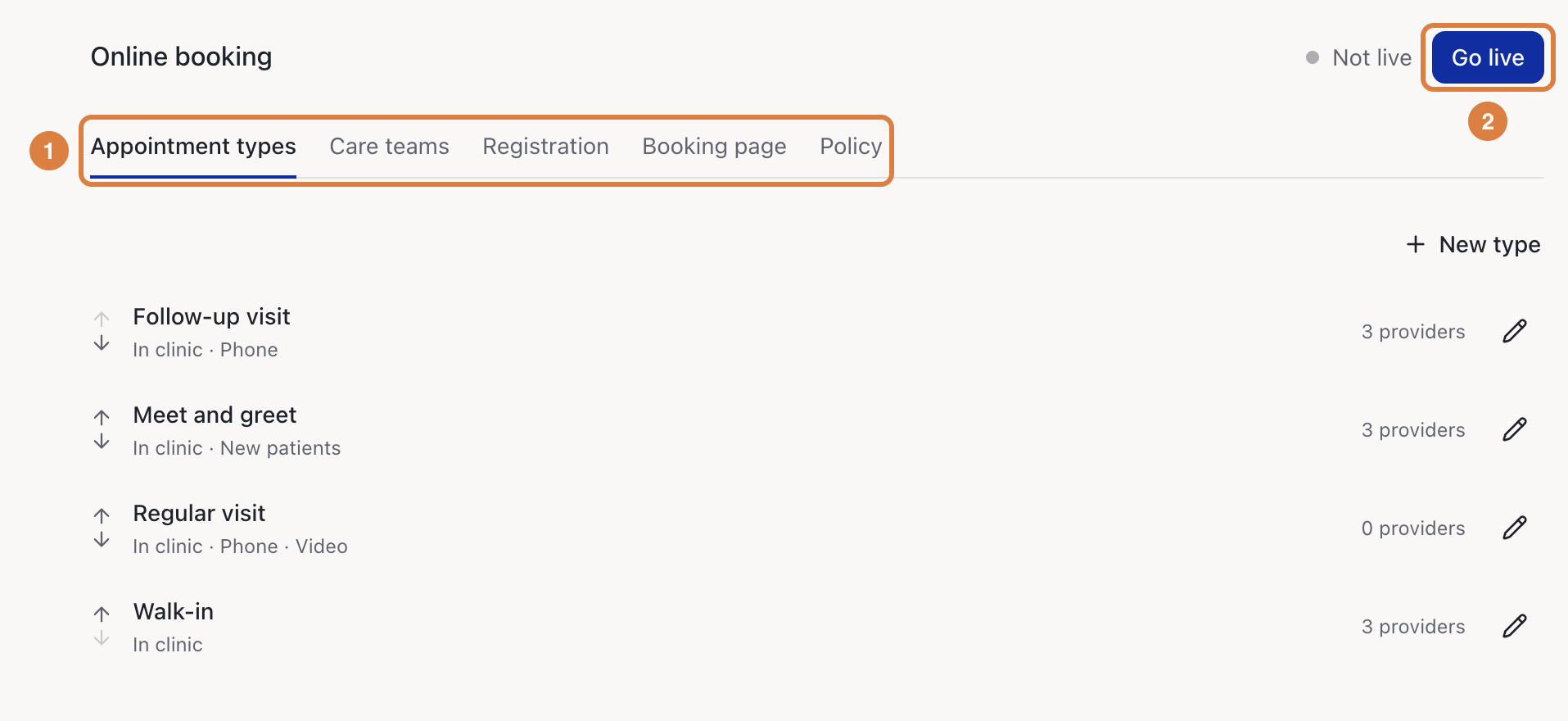
Steps 4 to 8 each have their own tab (1) in Settings → Online booking.
Go live
Click Go live (2) at the top of Settings → Online booking.
If something is missing, Medulla lists it, for example your clinic phone number, opening hours, an address for each location or an appointment type with a provider turned on. Fill those in and click Go live again.
Click Go live in the confirmation. Your Clinic plan starts, if it hasn't already, and appointment reminders turn on for every provider.
The page then shows Live. Click Copy link and put the link on your website and in your phone message.
You can share How to book, reschedule or cancel your appointment online with your patients.