
The Forms page holds the forms your practice fills for patients: requisitions, insurance and disability forms, referrals and anything else that comes as a fillable PDF. Every form you upload is shared with everyone in your practice. Open it from Forms in the left sidebar.
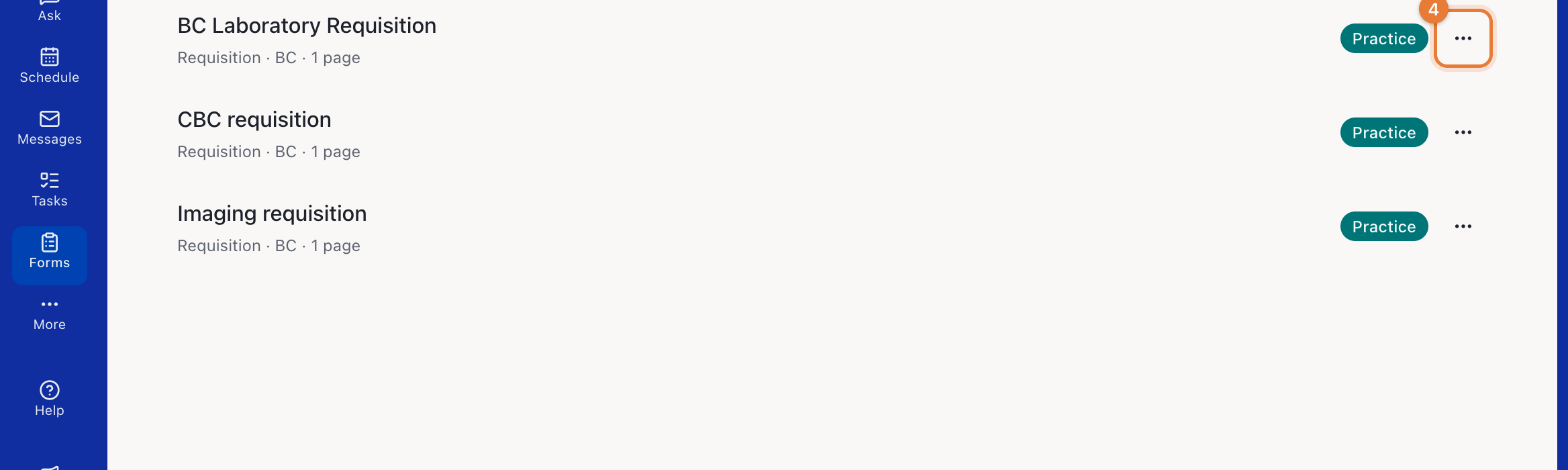
Each form shows its type, province and page count. Practice marks a form someone in your practice uploaded. Built-in marks a form Medulla provides, which no one can edit.
Upload a form
Click Upload form.
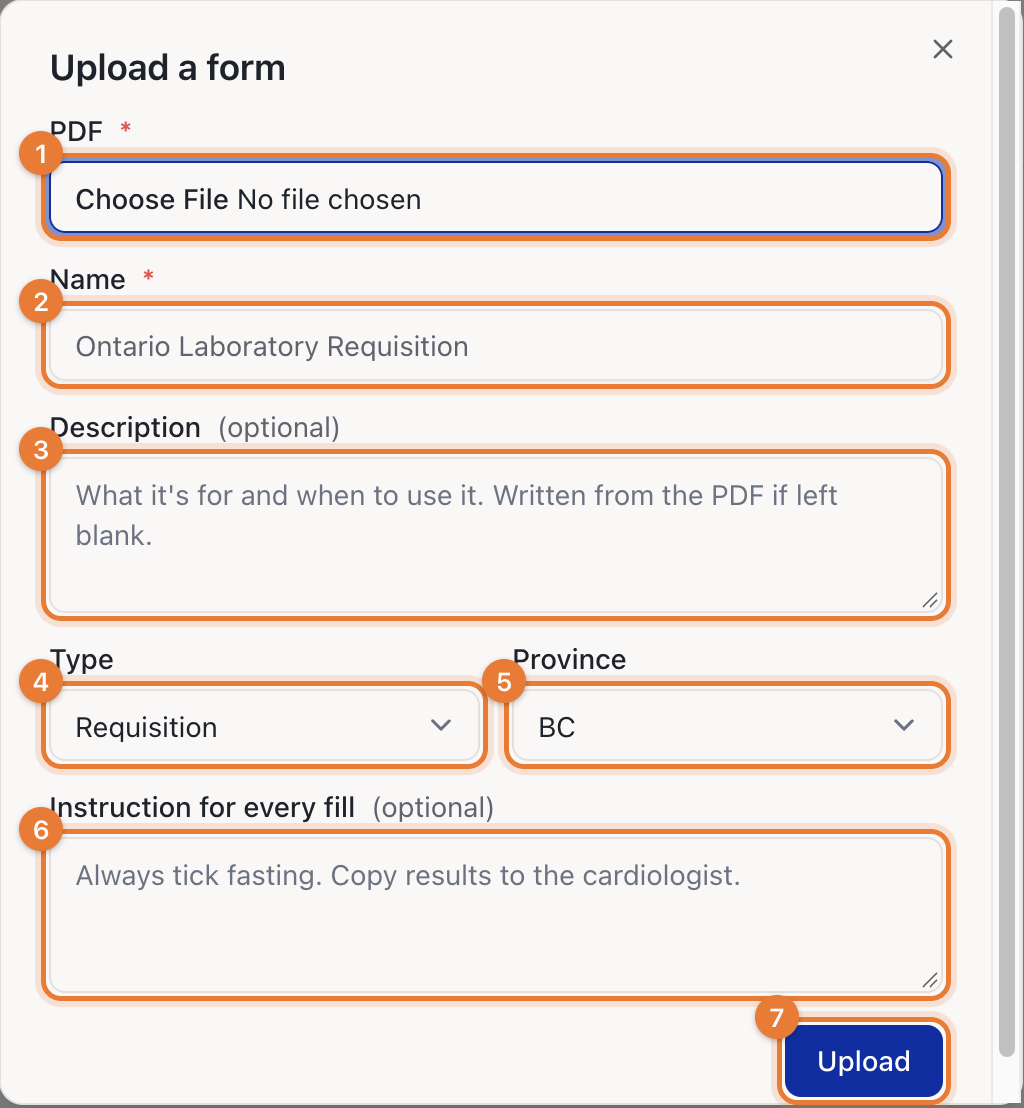
Choose the PDF.
Enter the form's Name.
Optionally add a Description: what the form is for and when to use it. If you leave it blank, Medulla writes one from the PDF.
Choose the Type and Province. Choose Canada-wide for a form that isn't tied to one province.
Optionally add an Instruction for every fill, such as "Always tick fasting". Medulla follows it every time anyone fills this form.
Click Upload.
Medulla then checks the form, which shows as Checking the form… for a moment. Once it's ready, anyone in your practice can fill it.
Which PDFs work
The PDF needs fillable fields: the boxes you can type into or tick when you open it in a PDF reader. Medulla turns a PDF down with one of these messages:
This PDF has no fillable fields. It's a scan or a flat PDF with nothing to type into.
None of this PDF's fields can be filled. It has fields, but none that Medulla can write to.
This PDF couldn't be read. The file is damaged or protected.
Manage your forms
Click ⋯ next to a form to:
Fill this form for a patient.
Preview the blank form.
Add to favourites. Favourites are starred and come first wherever you pick a form.
Edit its name, description, type, province or instruction.
Remove from library. Forms already filled with it stay where they are.
Only an admin or the person who uploaded a form can edit or remove it.
You can also add a form from Ask: attach the PDF and ask Medulla to add it to your forms. See How to fill or add a form with Ask.