
Pre-visit triage is a short questionnaire about why a patient is coming in. You can email it before their appointment or complete it with them.
Their answers appear on the appointment and are added to Additional context when you start the scribe from that appointment.
Open the pre-visit questionnaire
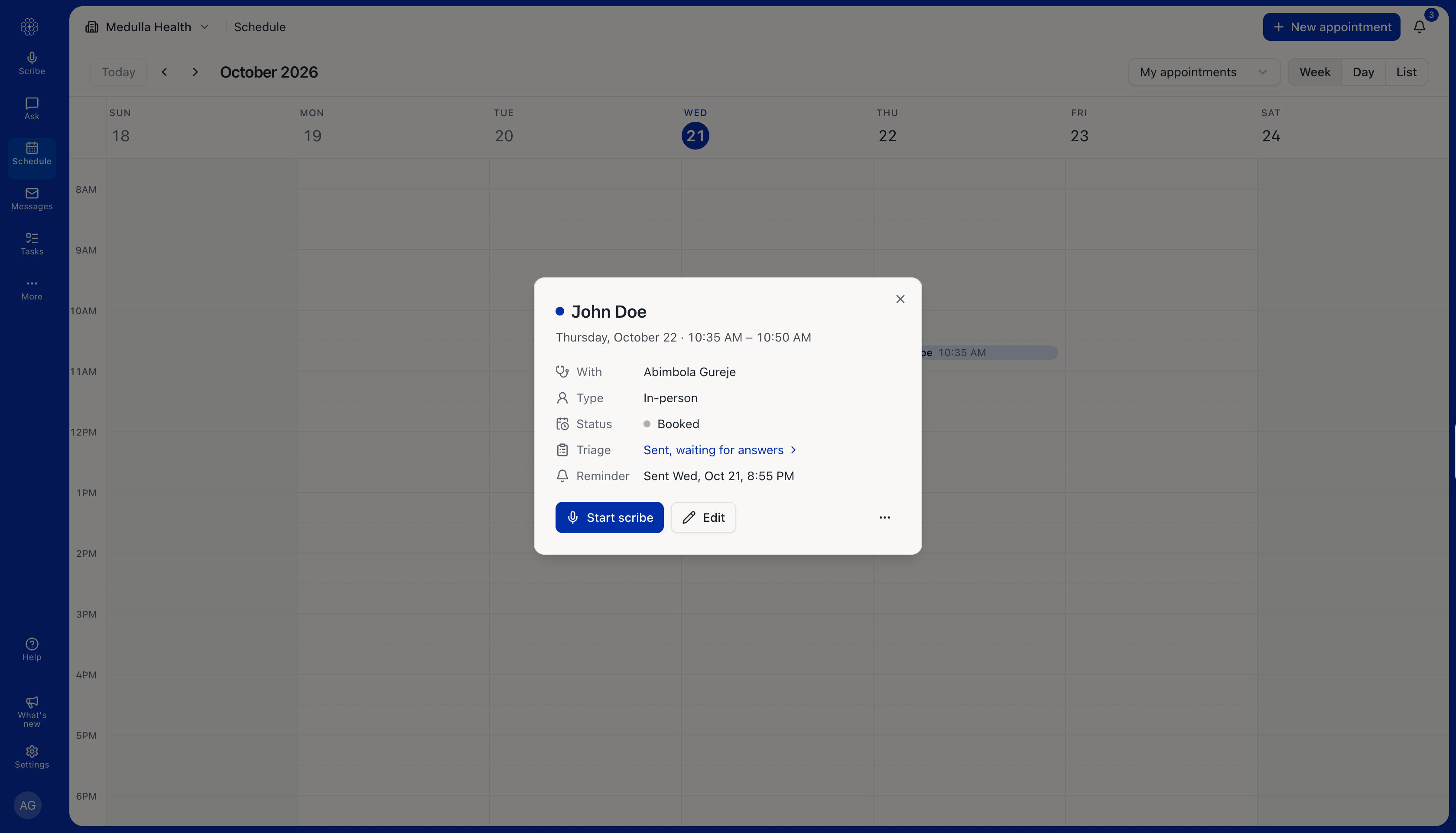
Open Schedule and select the patient’s appointment.
-
Beside Triage, select the link shown:
Fill in or send: The questionnaire has not been sent or completed.
Sent, waiting for answers: The questionnaire has been emailed to the patient.
View answers: The questionnaire has been completed.
Email the questions to the patient
Open the questionnaire.
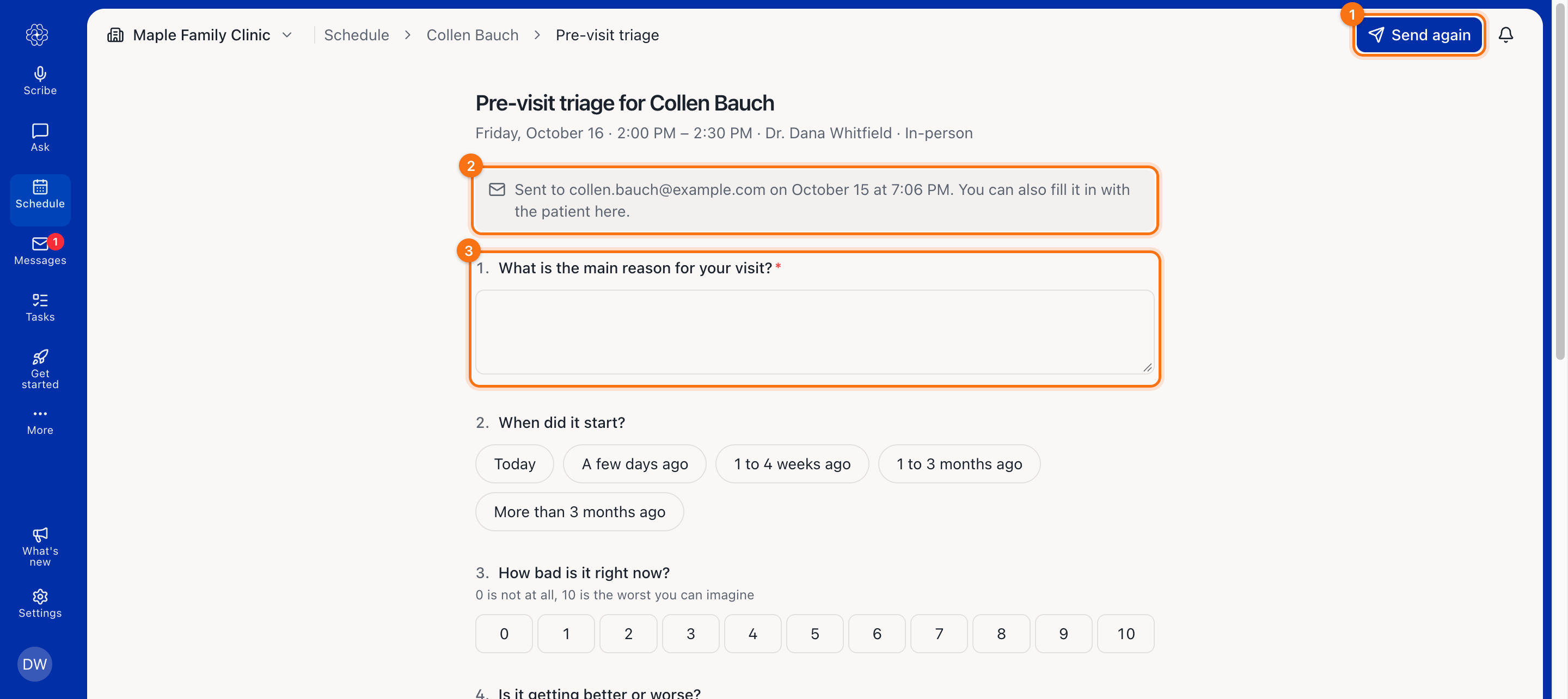
Select Send to patient.
Medulla emails the patient a link to complete the questions. To send it:
The patient must have an email address saved in their record.
The appointment must not have passed or been cancelled.
The questionnaire must not have been completed.
If these conditions are not met, the button is disabled, and the page explains why.
After sending, the button changes to Send again. Use this if the patient cannot find the email.
Note: If appointment reminders are turned on, the reminder email includes the questionnaire link. You do not need to send it separately.
How patients complete the questions
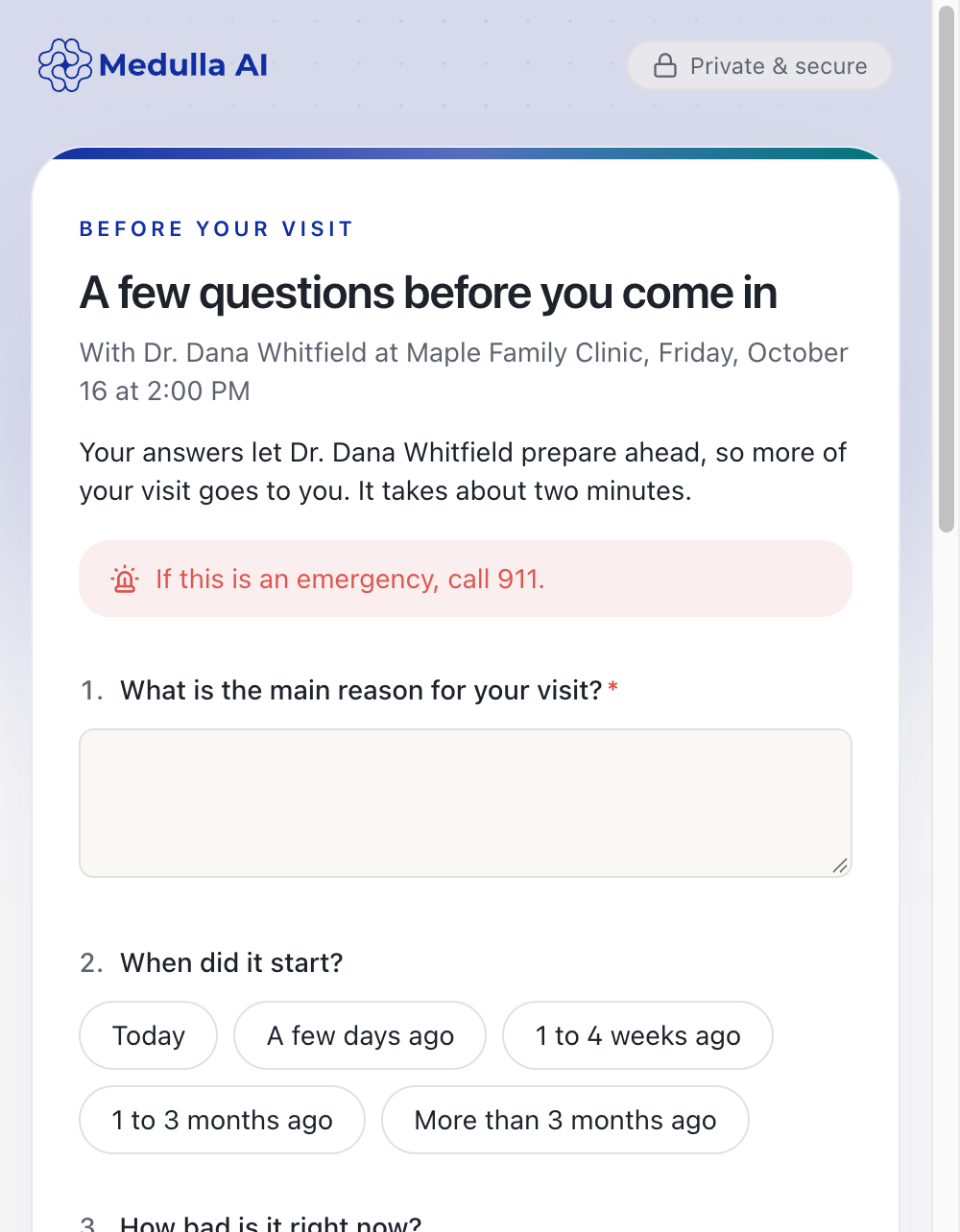
The patient opens the link and enters their date of birth to access the questionnaire.
The questions are:
What is the main reason for your visit?
When did it start?
How bad is it right now? (0 to 10)
Is it getting better or worse?
What have you tried for it so far?
Have any of your medications changed since your last visit?
Do you have any new allergies?
Is there anything else you’d like to cover?
Only the first question is required.
The page explains why the questions are useful and reminds patients to call 911 in an emergency.
Note: After five incorrect date-of-birth attempts, the link locks. Select Send again to unlock it. The link stops working once the appointment has ended or been cancelled.
Complete the questions with the patient
If the patient is with you or on the phone:
Open Pre-visit triage from their appointment.
Enter their answers.
Select Save answers.
Medulla records who completed the questionnaire and when.
Review the answers
Open the patient’s appointment.
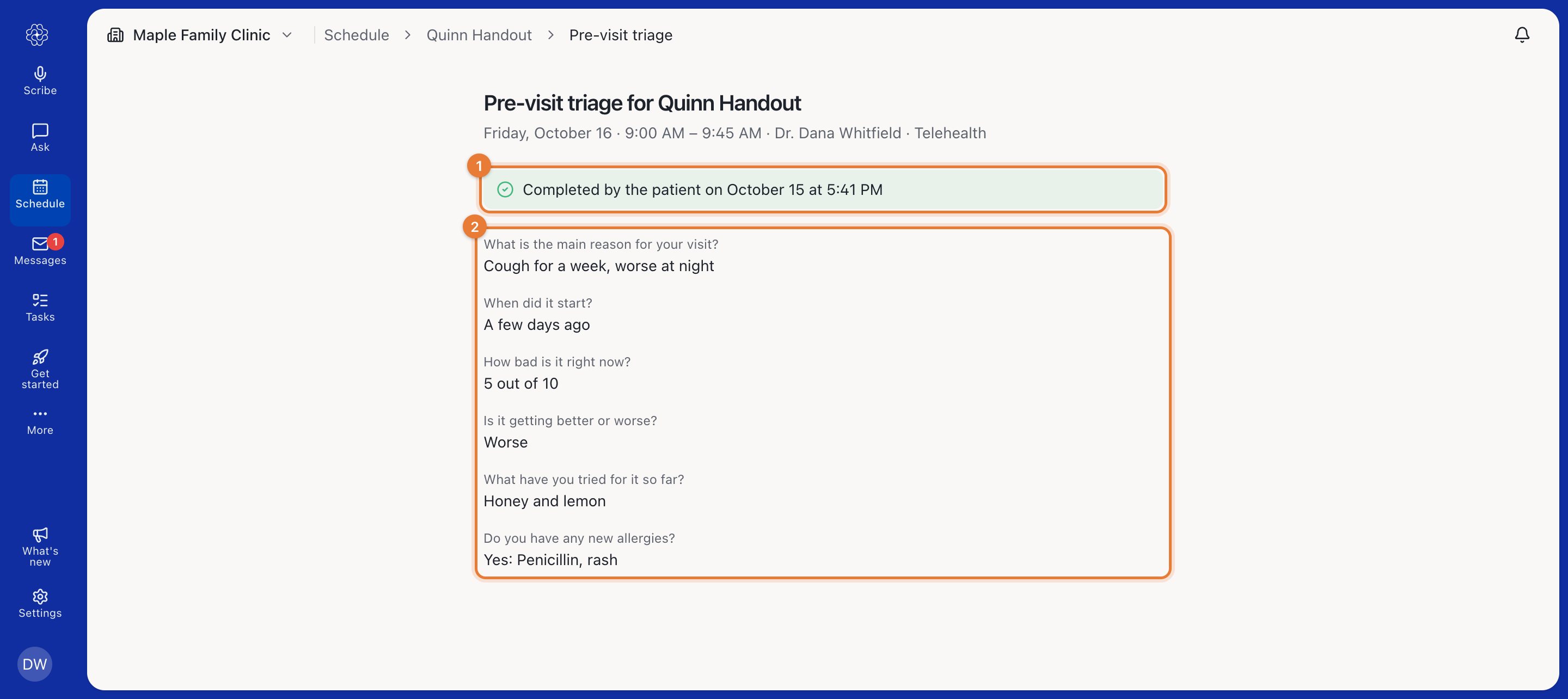
Beside Triage, select View answers.
You can see the answers, who completed the questionnaire and when it was completed. A clipboard icon also appears on the appointment in the calendar.
Once completed, the questionnaire cannot be edited or sent again.
Include the answers in the scribe session
Start the scribe from the appointment. Medulla automatically adds the answers to Additional context for use when generating the note.