
The Schedule is your practice's appointment calendar in the Medulla web app. Everyone in the practice sees the same calendar, and you can book an appointment with anyone in the practice. Open it from Schedule in the left sidebar, or from the bar at the bottom of the screen on a phone.
Find your way around
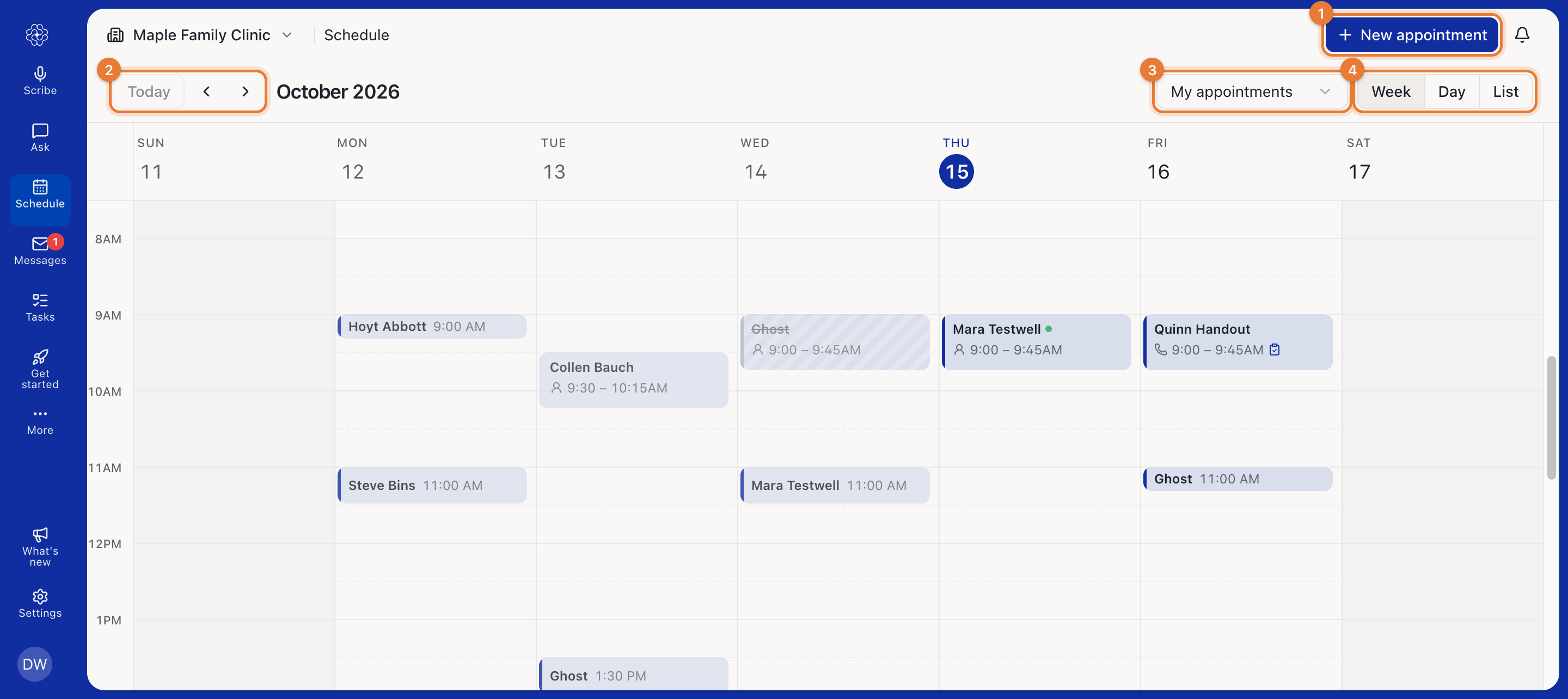
Today and the arrows move the calendar. The title shows the month or week you're looking at.
The filter shows My appointments, Everyone, or one practitioner. Each practitioner has their own colour on the calendar.
Week and Day show appointments on a time grid. List shows the week as a list, one day after another.
Small marks on an appointment tell you more about it: a phone for a telehealth visit, a person for an in-person visit, a check once it's completed, a green dot once the patient has arrived, and a clipboard when the patient has answered their pre-visit triage. Cancelled appointments are struck through.
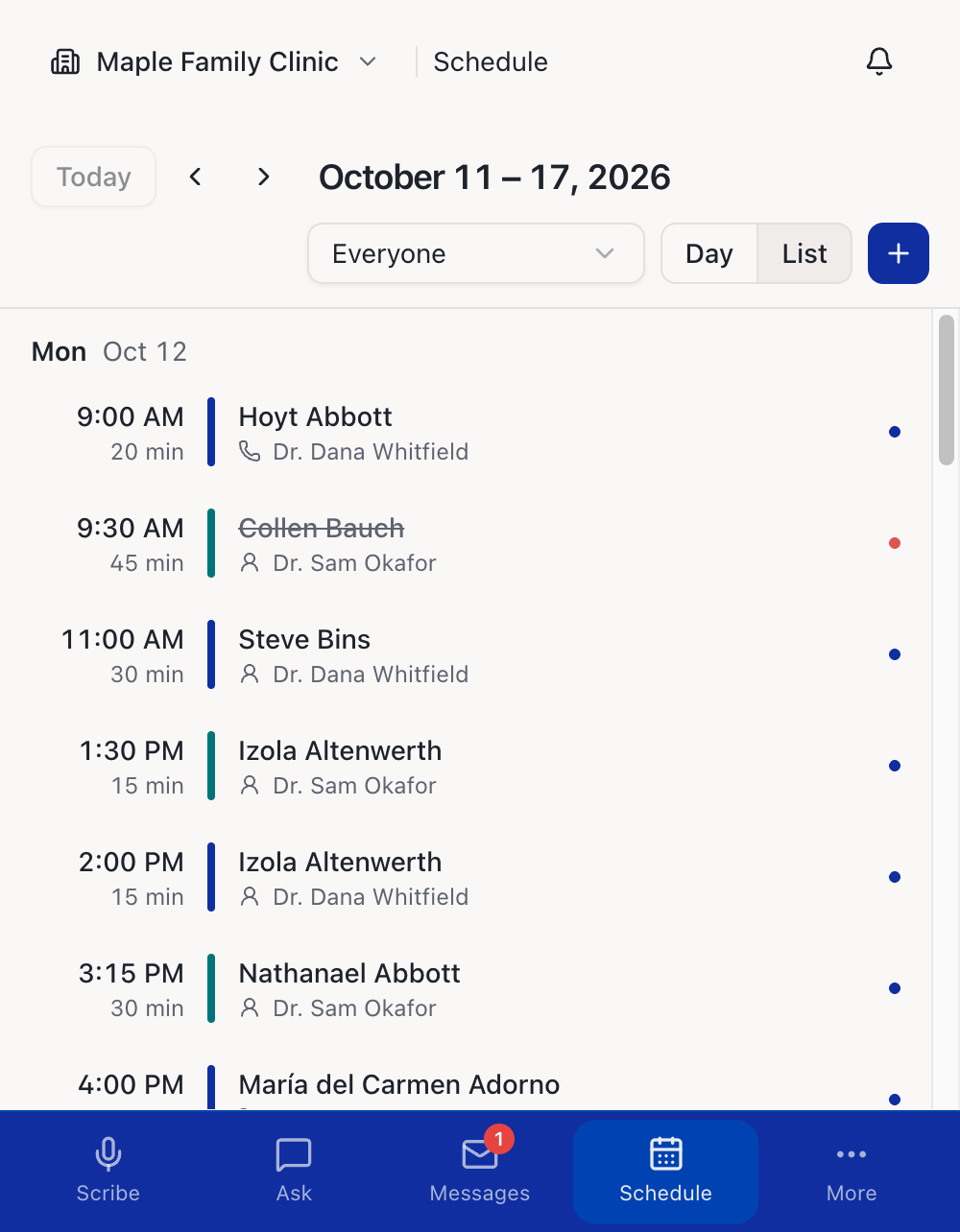
On a phone, the Schedule opens as a list. Tap + to book an appointment.
Book an appointment
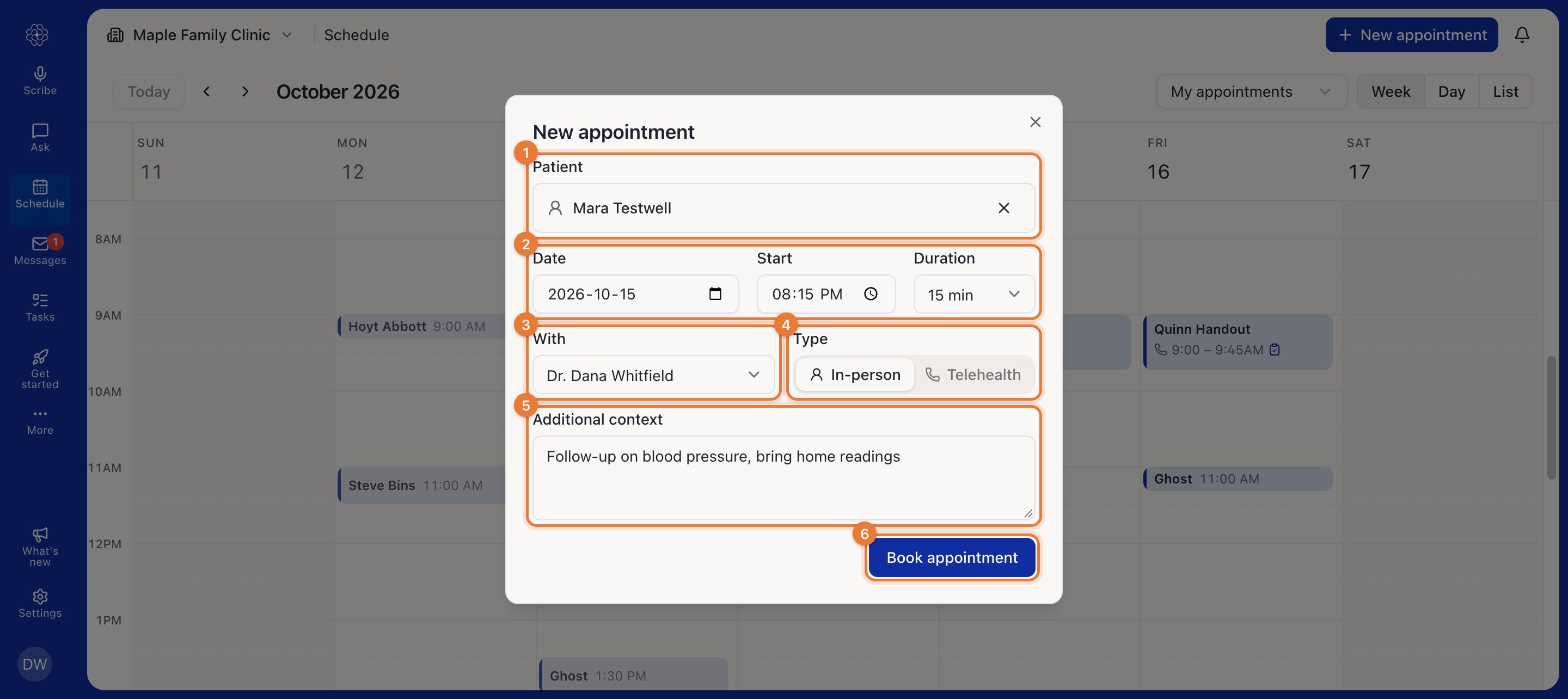
Click New appointment. You can also click or drag across an empty time on the calendar to start a booking at that time.
Click Choose or add a patient and pick the patient. If they aren't in Medulla yet, choose Add new patient. Every appointment needs a patient.
Set the Date, Start time and Duration.
Under With, choose who the patient is seeing.
Choose the Type: In-person or Telehealth.
Optionally add Additional context, such as the reason for the visit or anything to remember. It's passed to the scribe when you start a session from the appointment.
Click Book appointment.
Medulla doesn't stop you from double-booking. If the new time overlaps another appointment for the same practitioner, the form tells you which one, and you can still book it.
Open an appointment
Click an appointment on the calendar to see its details and what you can do with it.
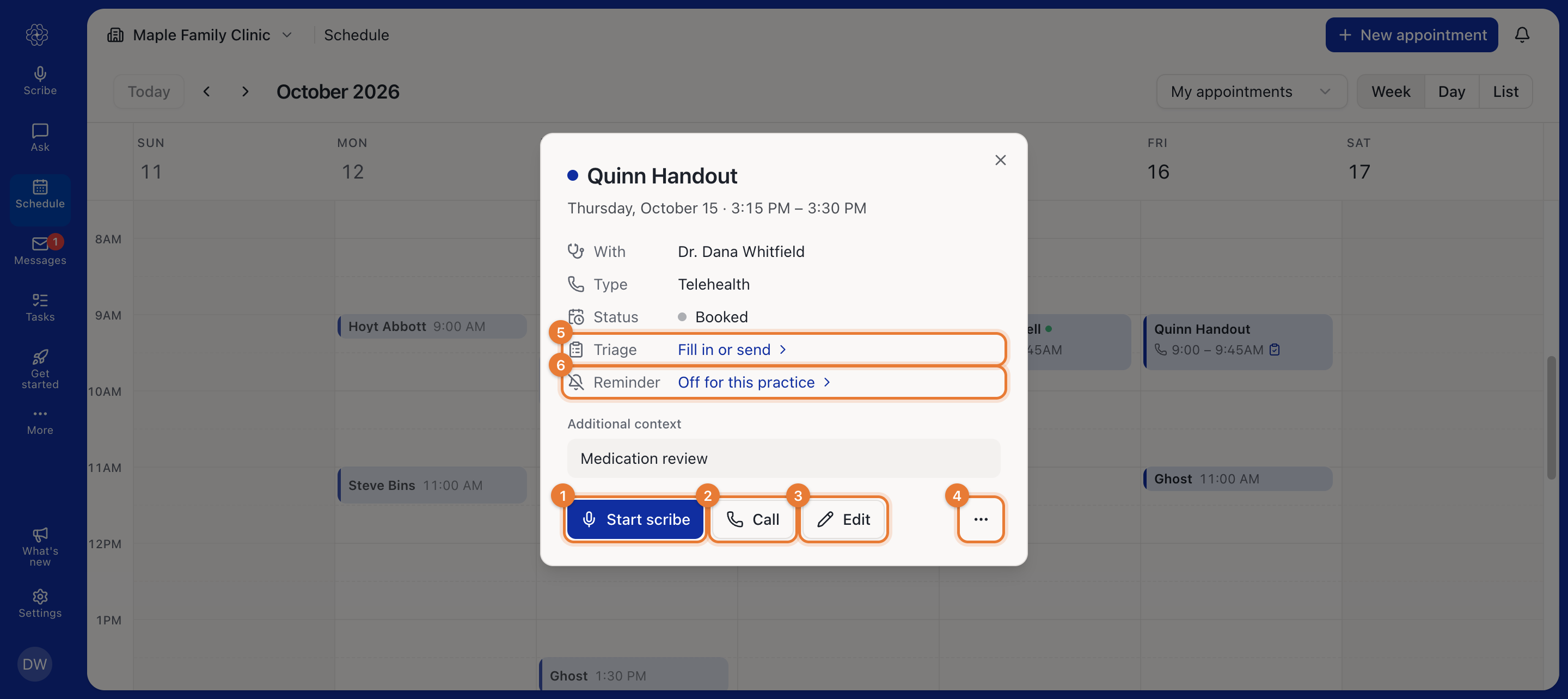
Starting a scribe or a call from here is covered in How to start a scribe or a call from an appointment. The Triage and Reminder rows are covered in How to send a pre-visit triage to a patient and How to turn on appointment reminder emails.
Reschedule an appointment
Drag the appointment to a new time or day, or drag its bottom edge to make it longer or shorter. The edit form opens so you can check the change before saving. Close it to put the appointment back where it was.
Or open the appointment, click Edit, change the date, time or duration, and click Save.
Change an appointment's status
Every appointment starts as Booked. To change it, open the appointment, click the … button and choose a status under Mark as: Arrived, Completed, No-show or Cancelled.
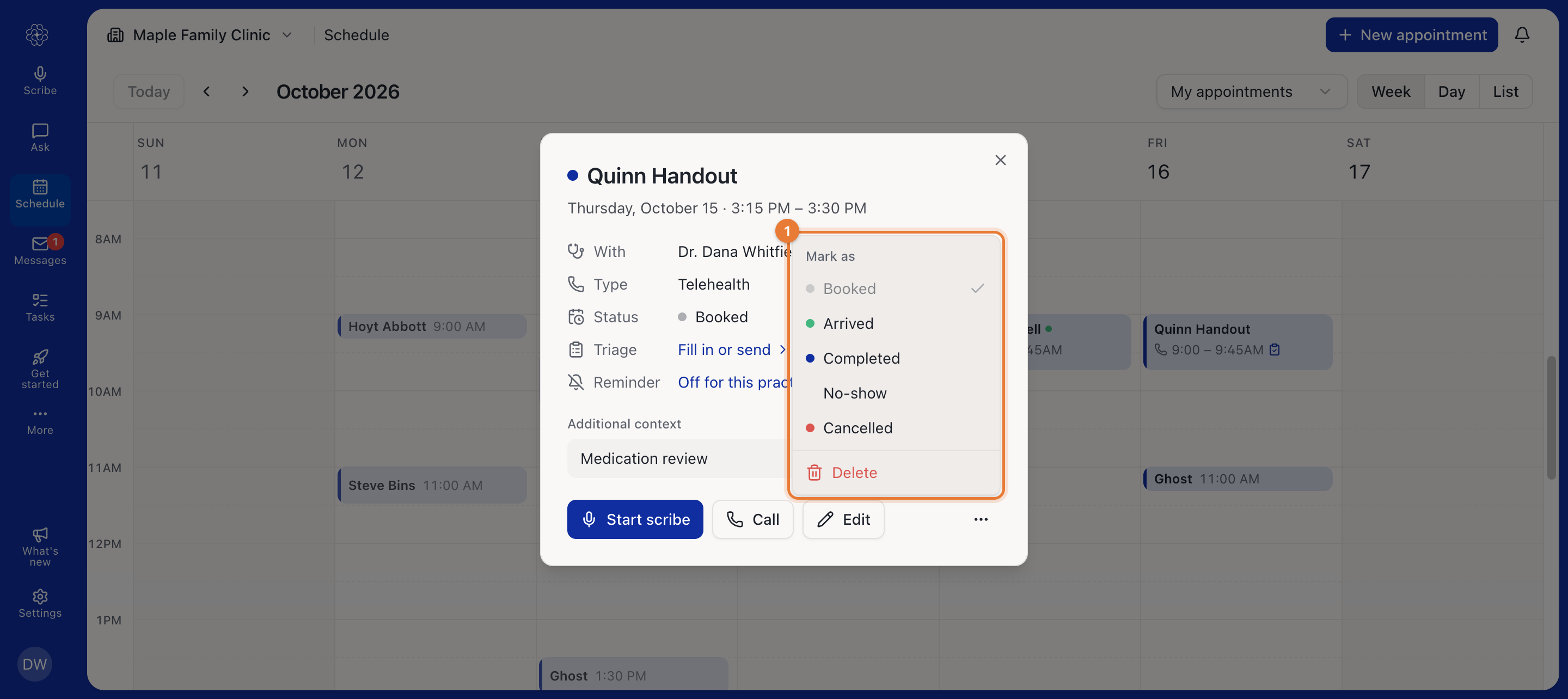
You rarely need to mark an appointment completed yourself. When you start a scribe session from the appointment, Medulla marks it Completed once the recording ends.
Delete an appointment
Open the appointment, click …, then Delete, and confirm. A deleted appointment is removed from everyone's calendar. If you want to keep a record that the visit didn't happen, mark it Cancelled or No-show instead.